

How to Merge Images with This Tool
Four steps. That is genuinely all it takes.
- Upload your images. Click the upload zone or drag and drop files directly onto it. Select multiple at once, JPEG, PNG and WebP all work. The order you select them becomes the left-to-right or top-to-bottom sequence in the merged result. Use the up and down arrows in the image list to reorder before merging.
- Choose a layout. Horizontal places images side by side. Vertical stacks them top to bottom. Grid arranges them in 2, 3 or 4 columns with rows calculated automatically.
- Adjust spacing and color. The spacing slider controls the gap between images in pixels. The background color fills that gap, from solid white or black to any custom hex color you pick. Select transparent if you want PNG output with no gap fill at all.
- Click Merge & Download. The tool processes everything right here on this page and downloads your merged image instantly. Nothing is uploaded anywhere.
The preview updates in real time as you adjust any setting. What you see is what you get.
Horizontal, Vertical or Grid: Choosing the Right Layout
The layout choice does more than change the visual arrangement. It changes the meaning of the image. A side-by-side merge communicates comparison. A vertical stack communicates sequence. A grid communicates collection. Get this wrong and even a technically perfect merge will confuse the viewer.
Merging Images Side by Side
Horizontal merging is the go-to format for comparison. Both images share the same viewing height, which makes it effortless for the eye to scan left-to-right and register the difference. Think of a furniture brand showing a sofa in two different upholstery colors, or a skincare brand presenting a before-and-after treatment result. The viewer does not need to read anything. The images do the work.
It also works beautifully for landscape photography where two shots share the same horizon line, giving the impression of a wider panorama without the distortion of actual stitching. Wide banner compositions for website headers and email campaigns are another solid use case, two related photos joined at the hip with a thin white gap.
Stacking Images Top to Bottom
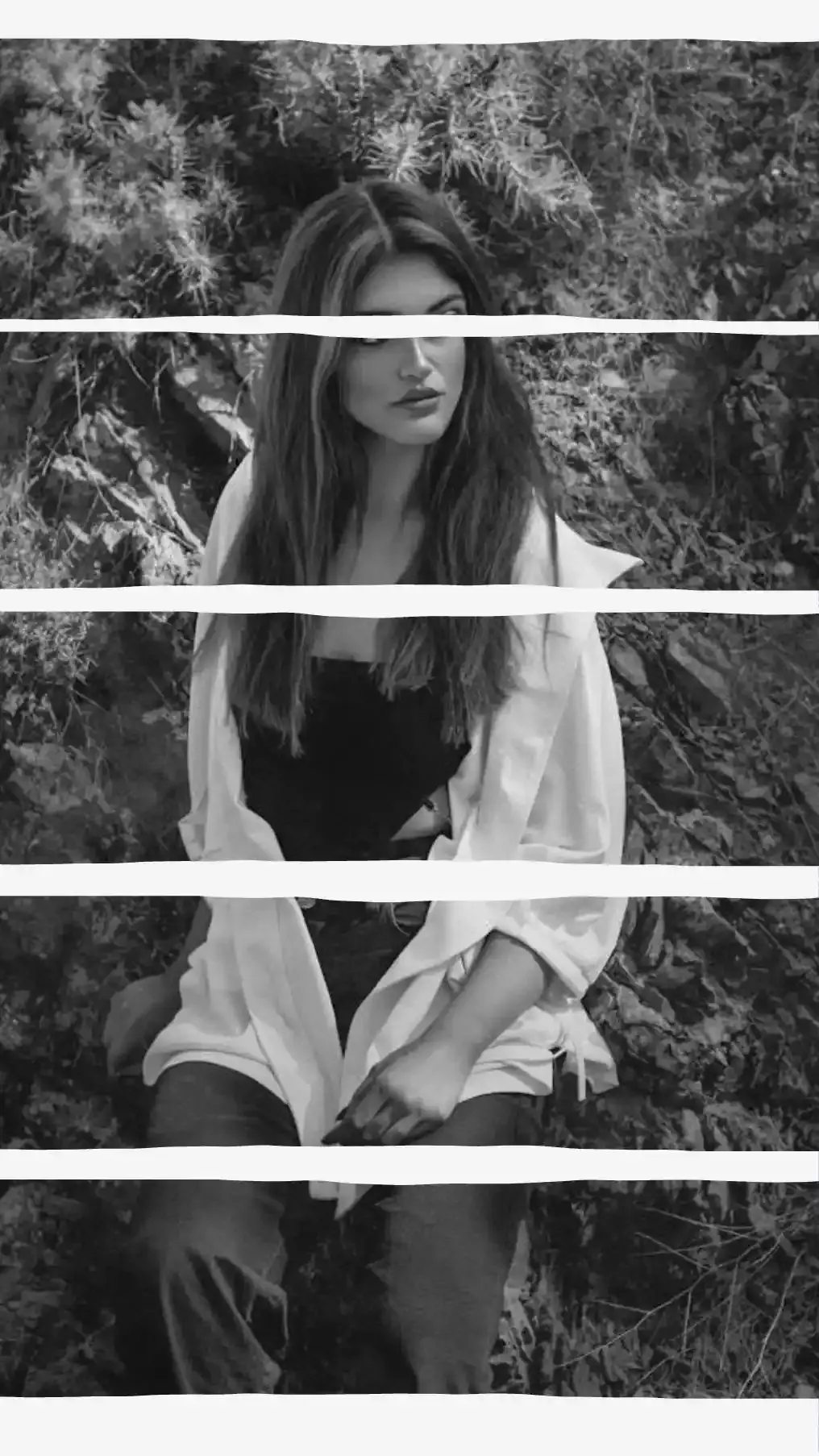
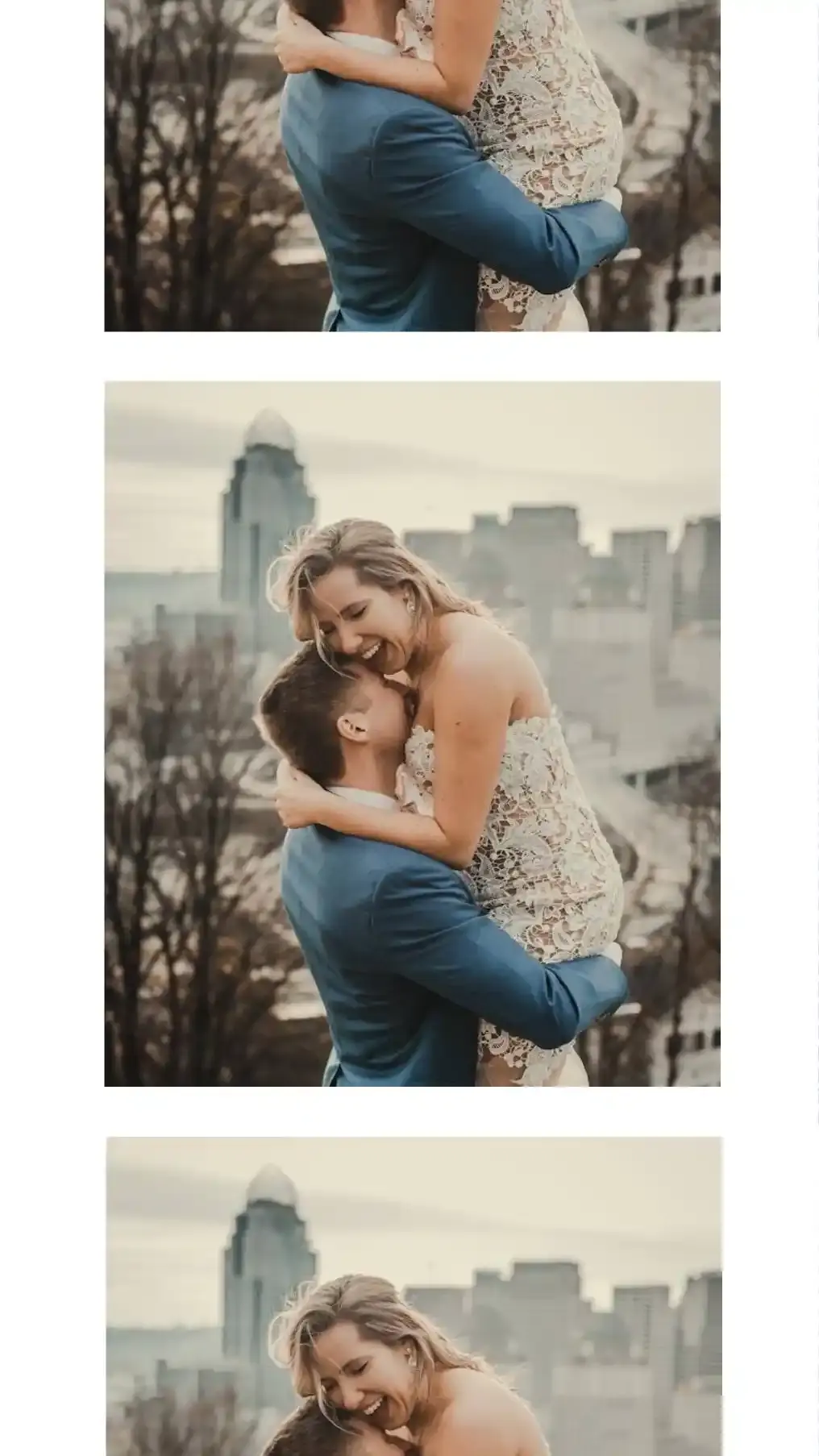
Vertical merging is built for sequence. One thing happened, then another thing happened, then a third. Portrait-orientation photos almost always look better stacked than side by side because the aspect ratios stay intact and the result reads naturally on a phone screen from top to bottom.
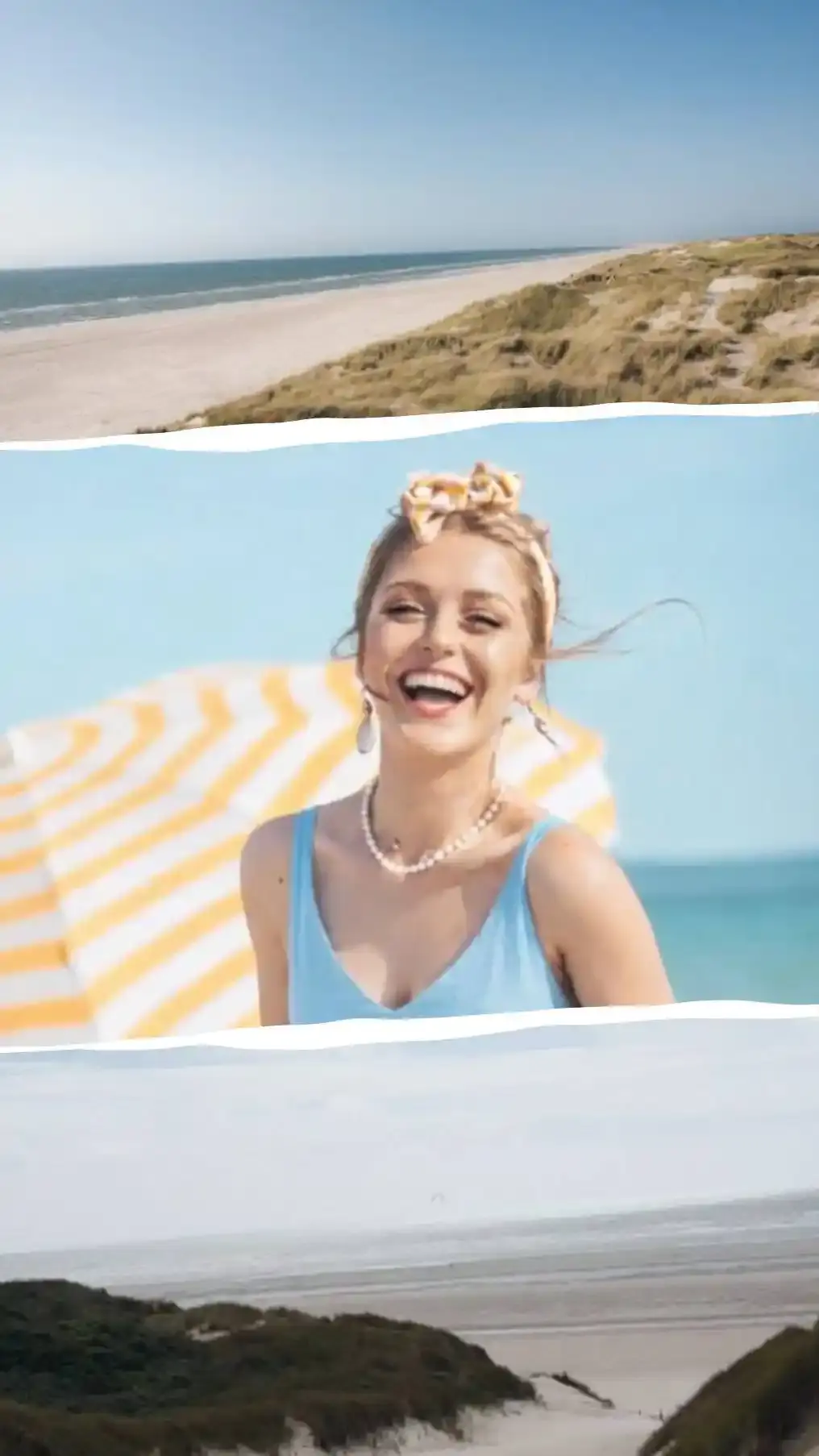
A food photographer showing the raw ingredients at the top, the cooking midpoint in the middle and the finished dish at the bottom is telling a story in three frames. App tutorial creators do this for step-by-step screenshot sequences, which is why you see this format everywhere on Pinterest and tech blogs. The advantage over a carousel is that the entire story exists in one shareable file that loads anywhere instantly.
One practical note: vertical merges can get very tall when stacking several images. If you are targeting a specific platform, use one of the output size presets to constrain the final dimensions so the platform does not compress or crop it unexpectedly.
Using a Grid Layout
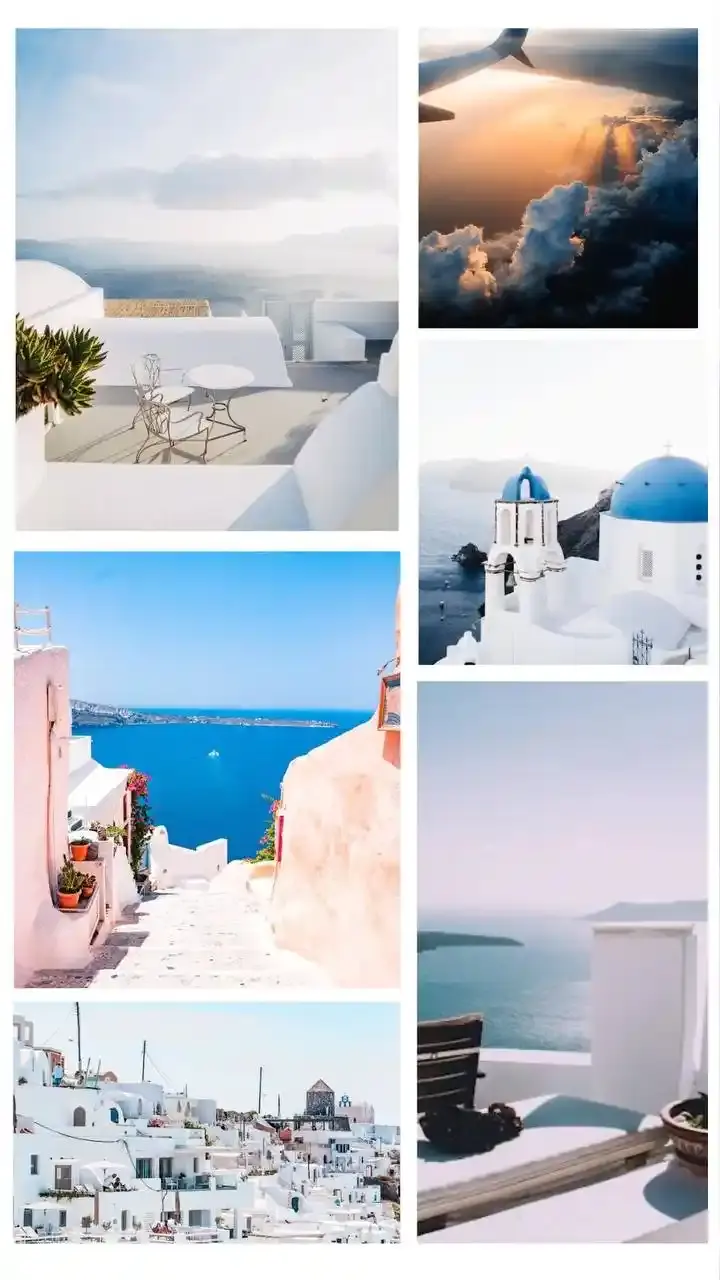
Grid is the format for collections. It makes no attempt to suggest a narrative order. The visual effect is more like a catalog page or a mood board, where every image is equally important. Choose 2 columns for a clean two-by-X layout, 3 columns for a denser overview, or 4 columns for a tight thumbnail grid.
The Fit Mode option inside grid layout matters a lot. Crop fills each cell completely, trimming the edges of images that do not match the dominant aspect ratio. This gives a uniform, polished look. Fit preserves the entire image inside its cell but adds background color padding around it, which suits product photos where cropping would cut off important details. Stretch distorts images to fill their cells exactly, which is occasionally useful for abstract or texture images but generally to be avoided for anything photographic.
Merging Images for Social Media
Every platform has pixel dimension recommendations that actually matter. Upload a merged image at the wrong size and the platform will compress it, add white bars, or crop the edges before it ever reaches your audience. The output size presets in this tool match the current recommended dimensions.
Instagram Posts and Stories
The Instagram Post preset outputs at 1080×1080 pixels, the standard square format. A horizontal merge of two product photos at 1080×1080 creates a clean comparison post without any cropping from Instagram's feed display. For portrait posts at the 4:5 ratio (1080×1350), there is no dedicated preset here, but using the vertical layout with two portrait-oriented images and zero spacing naturally produces output close to that ratio.
The Instagram Story preset outputs at 1080×1920 pixels, matching the full-screen 9:16 Story and Reels cover format. Stack two images vertically using this preset for a before-and-after Story that fills the entire screen. Renovation accounts, fitness coaches and skincare creators use this format constantly because the full-screen before-and-after is one of the highest-engagement content formats on the platform.
If your goal is to split a single wide photo across your entire Instagram profile grid so the tiles assemble into a panoramic when viewed on your profile page, the Instagram Grid Maker tool handles that specific workflow with automatic posting order numbering.
Twitter/X and Facebook
The Twitter/X preset outputs at 1600×900 pixels, which matches the recommended inline image size for the timeline. A horizontal merge of two images at this size produces a clean two-panel post that looks intentional rather than accidental. The wider-than-tall format also works well for before-and-after comparisons because both images appear at a comfortable viewing size without the user needing to tap to expand.
The Facebook preset outputs at 1200×630 pixels, matching the recommended open graph image size for posts and link previews. At this wider landscape ratio, horizontal merges fit naturally. Vertical merges will be letterboxed with your chosen background color filling the left and right sides.
JPEG, PNG or WebP: Picking the Right Format After Merging
This is one of those questions that nobody seems to answer clearly, so here is the practical breakdown.
JPEG is the right choice for photographs with gradients, skin tones, natural landscapes and any image where subtle tonal variation matters. It produces smaller file sizes than PNG at equivalent visual quality. The tradeoff is that JPEG uses lossy compression, meaning it discards some fine detail to achieve the smaller size. This tool defaults to 100% quality, so you get maximum-quality JPEG output out of the box. The quality slider is there for when you deliberately want a smaller file for web use. Avoid JPEG if your merged image contains text overlays, sharp logos or flat-color graphics because JPEG compression creates visible artifacts around high-contrast edges.
PNG is lossless. It discards nothing. The output file is larger but the pixel data is preserved exactly as rendered. PNG is the right choice when your merged image contains text, logos, flat-color graphics, or when either of your source images was a PNG with a transparent area. It is also the only format here that supports a fully transparent background, which matters if you plan to use the merged image on top of a colored background in another tool.
WebP is the modern option. It delivers smaller files than both JPEG and PNG at equivalent visual quality. As of 2026, WebP is supported natively in Chrome, Edge, Firefox and Safari (since version 14). If you know your audience is on modern devices and web performance is a priority, WebP is the smart pick. One exception: not all design tools, legacy email clients or older third-party platforms handle WebP correctly. For anything going into email campaigns or being shared widely across unknown platforms, JPEG remains the safer universal choice.
Does Merging Images Reduce Quality?
Not with this tool. The short answer is no.
We processes your images at their native pixel dimensions. If you upload a 3000×2000 photo alongside a 2400×1600 photo and merge them horizontally, the tool normalizes both to the same height at full resolution, then draws them side by side. The merge operation itself introduces no quality loss. No resampling, no compression, nothing discarded.
Quality loss can only come from two deliberate choices you make. First, reducing the JPEG quality slider below 100%. Its rendered at perfect quality regardless. The slider only applies compression at the export stage, and only if you choose to lower it. Leave it at 100% and there is no JPEG quality loss at all. Second, choosing an output size preset that is smaller than your source images. If you upload two 4K photos and export as an Instagram Post (1080×1080), we scale the layout down to fit. The output looks sharp at typical display sizes but the full original resolution is not preserved. If resolution matters, always export at Original size.
For print use specifically: export as PNG at original size and check with your print service provider about required DPI. Screen images are typically captured at 72 DPI. Most print services require 300 DPI for sharp results. The file dimensions tell you the total pixel count. Whether those pixels meet print DPI requirements depends entirely on how large you intend to print the image.
What People Actually Use Image Merging For
The tool is simple. The use cases are not. Here is where image merging earns its keep in real-world workflows.
Before and After Comparisons
The most common use case by a significant margin. Merge the before image on the left and the after image on the right with horizontal layout and zero spacing for maximum impact, or a thin white gap for a cleaner visual separation. The result communicates transformation instantly, without a caption, without a swipe and without the viewer having to remember what they saw two seconds ago.
Renovation contractors, personal trainers, makeup artists, skincare brands, dentists, landscapers and photographers all rely on this format. It is arguably the most persuasive single-image format in professional visual communication because it shows evidence rather than asserting it.
Product Photography Side by Side
E-commerce sellers regularly need to show color variants, size options or packaging versions without forcing customers to click through a product carousel that many users never explore. A shoe brand merging three colorways side by side into a single image turns a browsing interaction into a direct visual comparison. The same logic applies to paint swatches, fabric samples, phone case designs and food packaging variations.
Tutorial and Step-by-Step Content
Stack sequential screenshots or process photos vertically to show steps 1, 2 and 3 in a single image. App tutorial creators, cooking bloggers, craft instructors and DIY channels use this format constantly because one image with three labeled frames is easier to save, share and reference than three separate images or a video clip. It pins well, it embeds cleanly in blog posts and it works perfectly in how-to articles where image carousels are not supported.
Mood Boards and Design References
A 2×2 or 3×3 grid of reference images tells a visual story faster than any written brief. Designers, interior decorators, brand consultants and creative directors use merged grids to compile direction, present options to clients or align a team around a visual aesthetic. Building this in a design tool takes ten minutes. Merging four reference images here takes twenty seconds.
More Ways to Work with Your Photos
Merging puts images cleanly side by side or into a grid. For more expressive, creative layouts with overlapping photos, decorative frames, stickers and text, CollagePhotoApp is the natural next step. It is free on iOS and Android and gives you a full collage editor with dozens of templates. New to it? Our how to make a collage on your phone guide walks through the simple process step by step.
If you need to split a single photo into a grid for your Instagram profile, the Instagram Grid Maker tool handles that with automatic posting order numbering so each tile lands in the correct position.
Frequently Asked Questions
Does this tool upload my images to a server?
No. Everything is done right here on this page itself. Your images are never uploaded anywhere and never leave your device. This is true regardless of how large your files are or how many images you merge.
How many images can I merge at once?
There is no hard limit built into the tool. In practice, most modern browsers handle 10 to 15 images at standard resolutions without performance issues. For very large files (say, 20 megapixel camera shots) or very large numbers of images, you may notice slower preview generation. Merging in smaller batches and then merging the results solves this cleanly.
What image formats can I upload?
JPEG, PNG and WebP. The output can be saved in any of those three formats. Use PNG output when your source images contain transparent areas and you need to preserve that transparency. Use JPEG or WebP when file size matters and your images are photographs without transparent areas.
Will merging images reduce the quality?
Not with the default settings. JPEG quality defaults to 100%, so there is no compression loss. PNG output is always lossless. We process images at full pixel resolution throughout. Quality reduction only happens if you deliberately lower the JPEG quality slider, or if you export at a size preset smaller than your original images.
How do I merge images side by side?
Upload your images using the upload zone or drag and drop, select Horizontal layout, adjust the spacing to your preference and click Merge & Download. The tool places images left to right in the order they appear in the image list. Use the up and down arrows to change the order before merging.
What is the difference between merging images and making a collage?
Merging places images directly adjacent to each other in a clean linear or grid arrangement, with optional spacing between them. The result is structured and precise. A collage is a more creative format, typically involving overlapping images, free positioning, decorative frames, stickers and text elements. For full collage creation on your phone, CollagePhotoApp is the right tool for that workflow.