





What an Instagram Grid Actually Is
When someone visits your Instagram profile, they see your posts arranged in a 3-column grid, newest at the top-left and oldest toward the bottom-right. That layout is not random. It is a fixed display system that shows every post you have ever made in chronological reverse order.
Most people never think about it. A few people use it deliberately. Those are the accounts where the entire profile page looks like a single cohesive artwork rather than a random collection of photos.
The Panoramic Post Effect
The panoramic grid trick works like this: take one wide image, split it across three (or six, or nine) individual tiles and post each tile as a separate photo. When someone visits your profile, the tiles line up side by side and the full image appears across your grid. You have seen travel accounts do this with canyon shots. Fashion accounts do it with editorial spreads. Product brands do it to create visual impact during launches.
The challenge is not the splitting. The challenge is knowing which tile to post first.
How Instagram Orders Your Photos
Instagram shows your most recent post in the top-left cell of your profile grid. Every new post you make pushes all existing posts one position to the right, then down to the next row when it reaches the right edge. This means the bottom-right cell is your oldest visible post.
For a panoramic grid to look correct, you must post the bottom-right tile first (it will sit at the far right of the bottom row once all tiles are published) and the top-left tile last (it will be your most recent post and appear at the top-left of your grid). Our tool numbers files with this logic built in, so file 01 is always the first to post and the highest-numbered file is always last.
Grid Posts vs Carousel Posts
People often confuse these two formats. They look similar in some feeds but work very differently.
Grid posts (what this tool creates) are separate individual posts that happen to share visual continuity when viewed together on your profile. Each tile gets its own caption, its own engagement metrics and its own place in the algorithm. Posting a 3x3 grid means publishing nine separate posts over a short window.
Carousel posts are a single post containing up to 10 images. Viewers swipe through them in the order you chose. The first image shows in the grid, the rest are hidden until someone taps. No special posting order required.
If your goal is a visual profile page, use the grid approach. If your goal is telling a story or showing a sequence in a single post, use a carousel.
Instagram Grid Sizes Explained
The 3-column structure of Instagram's profile grid means any grid you create should have 3 columns to align perfectly. Row count determines how many rows of your profile the image spans.
3×1 Grid (3 Tiles)
One row across the full width of your profile. Good for a wide panoramic that you want to feature at the top of your feed. Takes up one row when complete. Post tile 1 first, tile 3 last.
3×2 Grid (6 Tiles)
Two rows. A solid choice for product launches or event announcements where you want visual impact without committing to nine separate posts. The image spans two rows of your profile. Post tile 1 first, tile 6 last.
3×3 Grid (9 Tiles)
The most popular option. Nine tiles that form a perfect square on your profile page. Post tile 1 first, tile 9 last. The full image only assembles correctly once all nine are published, so post quickly and do not mix other content in between.
3×6 Grid (18 Tiles)
Six rows. Eighteen separate posts. This is a serious commitment that transforms your entire visible profile into one massive image. Brands use it for major relaunches. Creators use it to mark a new chapter. Done well, it is one of the most striking things you can do on Instagram. Done poorly, it is very hard to undo. Post tile 1 first, tile 18 last.
Posting Your Grid in the Correct Order
This is the step that most guides skip. Getting the posting order wrong means your panoramic image displays backwards, upside down or scrambled, and you either have to delete nine posts and start over or live with the mess.
Here is exactly how it works for a 3×3 grid:
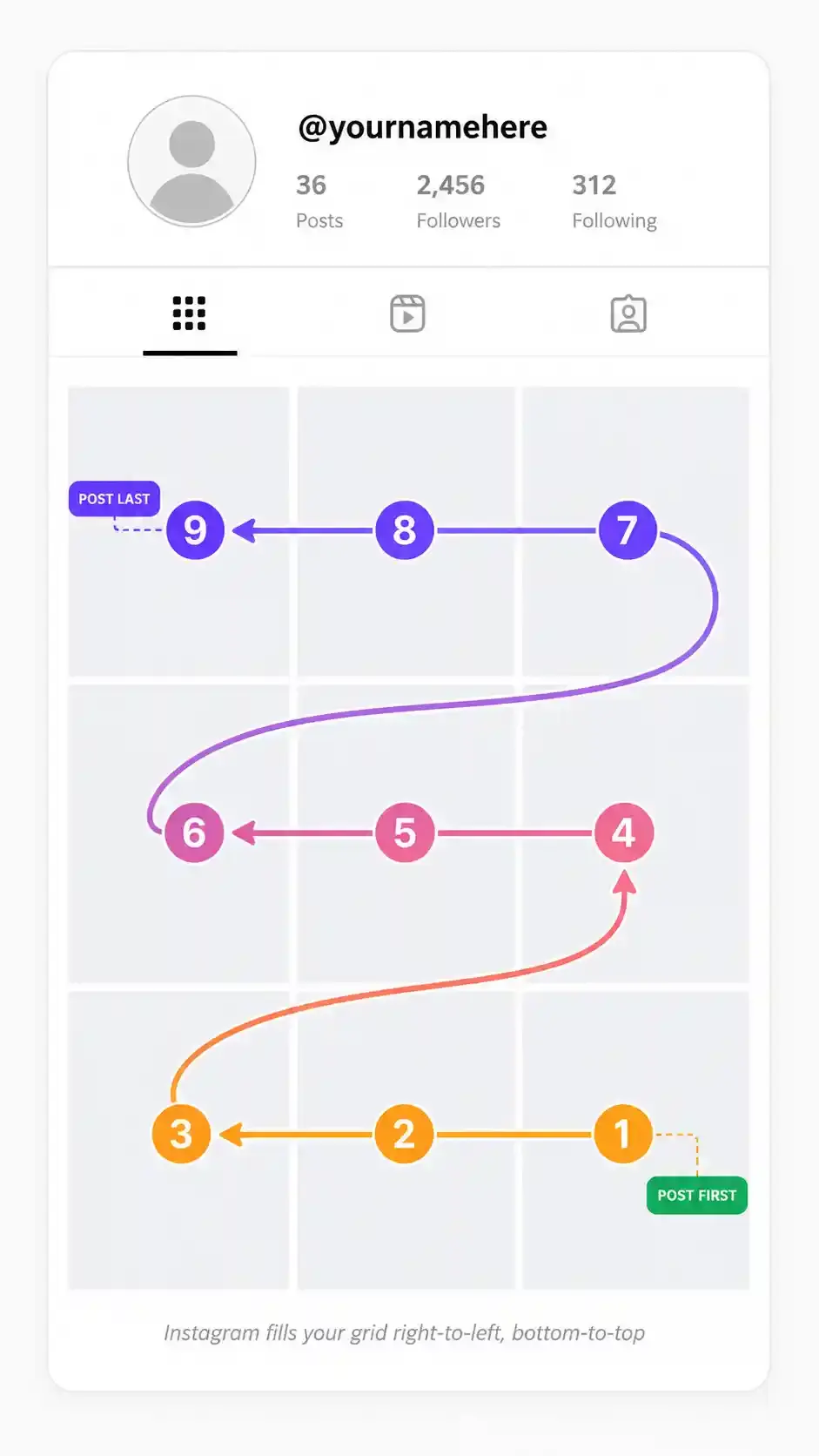
The golden rule: post the lowest-numbered tile first and the highest-numbered tile last. Our ZIP file uses this numbering, so just post them in ascending order from the filename.
One practical tip: schedule all tiles to post a few minutes apart, or post them in rapid succession manually. If you post tile 1 and then wait two days before posting tiles 2 through 9, other posts will break your grid.
Tips for a Scroll-Stopping Grid Layout
- Use high-contrast edges. When the grid assembles, the seam between tiles is invisible only if the image has enough detail or contrast near the cut lines. Flat gradients work perfectly. Busy patterns with random colors look choppy.
- Avoid centering faces on tile borders. A face split in half across two tiles looks terrible in the individual post view and in the grid view. Center faces within a single tile.
- Plan the full grid before posting any tile. Once you post the first tile, you are committed. Sketch the full image on paper or in a design app, then split with this tool.
- Check the individual tile view. Each tile must work as a standalone post. A tile that is just a flat blue sky with no subject looks bizarre in isolation, even if it is part of a spectacular panoramic.
- Write captions that stand alone. Your tile captions appear individually in followers' feeds. Each one needs to make sense without the full context of the panoramic.
Frequently Asked Questions
What order do I post Instagram grid tiles in?
Post the lowest-numbered file first and work up to the highest-numbered file last. For a 3×3 grid, post tile 01 first, then 02, 03 and so on, ending with tile 09. Our tool numbers files using this logic, so posting in ascending filename order is always correct. See the posting order diagram above for a visual guide.
Does this tool upload my images anywhere?
No. All processing happens entirely here only. Nothing is sent to any server. Your images stay private.
What happens if I post my grid tiles in the wrong order?
The panoramic image will appear scrambled or reversed on your profile. The only fix is to delete all the tiles and start over, then post them in the correct order. There is no way to reorder existing posts on Instagram.
What grid sizes can I create?
The tool runs from 1 to 10 columns and 1 to 20 rows, so a grid can be as small as 3 tiles or as large as 200. Instagram shows three posts per row on your profile, which is why 3x3 for nine tiles and 3x6 for eighteen are the two counts most people pick.
Can I use a portrait or landscape aspect ratio instead of square?
Yes. The tool supports 1:1 (square), 4:5 (portrait), 3:4 (tall portrait), 16:9 (landscape) and 9:16 (story-style). Portrait tiles (4:5 or 3:4) give more screen space in the feed but your profile grid will show them cropped to a square thumbnail.
Will Instagram crop my tiles after I post them?
Instagram crops images to a square thumbnail in the profile grid view regardless of the original aspect ratio. In the feed view, Instagram shows the full image within the chosen aspect ratio. For the panoramic effect to work perfectly in the profile grid, use the 1:1 (square) aspect ratio.
What is the difference between grid posts and carousel posts on Instagram?
Grid posts are separate individual posts that line up on your profile page and only connect visually once every tile is published. Each tile carries its own caption and its own engagement. A carousel is one post holding several swipeable images. Grid posts live or die by the posting order. Carousels do not.
What is the difference between Crop, Fit and Stretch modes?
Crop scales your image to fill the entire grid and trims any overflow at the edges. Fit scales it to fit inside the grid without any cropping, adding padding in the gap color around the edges. Stretch forces the image to fill exactly, which may distort its proportions.
Can I add a gap or border between tiles?
Yes. Use the Gap Size slider to set the space between tiles and the Gap Color picker to choose the color. The transparent gap option creates see-through gaps and requires PNG output.
Does the tool work on mobile?
Yes. The tool is fully responsive and works on iPhone and Android browsers. Canvas processing is slightly slower on mobile for very large grids, so using the Original or 720px resolution option will give you the fastest experience.
What resolution should I use for Instagram?
Instagram recommends a minimum width of 1080px for feed posts, per their help documentation. The Original option uses your source image's natural resolution (up to 1440px per tile), which is usually the best choice. Use the 1080px option if your source image is smaller than 1080px wide per tile and you want to upscale.
What file formats can I upload and download?
JPG, PNG and WEBP go in. Tiles come out as JPG for smaller files on photos or PNG when you want lossless quality and transparent gaps.
How do I make a collage for Instagram Stories instead of the grid?
Stories use a 9:16 vertical format, not the grid. For story collages, see our guide on how to make an Instagram story collage or try CollagePhotoApp on iOS and Android for full creative control with templates, text and filters.
Can I recover a partial grid if I deleted some tiles by mistake?
You can re-split the original image at any time using the same settings and download the specific tiles you need. Just use the same column and row count, the same aspect ratio and the same resolution as your original split to ensure the tiles match exactly.