How to Make Instagram Story Collage
Learn how to make an Instagram story collage with Instagram and CollagePhotoApp. Step-by-step guide for iOS and Android with design tips.

Quick answer: To make an Instagram story collage, open the Stories camera, tap the Layout icon on the left side of the screen and add your photos to the grid. For a more polished result with custom templates, text and filters, use CollagePhotoApp (free, iOS & Android), design your collage in 9:16 and share it directly to Instagram Stories.
Making a collage for your Instagram Story lets you pack multiple photos into a single frame. One Story post, multiple moments, no need to flood your followers with several separate stories.
This guide covers three ways to make an Instagram story collage: using Instagram's built-in Layout tool, layering photos with the photo sticker method and using CollagePhotoApp for full creative control. We also include design tips and a troubleshooting section for the most common problems people run into. If you want a broader guide to making photo collages on your phone beyond Instagram, see our how to make a collage on your phone guide.
Using Instagram's Built-In Layout Tool
Instagram's Layout feature is the fastest native way to arrange multiple photos into a grid inside your Story. It is free, built directly into the main Instagram app and works on both iOS and Android.
Note: Instagram discontinued its standalone "Layout" app in May 2024. You no longer need a separate app because the Layout feature now lives inside the Instagram Stories camera itself.
Step 1: Open the Instagram Stories Camera
Swipe right from your Instagram home feed or tap your profile picture at the top of the screen to open the Stories camera.
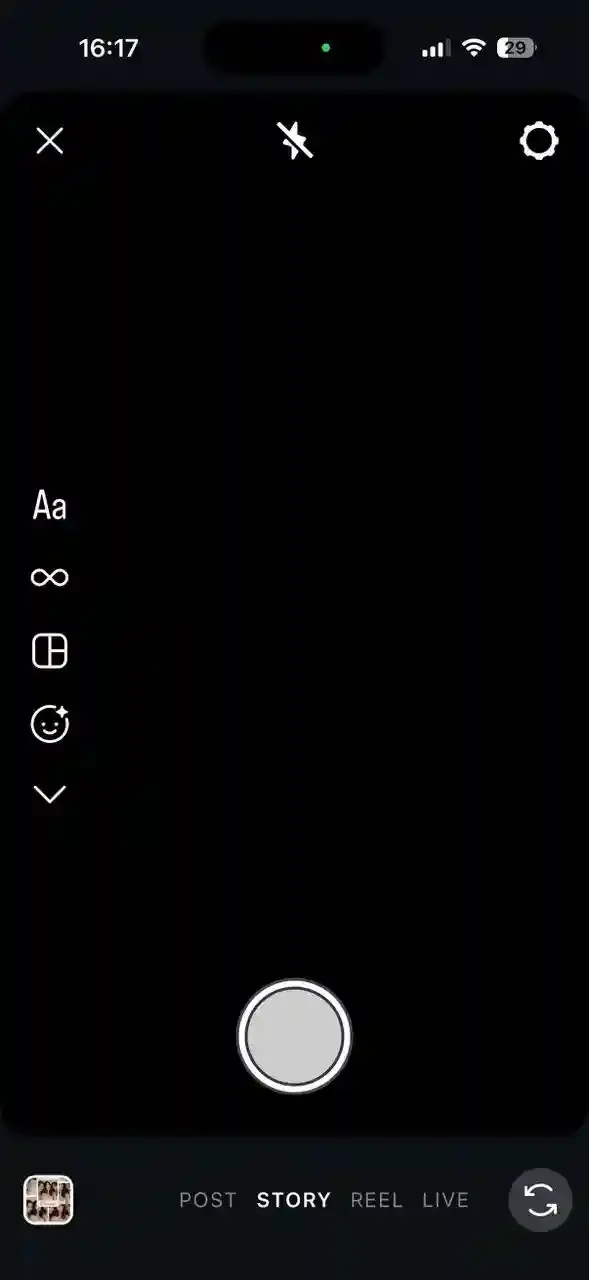
Step 2: Find and Tap the Layout Icon
On the left side of the Stories camera screen, tap the Layout icon. It looks like a small grid of squares divided into sections. Tapping it switches the camera view into Layout mode.
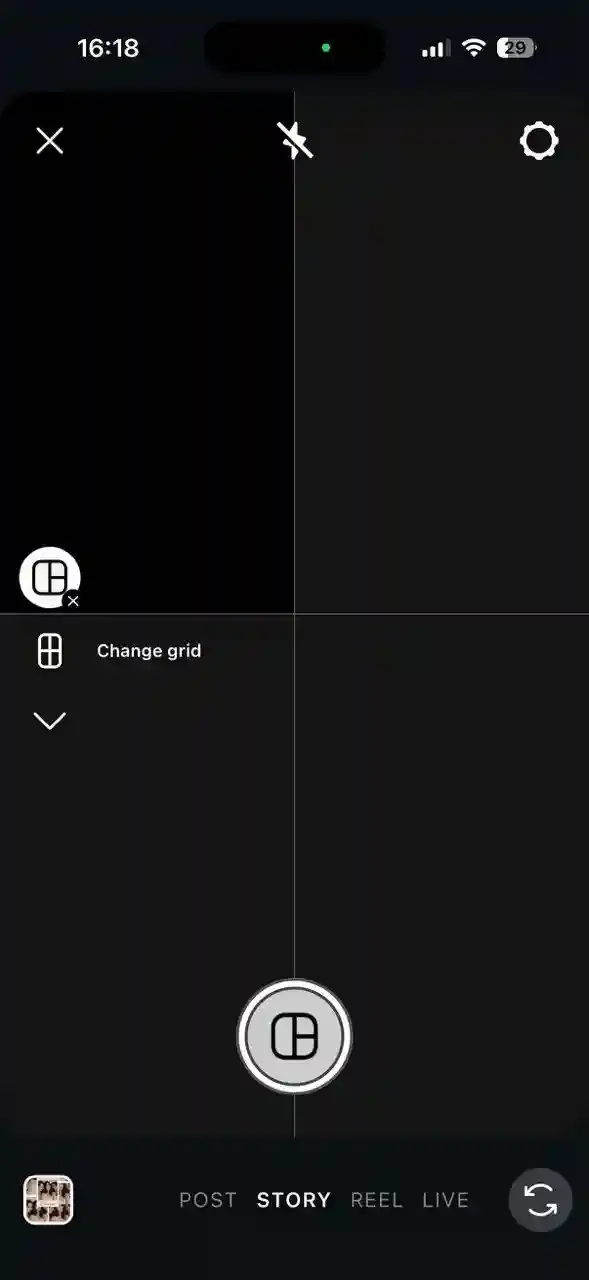
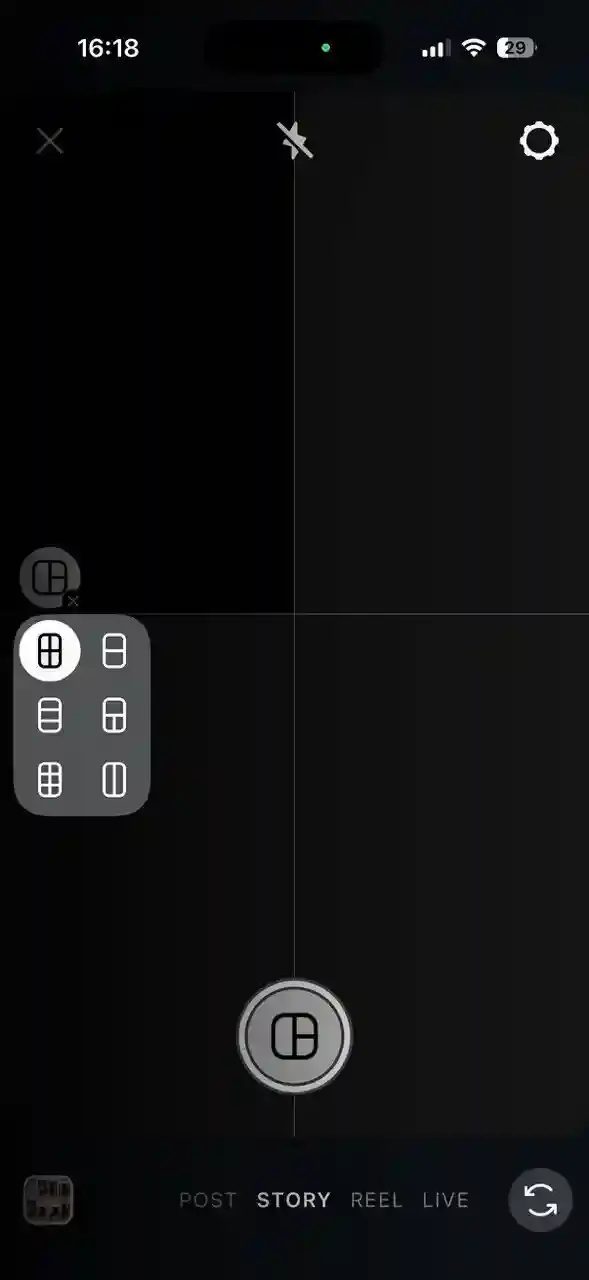
Step 3: Pick a Grid Pattern
Tap the grid icon at the bottom of the screen to cycle through the available patterns. You can combine 3, 4 or 6 photos depending on the grid you select. Choose the one that fits the number of photos you want to share.
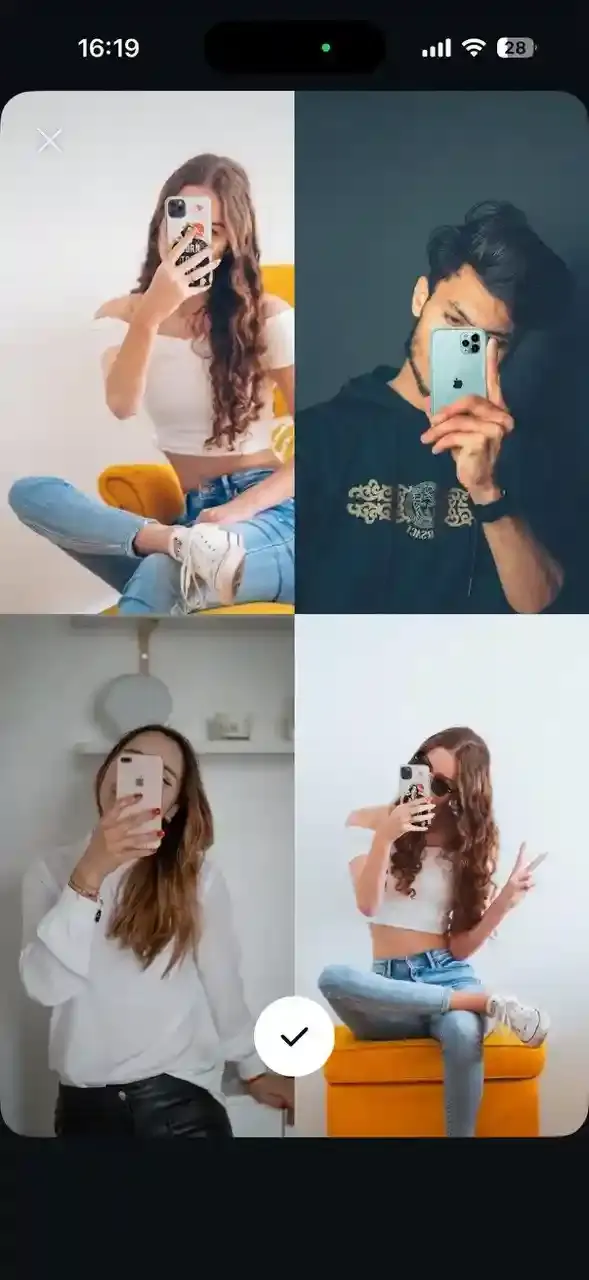
Step 4: Fill Each Photo Slot
Tap each empty section of the grid. You can either take a live photo with the camera or tap the image icon to pick from your camera roll. Fill every slot to complete the collage.
Step 5: Add Final Touches and Share
Once all sections are filled, tap the arrow or check mark to lock in the layout. You can then add text, stickers, music or drawings from the standard Stories toolbar. Tap Your Story to post.
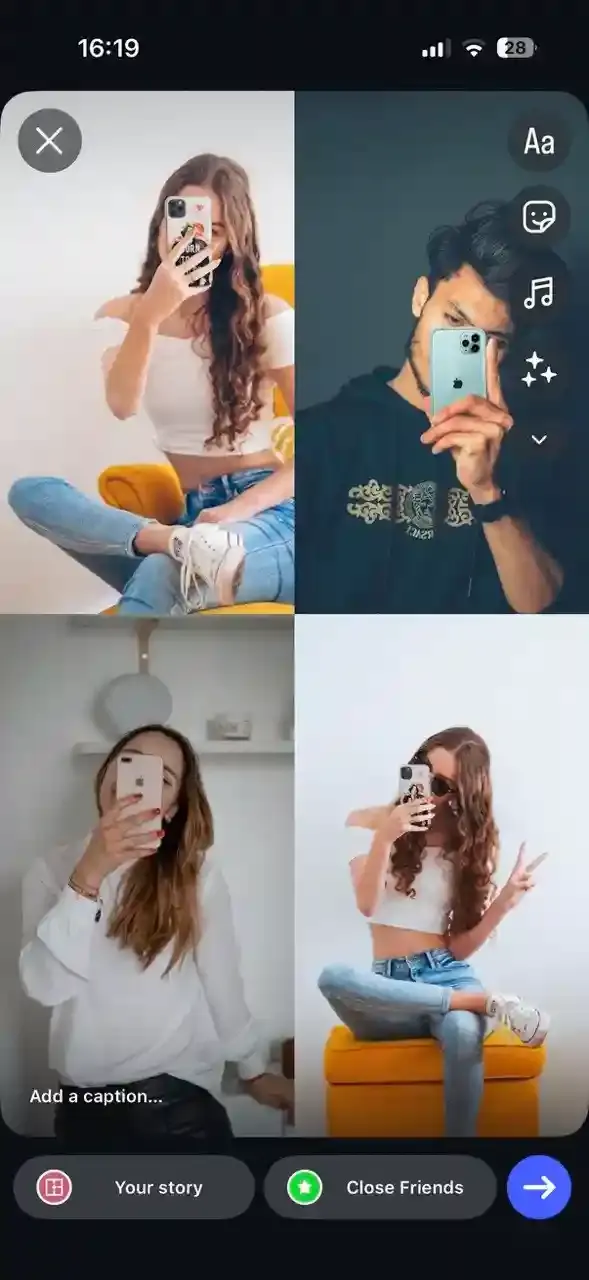
What the Layout tool does well: Quick, clean photo grids with no extra apps needed.
Where it falls short: Photos snap into fixed sections and cannot be moved, resized or freely overlapped. There are no options for adjusting spacing, applying filters or adding frames inside Layout. For more creative control, see the methods below.
Freeform Story Collage with Photo Stickers
If you want photos placed freely, overlapping or at different sizes, the photo sticker method gives you that flexibility inside Instagram Stories without needing any extra app.
Instagram also introduced a new Collage feature in late 2024 that works similarly. If you see a "Collage" option in your sticker tray, it lets you select multiple photos and arrange them in a flexible layout. This feature is still rolling out gradually and not all users have it yet. The photo sticker steps below work for everyone regardless of app version or region.
Step 1: Set Your Background
Open the Stories camera and capture a photo or video, or swipe up (on Android, tap the gallery icon) to upload a background image from your camera roll. This becomes the base layer of your collage.
Step 2: Open the Sticker Tray
Tap the Sticker icon at the top of the screen. It looks like a square with a folded corner.
Step 3: Add a Photo Sticker
Scroll through the sticker options and tap Photo (labeled "Photo Sticker" on some versions). Your camera roll will open. Select the photo you want to layer on top of the background.
Step 4: Position and Resize Each Photo
Drag the photo sticker to any position on the screen. Pinch with two fingers to resize it and rotate it with a two-finger twist. Repeat Step 3 and 4 for each additional photo you want to add.
Step 5: Finalize and Post
Once all your photos are placed, add any text or other stickers you want. Tap Your Story to share.
Tip: Use your strongest or largest photo as the background layer and add smaller accent photos as stickers on top to create depth and visual interest.
Make a Polished Collage with CollagePhotoApp
Instagram's native tools are convenient but come with real limitations on layout variety, text styling and image quality control. CollagePhotoApp gives you hundreds of Story-ready templates, full editing tools and HD export, all free on iOS and Android.
Step 1: Download CollagePhotoApp
- On iPhone: Install from the App Store
- On Android: Install from the Google Play Store
Step 2: Pick a Template or Build from Scratch
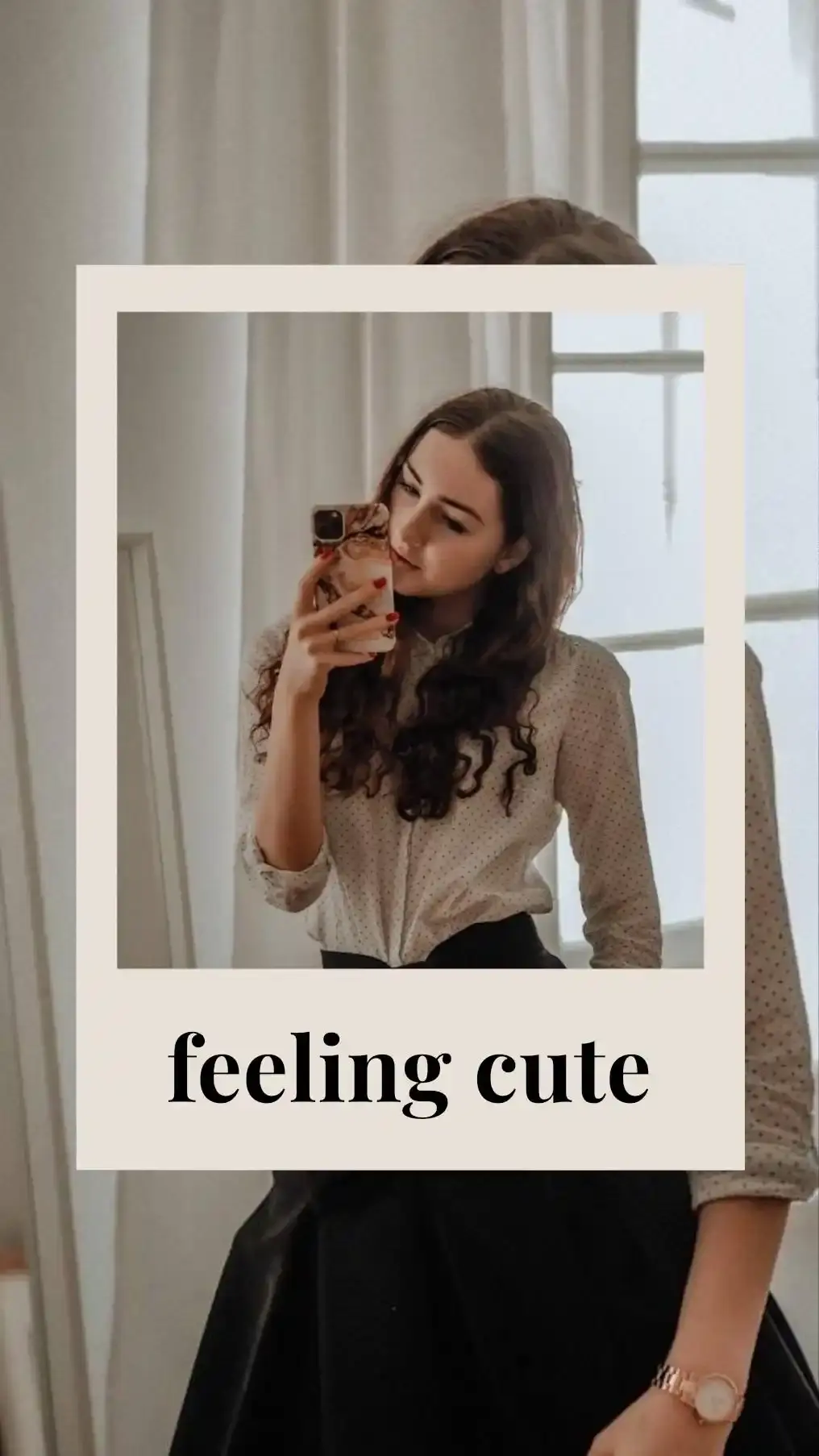
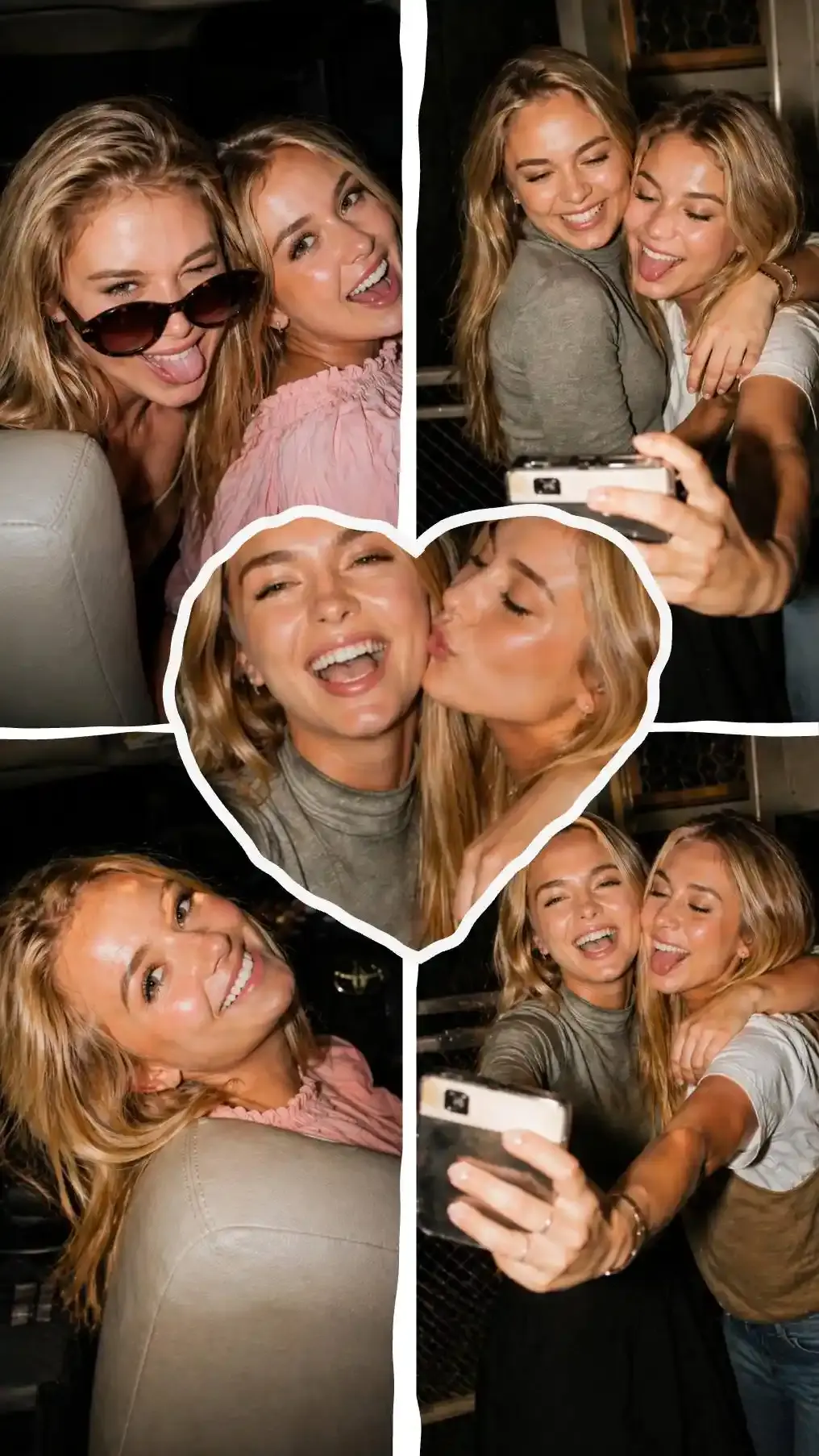
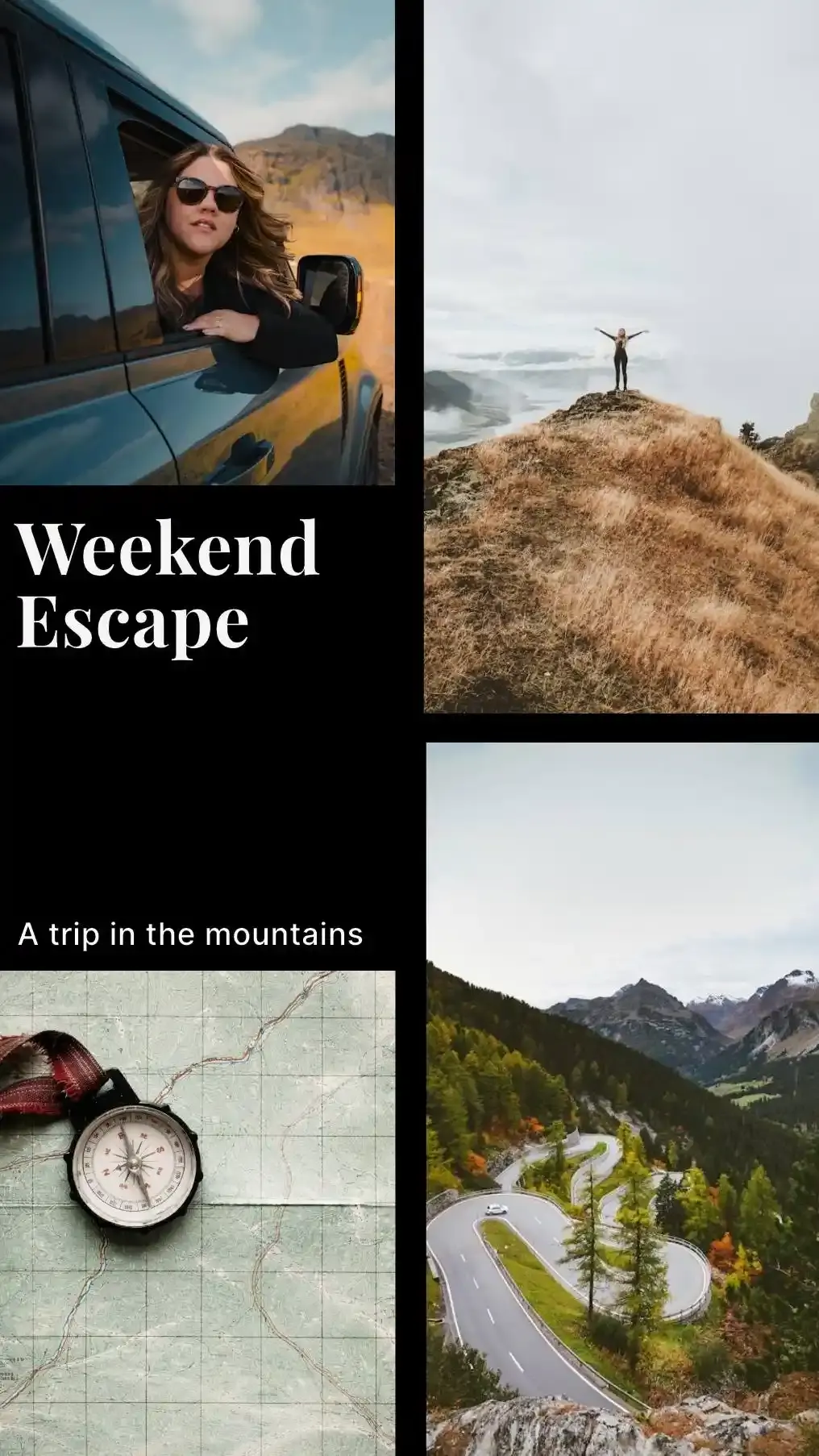
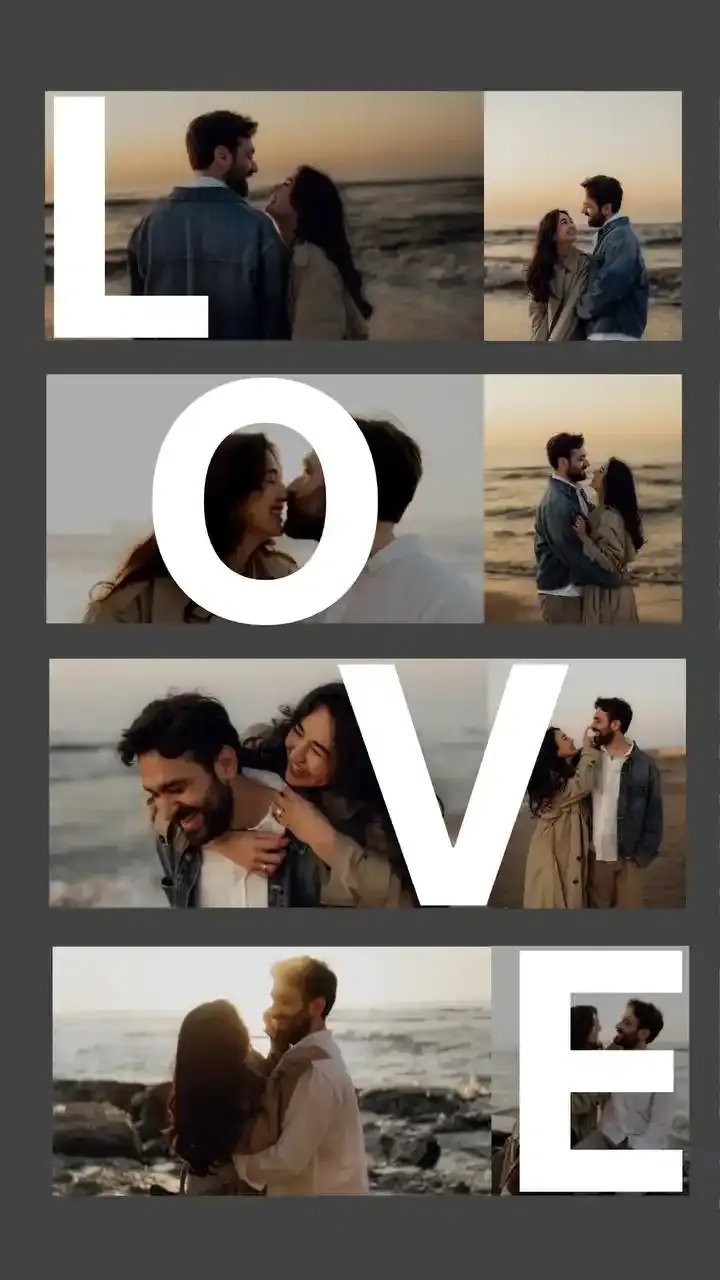
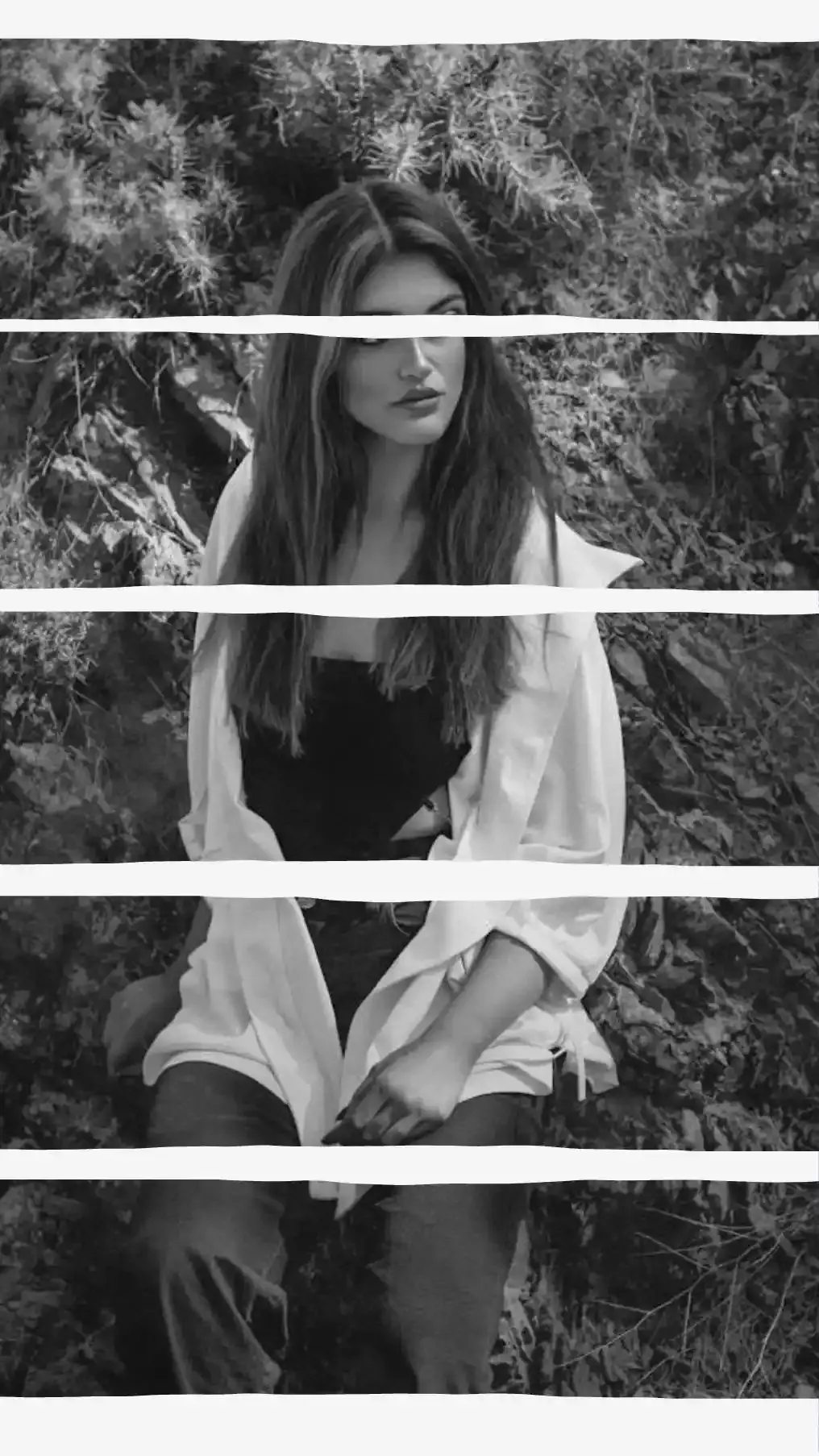
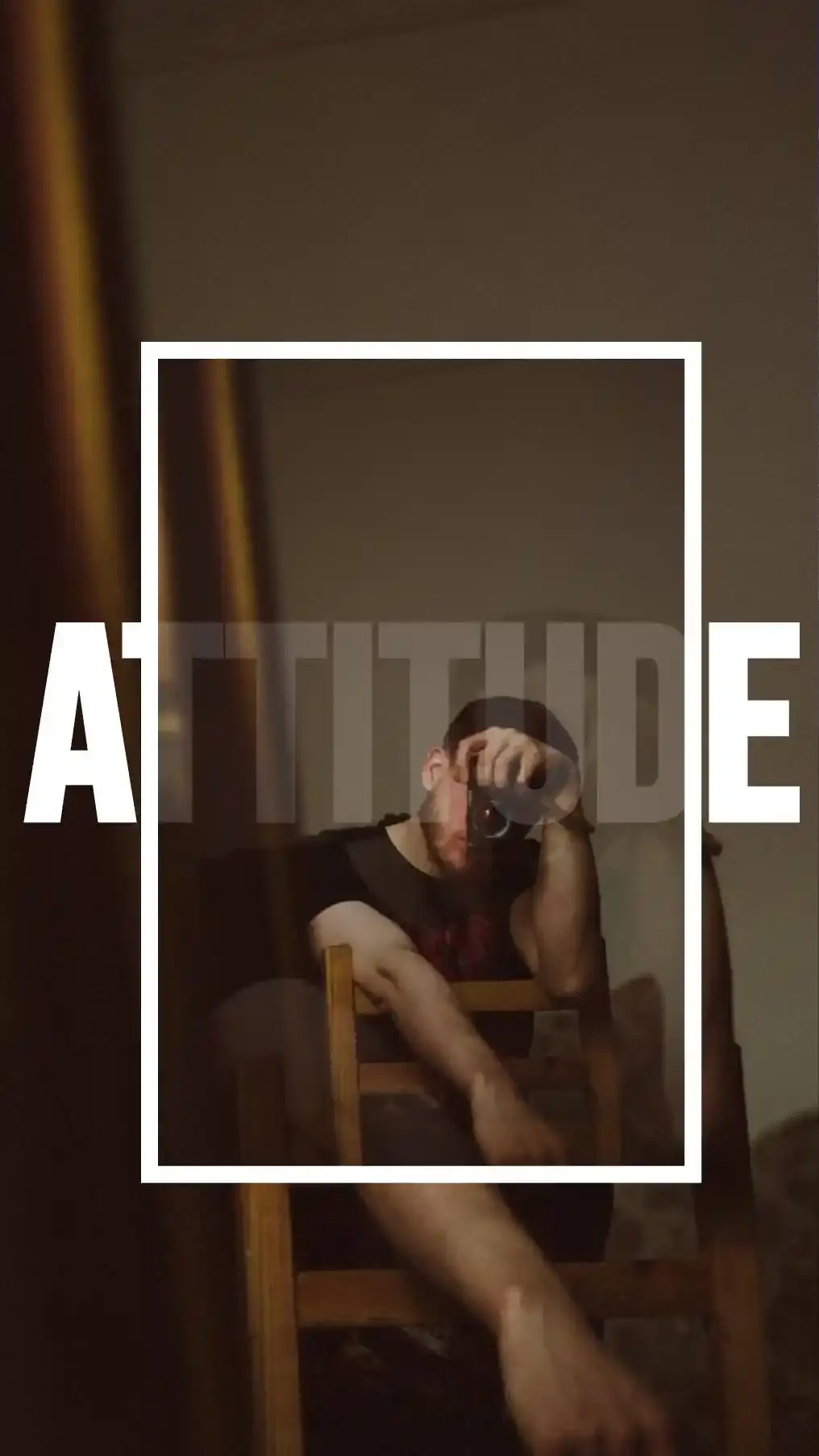
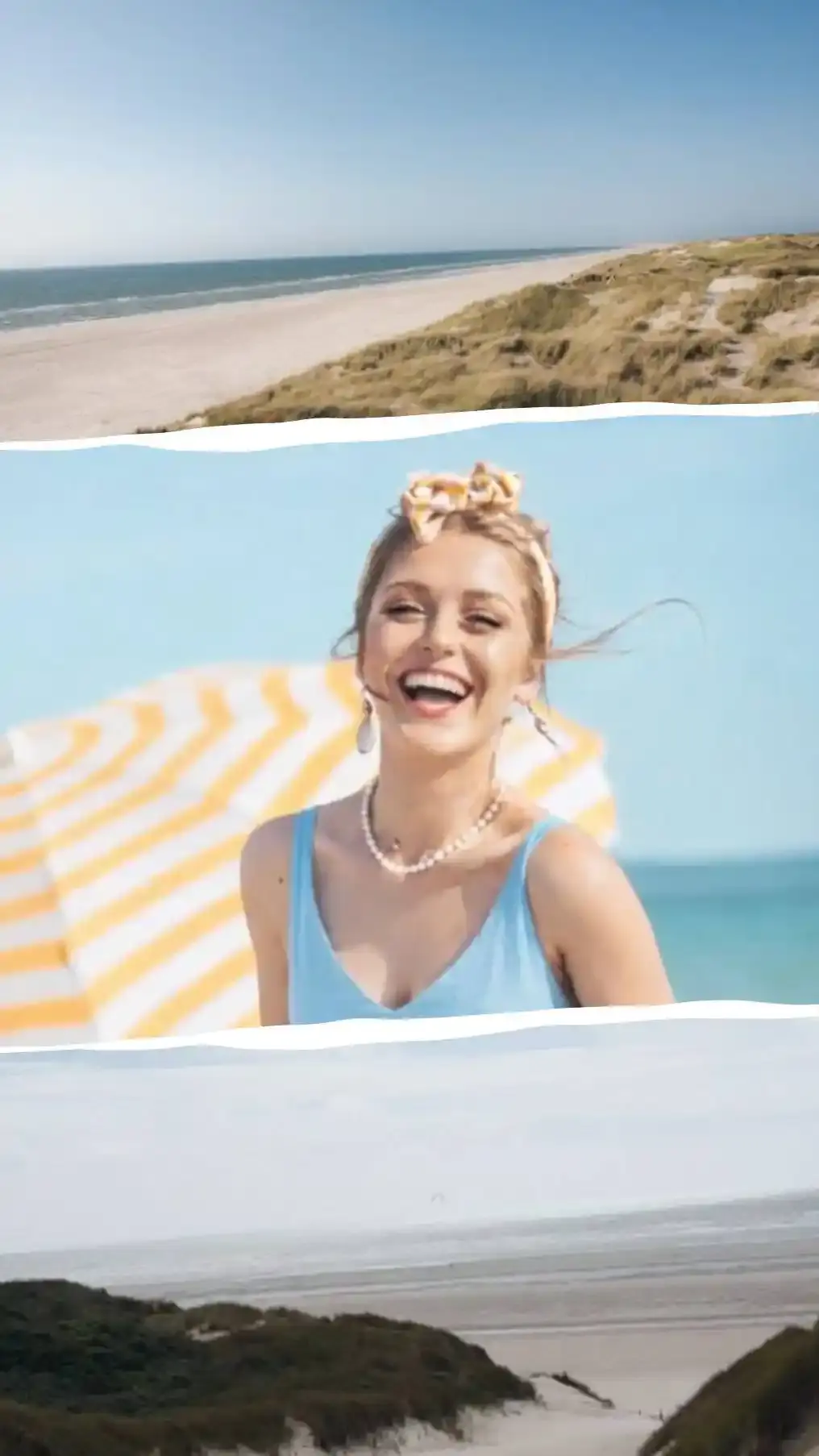
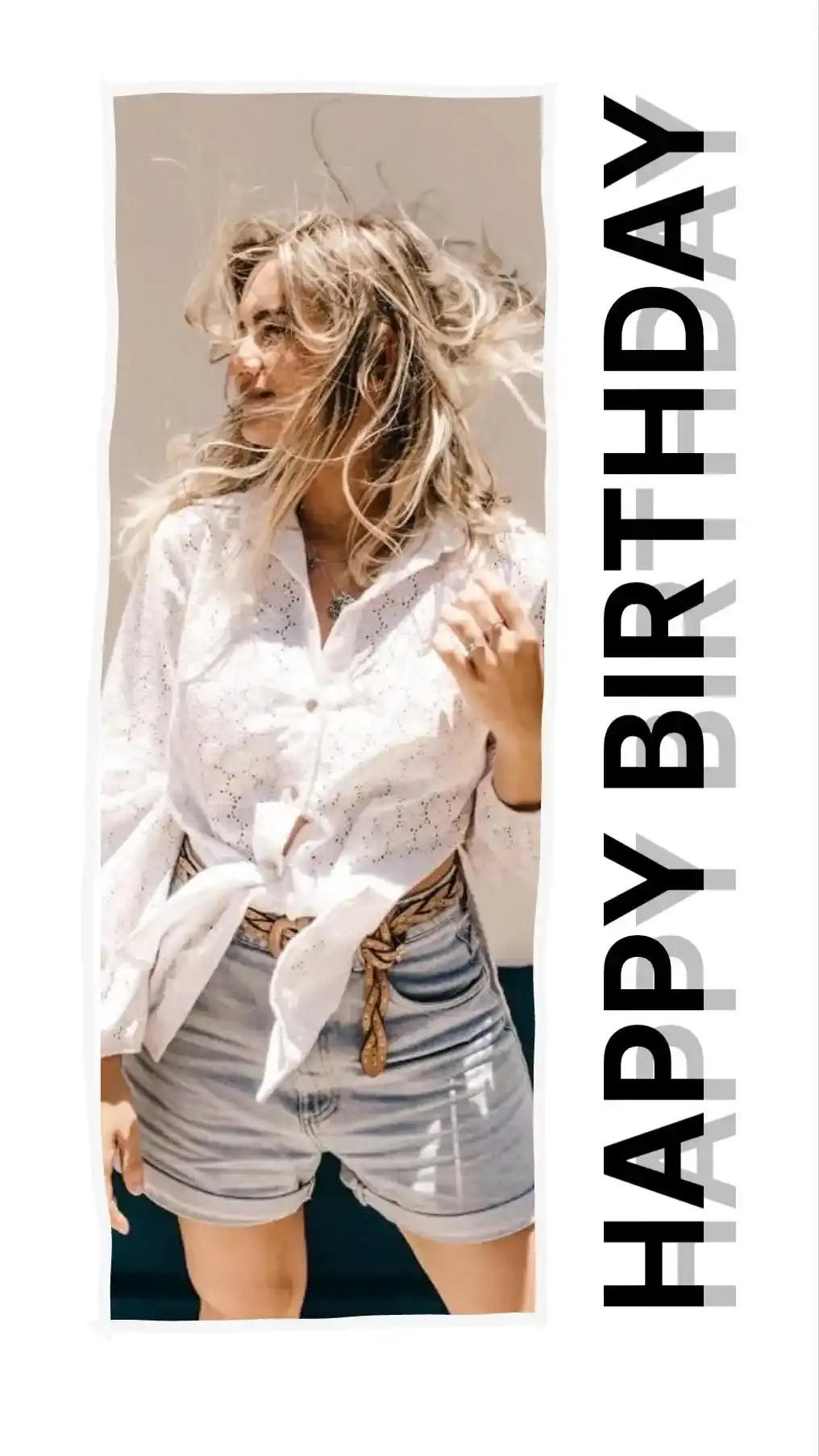
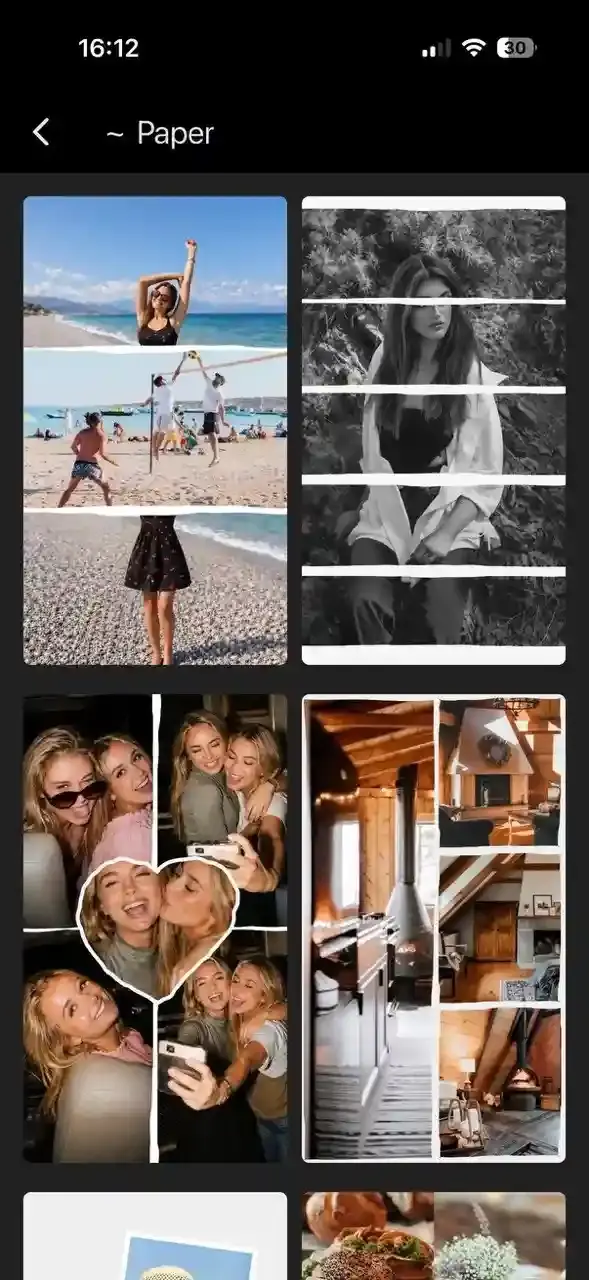
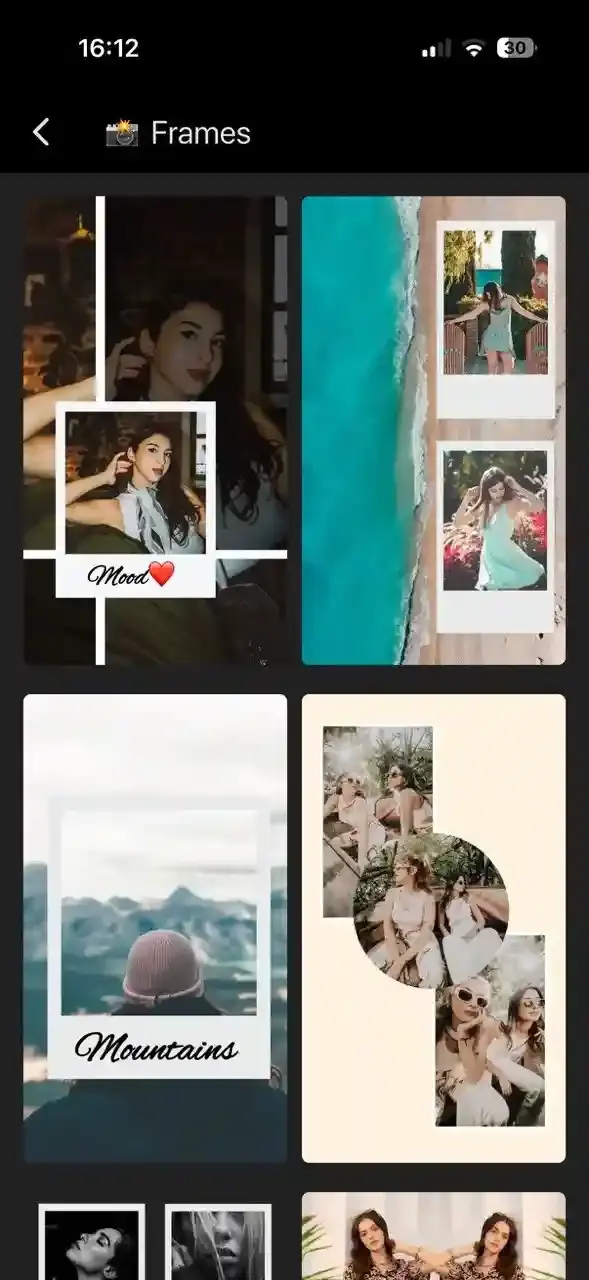
CollagePhotoApp has hundreds of templates sorted by theme including selfie, weekend, birthday, travel, love and nature. Browse, tap a template and swap in your own photos or skip templates entirely and tap Create from Scratch to build your layout how you want it.
Step 3: Set Your Canvas to 9:16 for Stories
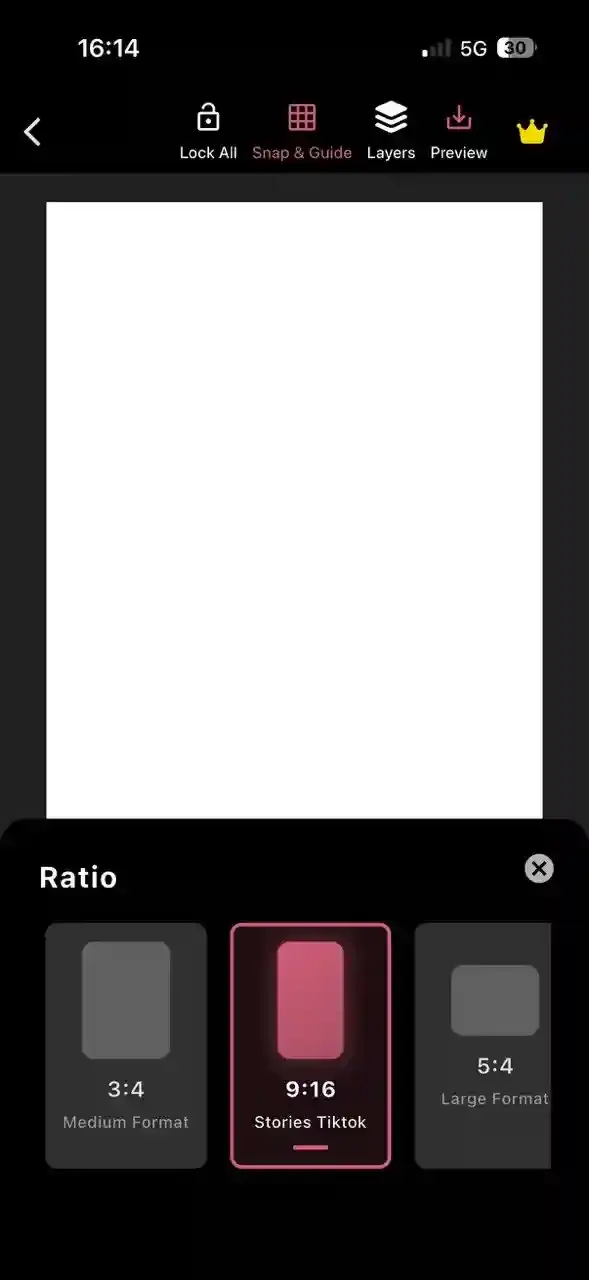
Open the app and tap Create Collage. Set the canvas ratio to 9:16 before adding anything. This matches Instagram Stories' full-screen format (1080 x 1920 pixels). Starting with the right ratio means no cropping or black bars when you post.
Step 4: Add Your Photos and Customize
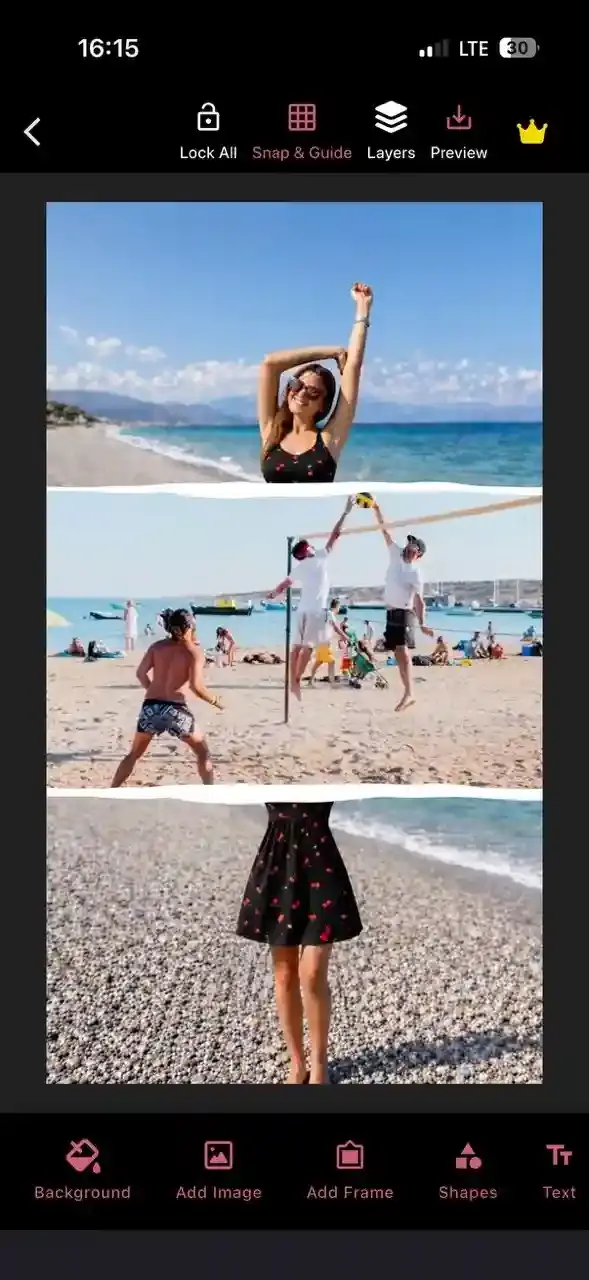
Select your photos from the camera roll. Once loaded, you can:
- Apply filters and adjust brightness, contrast, saturation and more with individual sliders
- Add text with control over font, size, color, spacing, shadow and border
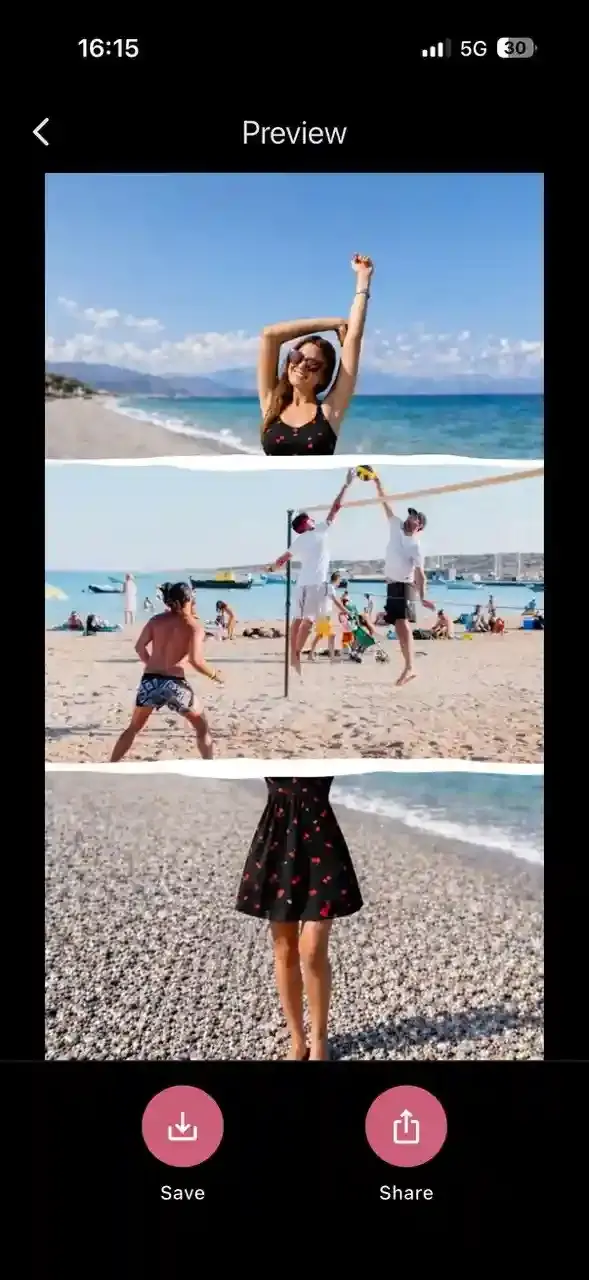
- Use frames for polaroid effects, torn paper borders or colored outlines
- Place photos inside shaped frames like circles, hearts or rectangles
- Add stickers and emoji with adjustable opacity and positioning
- Use drawing tools to sketch or paint directly on the collage
Every element is on its own editable layer so you can reorder, resize and fine-tune each one individually.
Step 5: Export and Share to Instagram Stories
Tap Preview then Save to download your collage in full HD to your camera roll. Open Instagram, start a new Story and select your saved collage from the gallery. Because it is already in 9:16 format it fills the Stories screen perfectly with no adjustments needed.
Design Tips for Instagram Story Collages
Getting the steps right is only part of it. These design decisions are what separate a polished collage from one that actually grabs attention.
Use the Correct Canvas Size
Instagram Stories render at 1080 x 1920 pixels in a 9:16 ratio. If you design at a different size, Instagram will crop or add black bars. Set 9:16 before you start, especially in third-party apps. CollagePhotoApp has a 9:16 preset ready to select from the canvas options.
Keep It to 2 to 4 Photos
Fitting too many photos into a Story-sized frame makes each one too small to see clearly. Two to four photos gives each image enough space to read well on a phone screen. If you have more photos to share, split them across multiple Stories rather than cramming them into one.
Match the Color Tone Across Photos
Photos taken in different lighting or with different color casts make a collage feel disjointed. Pick photos with a similar warmth or run them through the same filter in CollagePhotoApp to unify the look before combining them.
Give One Photo the Most Space
A collage without a focal point makes the eye wander. Assign your strongest or most meaningful photo the largest area in the layout. This creates visual hierarchy so viewers know where to look first.
Leave Space Between Photos
Cramped layouts are hard to read on a small screen. Whether you are using CollagePhotoApp's spacing controls or Instagram's fixed Layout grid, make sure photos have visible separation. If you are overlapping photos in the sticker method, do it intentionally with purpose, not by accident.
Use Text Sparingly
A short label, date or caption can add context to a collage. More than one short line of text competes with the photos and makes the Story hard to absorb in a glance. If the photos tell the story on their own, skip the text entirely.
Fixing Common Story Collage Problems
Layout Button Not Showing in Stories
The Layout icon appears on the left side of the Stories camera screen inside the main Instagram app. If you are looking for the old standalone "Layout" app, note that Instagram discontinued it in May 2024 and the feature moved into the main app.
If you cannot see the Layout icon in your Stories camera, try updating Instagram to the latest version. If it is still missing after updating, use the photo sticker method or CollagePhotoApp as alternatives, both give you more customization options than Layout anyway.
Photos Look Blurry After Posting
Instagram compresses photos when they are uploaded to Stories. To minimize visible quality loss:
- Use the original high-resolution photos from your camera roll, not screenshots
- Export your CollagePhotoApp design at full HD before uploading
- Upload to Stories by selecting from your camera roll rather than taking a screenshot of your finished collage, since screenshots are lower resolution than the source file
Cannot Move Photos in the Layout Tool
This is by design. Instagram's Layout tool uses fixed grid sections. Photos snap into those sections and cannot be repositioned or resized independently. If you need freeform placement, switch to the photo sticker method or use CollagePhotoApp where every element is freely movable on the canvas.
Story Has Black Bars on the Sides
Black bars appear when your collage is not in 9:16 format. In Instagram's Layout tool the format is automatically Stories-sized so this should not happen there. In a third-party app, make sure you select 9:16 or 1080 x 1920 pixels before designing. A collage built at 1:1 square or 16:9 landscape will show bars when posted to Stories.
Layout Tool Has Fewer Grid Options Than Expected
The number of grid patterns available in Instagram's Layout tool can vary depending on your app version and operating system. iOS and Android sometimes receive feature updates at different times so the options may differ between devices. CollagePhotoApp offers a consistently larger variety of layouts regardless of your phone's platform or app version.
FAQ
How many photos can I add to an Instagram story collage?
With the Layout tool you can add up to 6 photos depending on the grid pattern selected. With the photo sticker method you can add as many as you want though 2 to 4 photos keeps the layout readable on a phone screen. CollagePhotoApp supports 1 to 50 or more photos depending on the layout style chosen.
What size should an Instagram story collage be?
Use 1080 x 1920 pixels at a 9:16 aspect ratio. This fills the full Stories screen on all phone sizes without black bars or unwanted cropping. CollagePhotoApp has a 9:16 canvas preset for this exact purpose.
Can I add text to my Instagram story collage?
Yes. Both Instagram Stories and CollagePhotoApp let you add text to your collage. Inside Instagram you add text after building the collage using the Stories text editor. CollagePhotoApp gives you more control over font choice, size, color, letter spacing, shadow and border styling.
What is the difference between the Layout tool and the photo sticker method?
The Layout tool creates a fixed grid where each photo fills one section and cannot be repositioned or resized independently. The photo sticker method layers individual photos on top of a background, giving you freeform control to place, resize and rotate each photo anywhere on the screen.
Which method gives the best quality results?
CollagePhotoApp consistently gives the best results because it combines Story-specific templates, full layout flexibility, professional editing tools, filter controls and HD export in one free app. Instagram's built-in methods are faster for quick posts but do not offer the same level of customization or output quality.
Does Instagram have a dedicated collage maker for Stories?
Yes. Instagram has the Layout tool inside the Stories camera and a Photo Sticker option for freeform layering. Some users also have access to a newer "Collage" sticker depending on their region and app version. These native options are useful for quick collages but have notable limitations on customization compared to a dedicated app like CollagePhotoApp.
How do I stop my Instagram story collage from looking blurry?
Use the highest resolution photos available from your camera roll. Export from CollagePhotoApp at full HD quality before sharing to Instagram. Upload to Stories from your camera roll rather than taking a screenshot of the result, as screenshots are lower resolution than the original exported file.
Make Your First Instagram Story Collage Today
Instagram's Layout tool and photo sticker method get the job done for quick collages. For a story that actually stands out, with custom templates, crisp HD export and full control over every element, CollagePhotoApp is the better choice.
CollagePhotoApp is completely free on iOS and Android. No account required and no core features locked away. Download it, set your canvas to 9:16 and start building your Instagram story collage in minutes.
Make stunning posts from normal photos
Download CollagePhotoApp for free