How to Make a Collage on Your Phone Guide
Create photo collage for free on iPhone and Android. Step-by-step guide covering everything you need to make a stunning collage in minutes.

Quick answer: To make a collage on phone, download CollagePhotoApp (free, iOS & Android), open the app, pick a ready-made template or start from scratch, select your photos, customize and hit Save. Done in under 1 minute, no account needed, for free.
Making a photo collage on your phone used to mean sitting at a laptop, fiddling with random apps for 30 minutes. Not anymore. Whether you're on an iPhone or an Android, you can create a stunning collage right from your pocket in minutes.
In this guide, we'll walk you through exactly how to make a photo collage on any phone using CollagePhotoApp, show you both ways to get started (templates or fully custom), and explain how to share it directly to WhatsApp, Instagram, or Facebook.
Step-by-Step: Make a Collage on Android or iPhone
CollagePhotoApp is a free collage maker built for both iPhone and Android. Whether you have a Samsung, OnePlus, Realme, Xiaomi, Pixel or the latest iPhone, it works the same on every device, with no account required and no core features locked away.
Step 1: Download CollagePhotoApp
- On Android: Install from the Google Play Store
- On iPhone: Install from the App Store
Step 2: Choose How You Want to Start
CollagePhotoApp gives you two ways to create stunning collage, use a ready-made template or build your own from scratch:
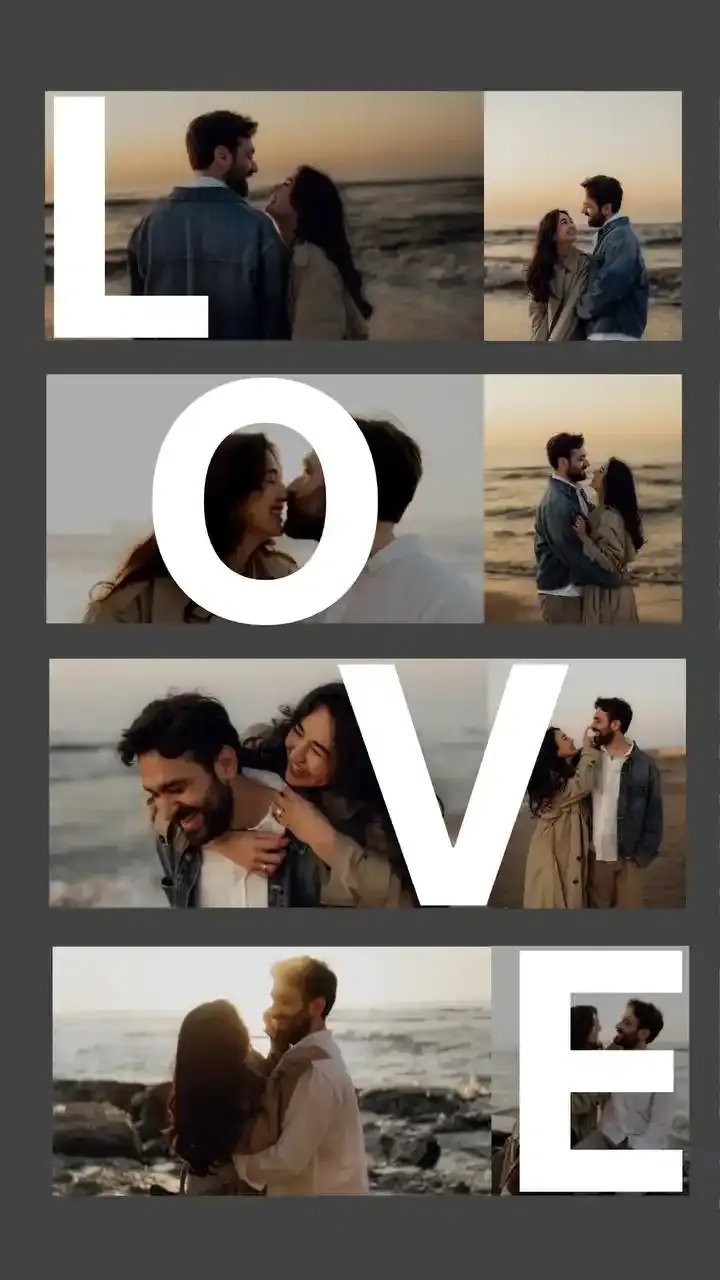
Option A - Start with a Template: Browse hundreds of ready-made templates sorted by occasion such as weekend, birthday, selfie, travel, family, love, nature, celebration, and more. Tap any template, swap in your own photos, and you're done. Perfect when you want a polished, professional-looking collage in under a minute. Templates are available across all layout styles:
- Grid layouts: Start from 2, 3, 4, 9 and up to 12 photo grids, clean and structured
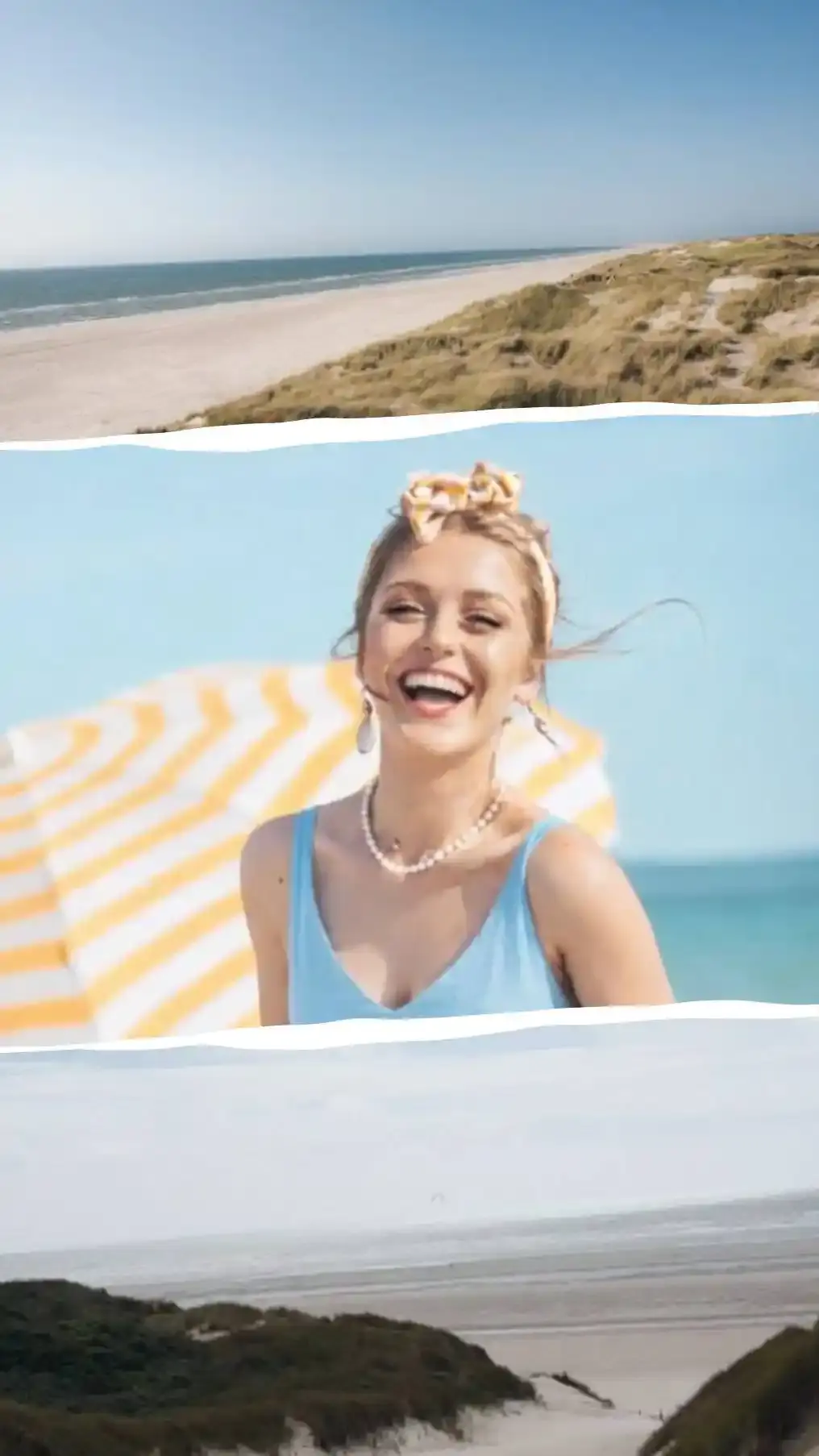
- Canvas collage: freeform, overlapping photos for a creative, layered look
- Photo montage: storytelling layouts perfect for event recaps and memory walls
- Polaroid frames: nostalgic, physical-print feel for throwback posts
- Shaped frames: place your photos inside circles, hearts, triangles, hexagons or rectangles
- Multi-photo frames: mixed sizes for an editorial, magazine-style layout

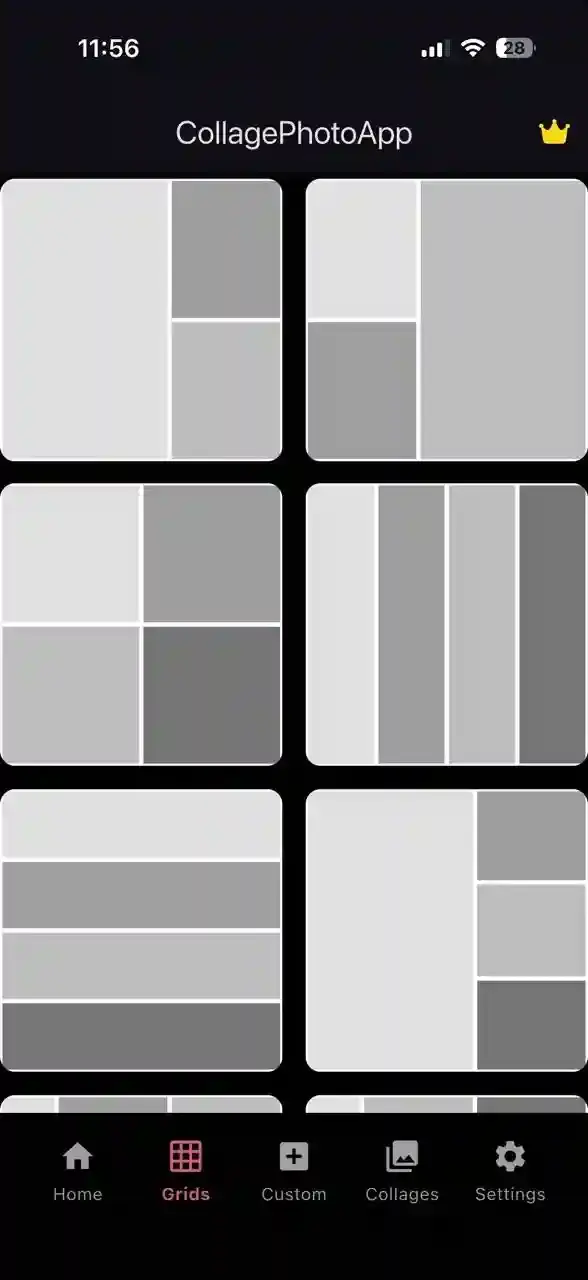
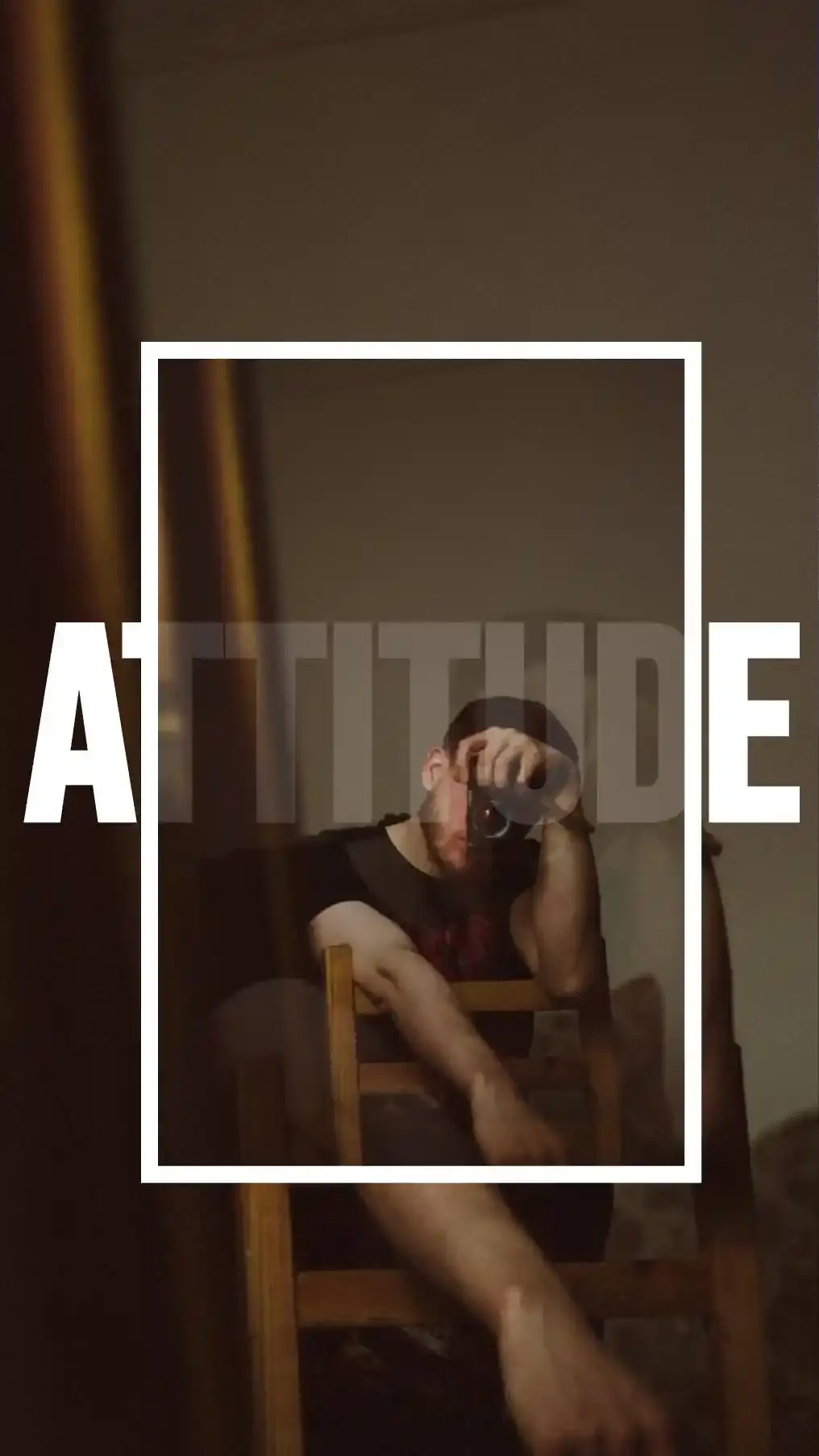
Option B - Build a Custom Collage from Scratch: Prefer full creative control? Tap Create Collage, select your photos, and design everything by yourself including layout, frames, filters, text, shapes, and more. No restrictions, your collage, your way.
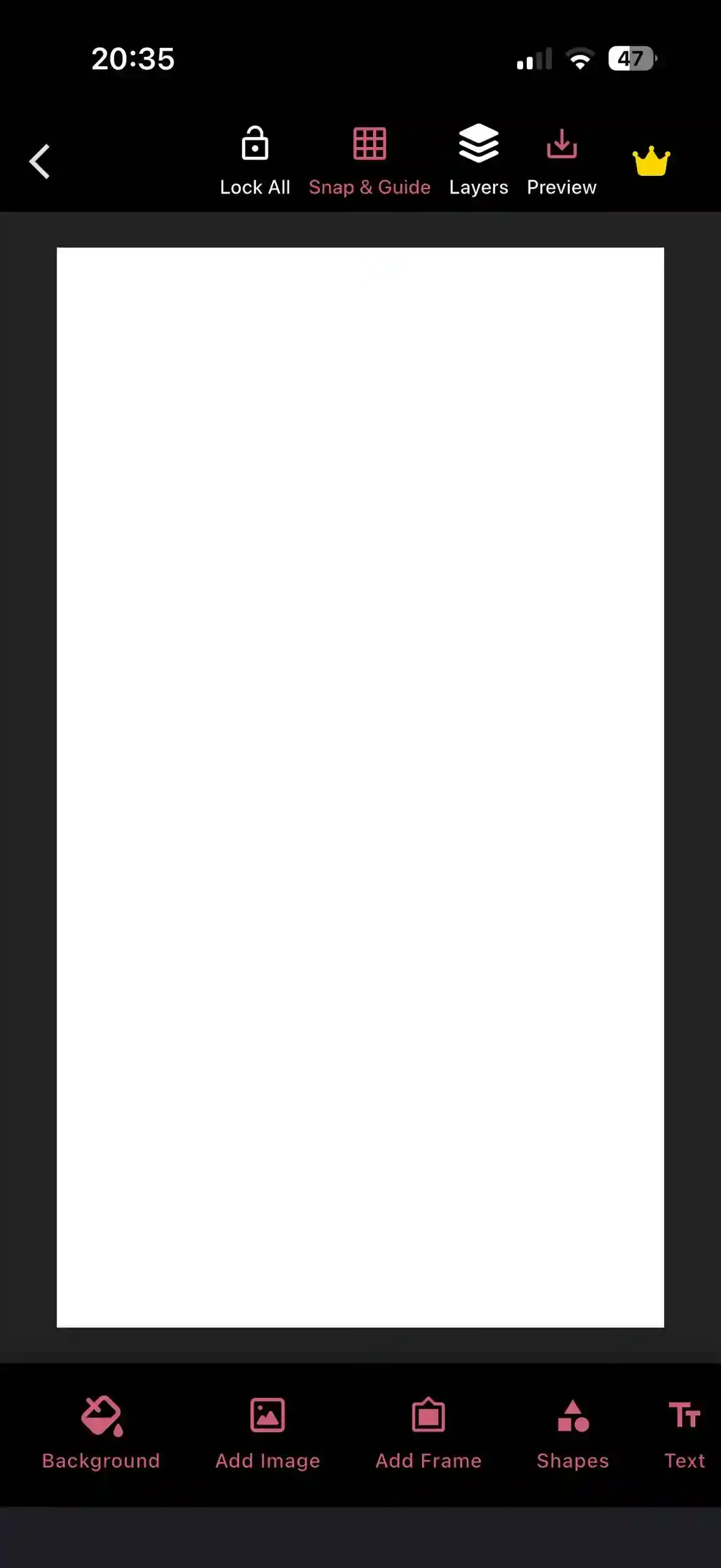
Both options give you access to the exact same set of editing tools.
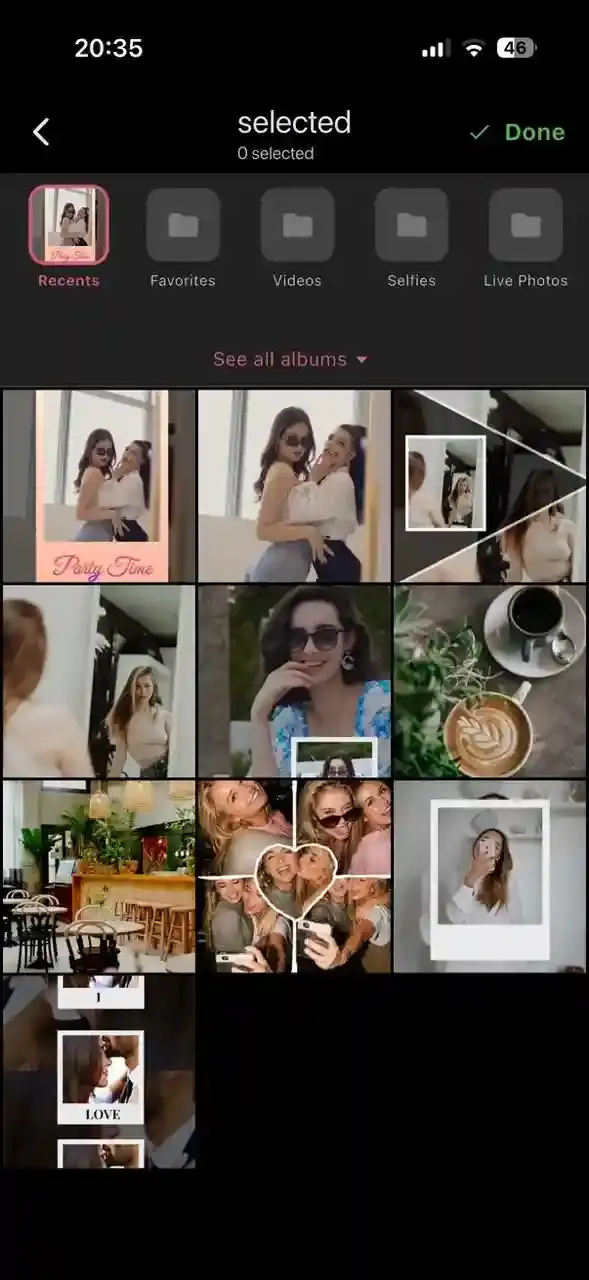
Step 3: Select Your Photos
Choose 1 to 50+ photos from your camera roll or start with a blank canvas without using any photos and make from scratch. You can even select the same photo multiple times, great for mirror-effect and repeat-pattern designs. If you select templates then you get a dedicated photo quantity picker so that you can pick the correct amount of images as per the layout
Step 4: Make It Yours
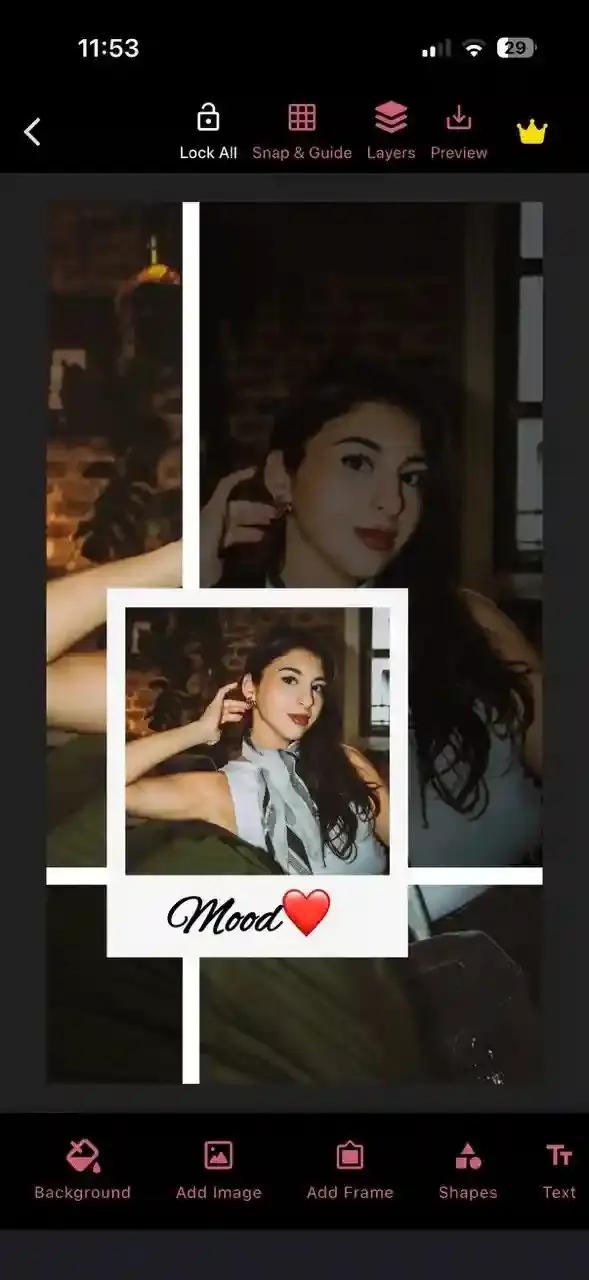
CollagePhotoApp gives you full creative control, no design skills needed, simply pick drag and drop. Some of the amazing tools we have in for you:
- Frames: Adjust frame size, color, add coloured shadow, curve corners, tweak opacity, or go for a polaroid look. Now with paper border textures
- Blur: Apply blur to images, frames, or shapes for a depth-of-field effect
- Filters: Warm, cool, vintage, sunset, fire, forest, ocean, fine-tune each filter's intensity to make every collage uniquely yours
- Text: Add captions, names, dates, or quotes with full font, color, spacing, shadow, and border control
- Shapes: Drop photos into circle, heart, triangle, or rectangle shapes with 3D shadow effects
- Drawing: Sketch or paint directly on your collage with single or multi-flow colors and adjustable brushes
- Aspect ratio: Choose from 9:16, 3:4, 1:1, 5:4, 4:3, 16:9 and more sizes to help you post on all social media platforms
Pro tip: Making a collage for Instagram Stories? Set your aspect ratio to 9:16 before you start. For WhatsApp, go with 1:1 square or 16:9 landscape to avoid compression.
Step 5: Save and Share
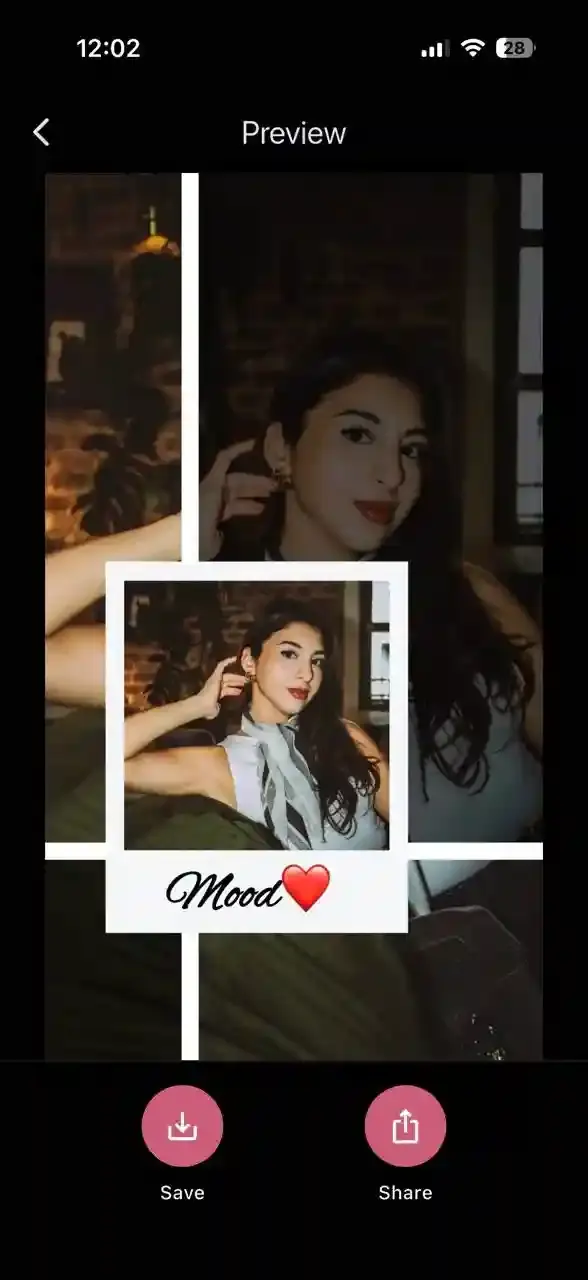
Tap on Preview and head to Preview to see how your amazing collage looks and Save to export your collage in full resolution to your gallery. Share directly to WhatsApp, Instagram, Facebook, or anywhere else.
Does CollagePhotoApp Work on All Android Phones?
CollagePhotoApp runs smoothly on all Android brands including Samsung, OnePlus, Realme, Xiaomi, Pixel, with no minimum RAM requirement.
- Your camera roll and all albums load instantly inside the app
- Pick photos from multiple albums in one session
- Layouts auto-adjust as you add or remove photos
- Paper border support for images and frames
- Saves directly to your Android gallery, ready to share
Does CollagePhotoApp Work on iPhone?
iOS does have a built-in collage option via the Shortcuts app, it supports basic layouts but those aren't fully customisable collages you can share. CollagePhotoApp fills that gap completely on iPhone.
- Integrates directly with your iPhone Photos library
- Access camera roll, albums, and recents in one place
- All layout styles, grid, canvas, montage, polaroid, shaped frames
- Text, filters, drawing, shapes, and blur all included, all free
- Export in full resolution, share-ready for any platform
iPhone users especially love the polaroid frames and heart-shaped photo options, perfect for birthday, celebration and anniversary collages.
How to Save & Share Your Collage
Save in 1:1 square or 16:9 landscape format. Send as a Document in WhatsApp (not a photo) to skip compression and keep full quality.
Instagram Post
Use 1:1 square or 4:5 portrait ratio. Tap + in Instagram, select your collage, and post as normal.
Instagram Stories
Set your ratio to 9:16 before designing, your collage fills the full Stories frame perfectly with no black bars or cropping needed.
Any ratio works well on Facebook. Save and upload directly from your camera roll.
FAQ
Can I use my own photos or do I need to use templates?
Both! CollagePhotoApp lets you start with a ready-made template and replace the photos with your own, or skip templates entirely and build a custom collage from scratch using your photos, your layout and your style.
Can I add text to a photo collage on my phone?
Yes, add captions, names, dates, or quotes with full control over font, colour, bold/italic, shadow, border width, letter spacing, and line height.
How many photos can I put in one collage?
CollagePhotoApp supports 1 to 50+ photos depending on the layout. You can also select the same photo more than once, great for repeat-pattern or mirrored designs.
What's the best collage size for Instagram?
For a standard post, use 1:1 square or 4:5 portrait. For Instagram Stories, set your ratio to 9:16, it fills the screen perfectly with no cropping.
Is CollagePhotoApp free to use?
Yes. All core features, templates, grids, frames, filters, text, shapes, drawing, blur, and sharing are completely free, no subscription, no hidden fees. To keep the app free for all some features such as multi flow are available to premium users.
Does CollagePhotoApp work on all Android phones?
Yes, Samsung, OnePlus, Xiaomi, Realme, Pixel, and more.
How do I share my collage to WhatsApp in high quality?
Send it as a Document in WhatsApp instead of a photo. This bypasses WhatsApp's compression and delivers your collage at full resolution.
Make Your First Collage Today, Free on iPhone & Android
In 2026, making a beautiful photo collage on your phone takes minutes not hours. Pick a ready-made template for a polished look in seconds or build something completely custom from scratch. Either way, CollagePhotoApp gives every iPhone and Android user the tools to create, customise, and share stunning collages completely free.
Make stunning posts from normal photos
Download CollagePhotoApp for free