12 Best Instagram Story Maker Apps in 2026
The 12 best Instagram Story maker apps for iPhone and Android, compared on templates, watermarks, sign up requirement and what each free tier really gives you.

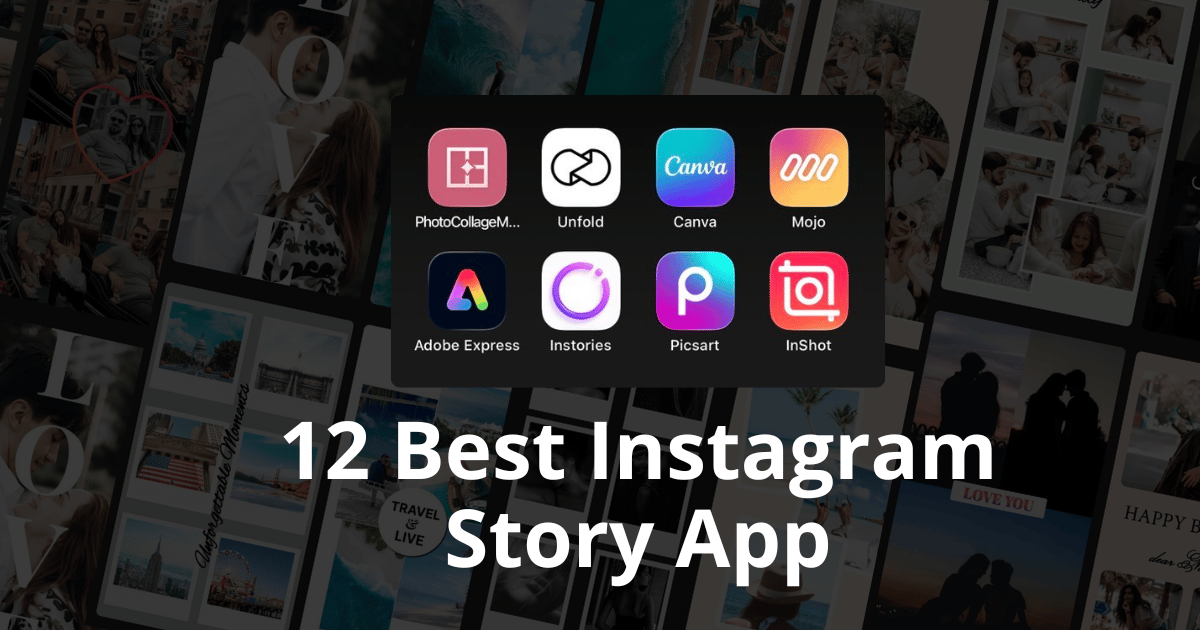
Quick answer: If you want a finished Story built from templates in about a minute, use CollagePhotoApp, Canva or Unfold. For animated text, Mojo. If you're starting from video, InShot or CapCut. Apps like VSCO and Lightroom are color tools. They'll make your photo look better, but they won't build the Story for you.
Most "Best Story App" lists have the same problem. They throw a film-grain camera, a sparkle filter, a RAW editor and a template app into one ranking, then leave you to work out which of them actually produces something you can post.
Those are four different jobs. A preset pack makes one photo prettier. A template app takes five photos and hands you a finished vertical frame. Confusing the two is how people end up downloading a beautiful editor, spending twenty minutes on color grading, then realising they've still got a single square photo and no idea how to make it fill a 9:16 screen.
So this list is sorted by that distinction. The first six apps build a Story. The last six finish a photo or a clip and hand it back to you, which is useful, just not the same thing. New to this? Our guide on how to make an Instagram story collage covers the fundamentals before you pick an app.
How We Judged These Apps
Four things mattered.
Does it output a finished Story? Meaning a vertical 9:16 frame you can upload without further work. Some apps hand you that. Others hand you a better photo and leave the layout to you. Both are useful, they're just answers to different questions.
What does the free tier actually give you? Not what the store page advertises. Every free-tier claim below is checked against the vendor's own documentation and linked where it exists, because "freemium" covers everything from a fully usable app to a three-save trial. The gap between those is the whole decision.
How many taps to a result? Stories are a fast format. Nobody opens a layer-based editor to post a coffee. An app that needs a tutorial has already lost to one that doesn't.
Is it on both iPhone and Android? A recommendation that only works for half of readers is half a recommendation, so every app here runs on both.
One note on prices. They move constantly and most of these apps restructure their tiers at least once a year, so the table describes what the free tier gives you rather than quoting figures that'll be stale by autumn. Every app here is free to download. What differs is where each one draws the line. That line sits in a surprisingly different place for each of them.
Story Makers Versus Photo Editors
Here's the split that most guides skip.
A Story maker starts with a vertical canvas. It knows Instagram is 9:16 before you touch anything. You drop photos into a layout, adjust, export, post. Template libraries, text styling and collage grids live here. CollagePhotoApp, Canva, Unfold, Mojo, Adobe Express and Instories are all in this camp.
A photo or video editor starts with one piece of media and improves it. Exposure, color, skin, trimming, captions. Brilliant work, often the reason a Story looks professional rather than snapshotty. But when the editor finishes, you've still got one image or one clip. Picsart, Facetune, InShot, CapCut, VSCO and Lightroom sit here.
The practical upshot: most people need one from each column. An editor to fix the photo, then a maker to build the frame. Downloading two editors and no maker is the most common mistake in this category. It's what a flat undifferentiated list quietly encourages.
Comparison Table of All 12 Apps
Scroll sideways for the full grid. The Type column is the split described above, the first six build a Story while the last six finish a photo or a clip.
| App | Type | Best For | Watermark | Sign-up | Free | Paid | Platforms |
|---|---|---|---|---|---|---|---|
| CollagePhotoApp | Story maker | Template-led Story collages | None | Not required | Available, templates, filters, layers and watermark-free export | Available, adds Multi Flow color and 3D Tilt | iOS, Android |
| Canva | Story maker | Designing beyond Instagram | Premium elements only | Required | Available, free templates and assets export clean | Available, premium assets, transparent PNG and SVG | iOS, Android, Web |
| Unfold | Story maker | A minimal aesthetic | Every free export | Required | Available, every template but branded exports | Available, clears branding and unlocks custom colors | iOS, Android |
| Mojo | Story maker | Animated text overlays | Every free export | Only for AI templates | Available, standard templates with branded exports | Available, clears branding and adds AI credits | iOS, Android |
| Adobe Express | Story maker | Brand consistency | Premium assets only | Only to save on device | Available, three device downloads at reduced size | Available, premium templates, stock and layout resize | iOS, Android, Web |
| Instories | Story maker | AI-assisted Story design | None | Not required | Available, start from scratch plus some fonts and filters | Available, unlocks the animated packs and the export | iOS, Android |
| Picsart | Photo editor | Cutouts and stickers | None | Only for AI templates | Available, most tools with ads around the export | Available, removes ads and adds AI credits | iOS, Android, Web |
| Facetune | Photo editor | Portrait retouching | Video only, photos toggle off | Not required | Available, full editor with a watermark toggle on photos | Available, clears the video watermark | iOS, Android |
| InShot | Video editor | Quick video trims | Every free export | Not required | Available, full trimming with branded exports and ads | Available, removes branding, ads and premium effects | iOS, Android |
| CapCut | Video editor | Auto-generated captions | Some templates only | Not required | Available, manual editing exports clean | Available, Pro effects plus a higher caption cap | iOS, Android, Desktop |
| VSCO | Photo editor | Film-style presets | None | Required | Available, around ten presets and the basic tools | Available, full preset library and advanced tools | iOS, Android |
| Adobe Lightroom | Photo editor | Manual exposure control | None | Required | Available, exposure, contrast, white balance and crop | Available, RAW, masking, healing and cloud sync | iOS, Android, Desktop |
1. CollagePhotoApp, Best for Template-Led Story Collages
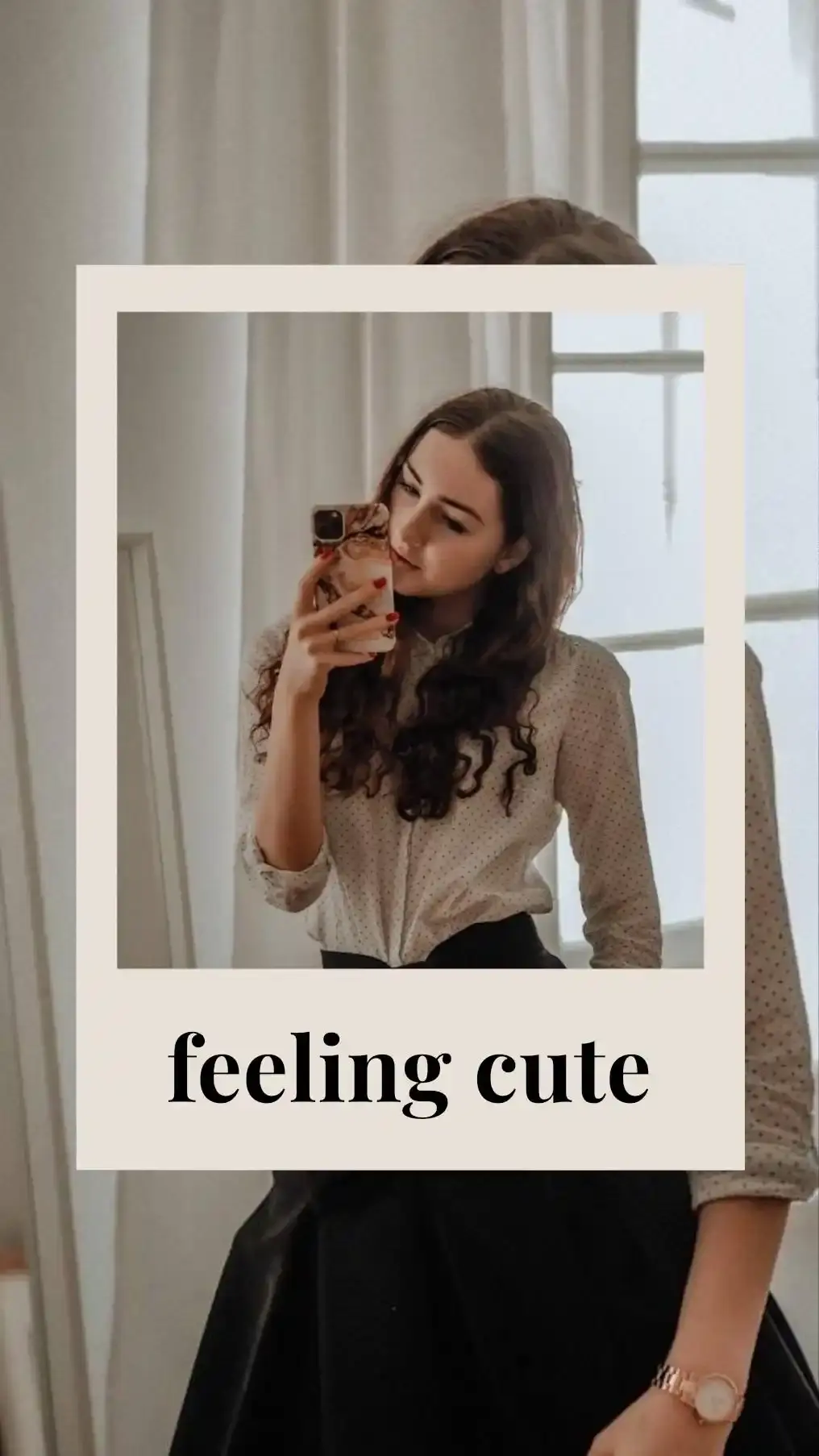
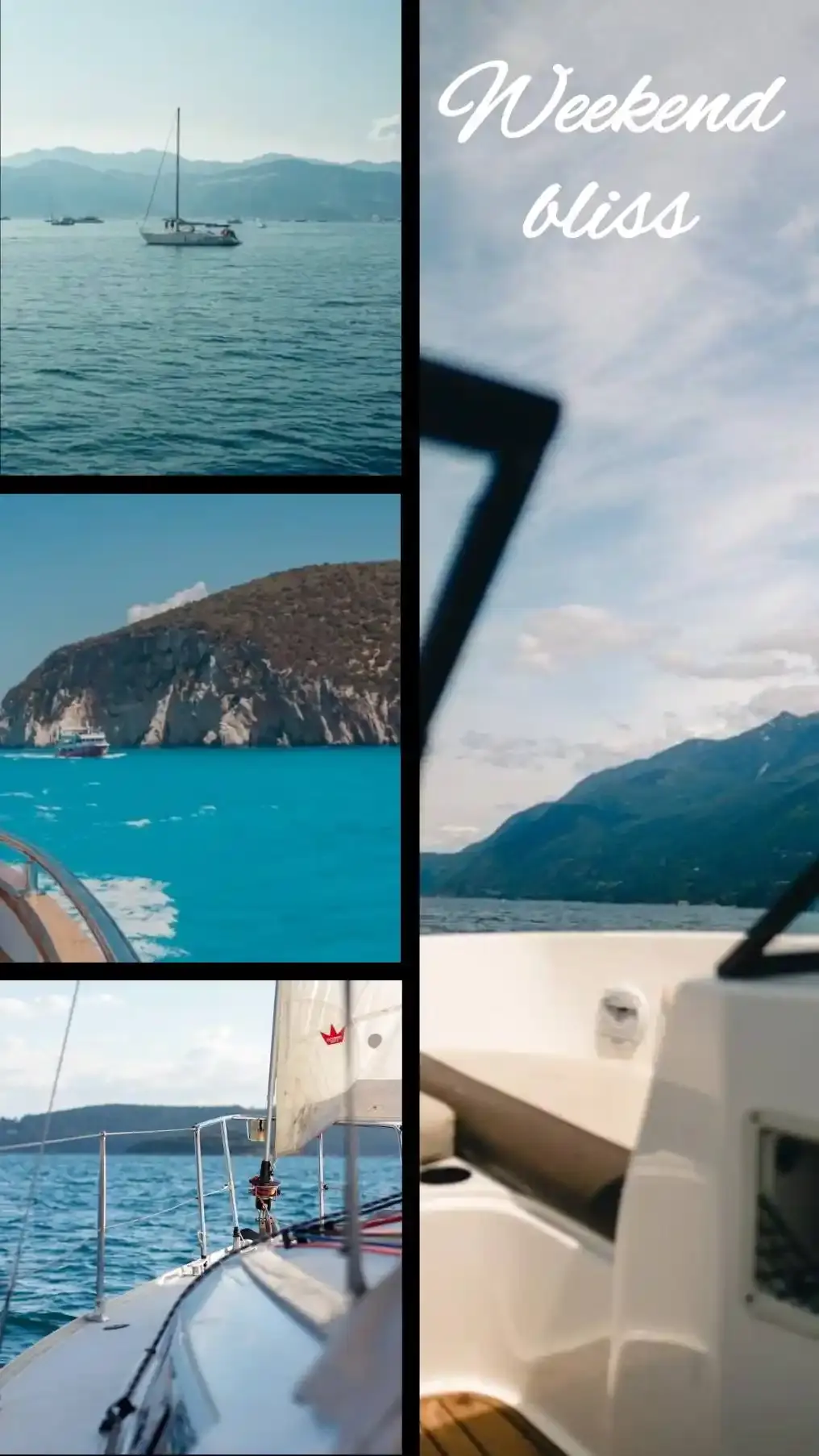
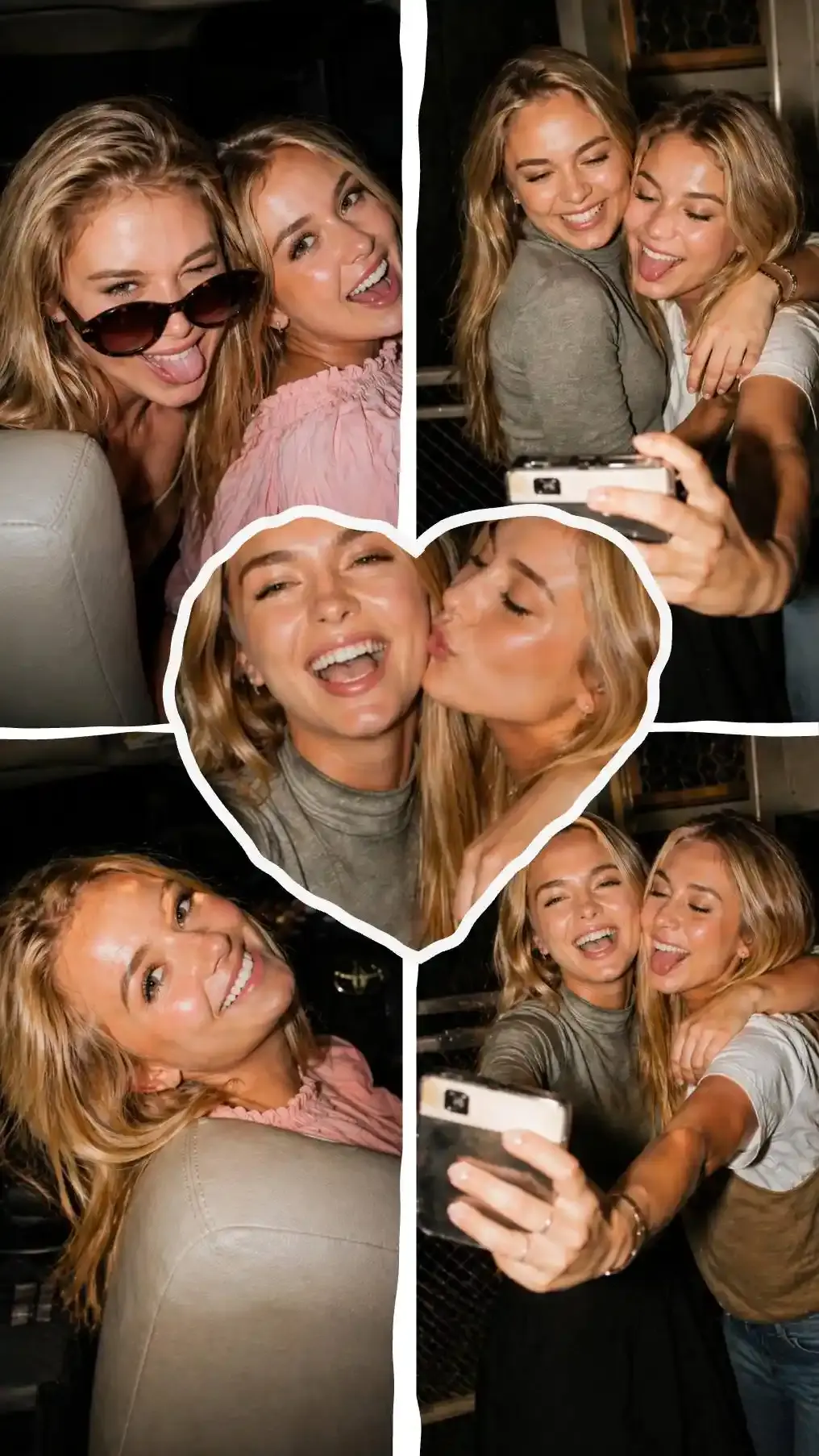
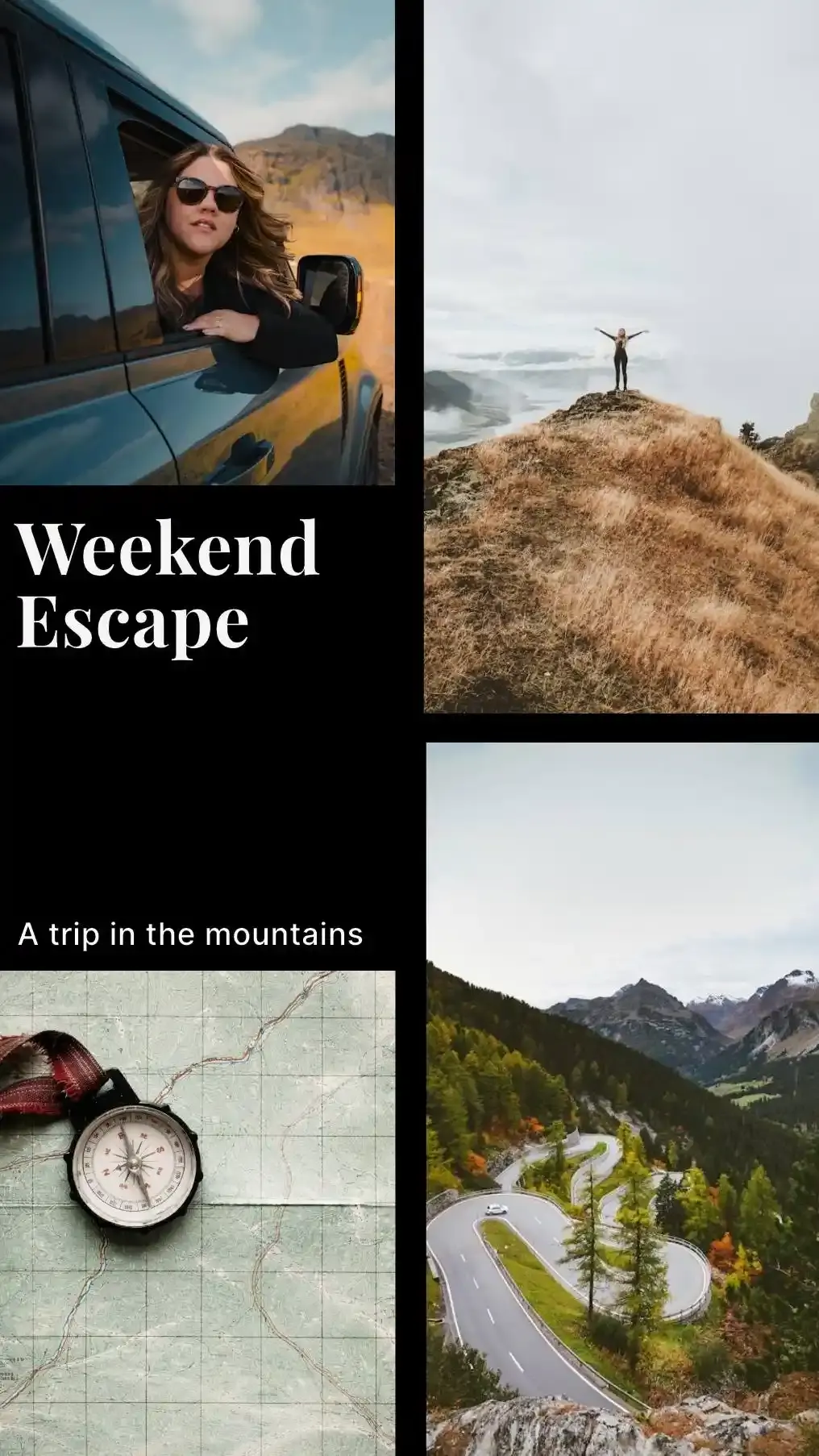
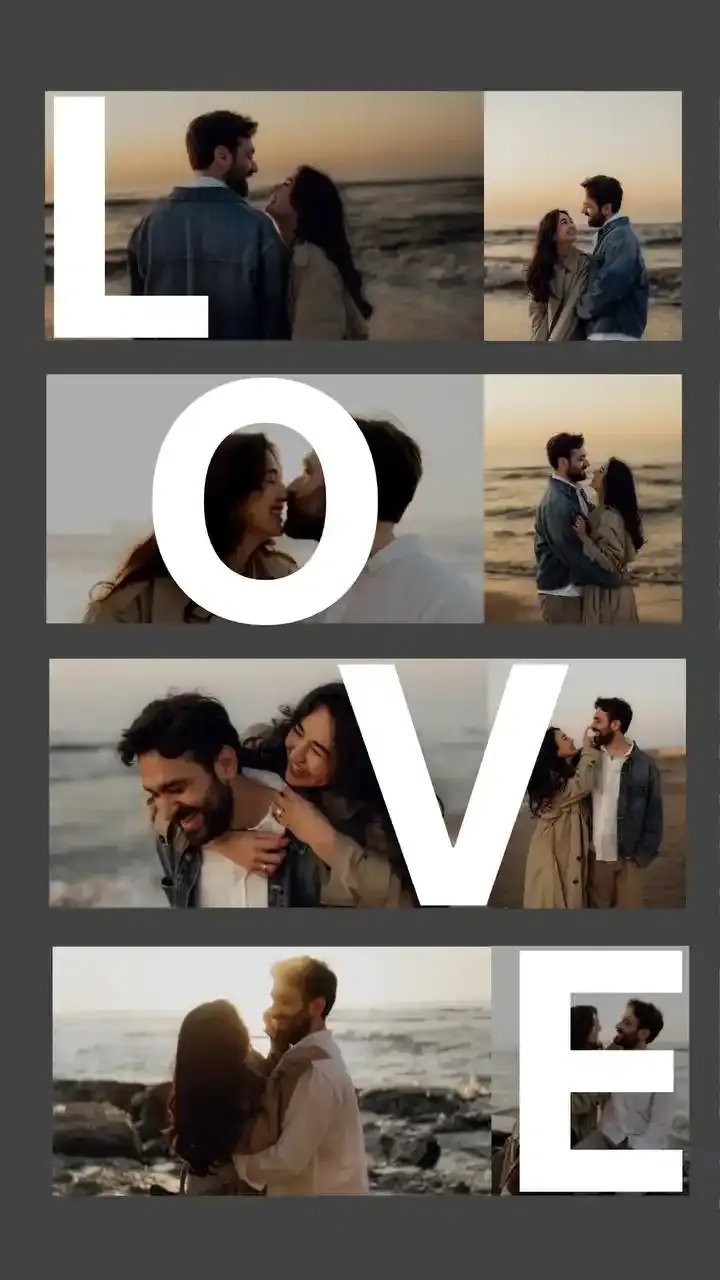
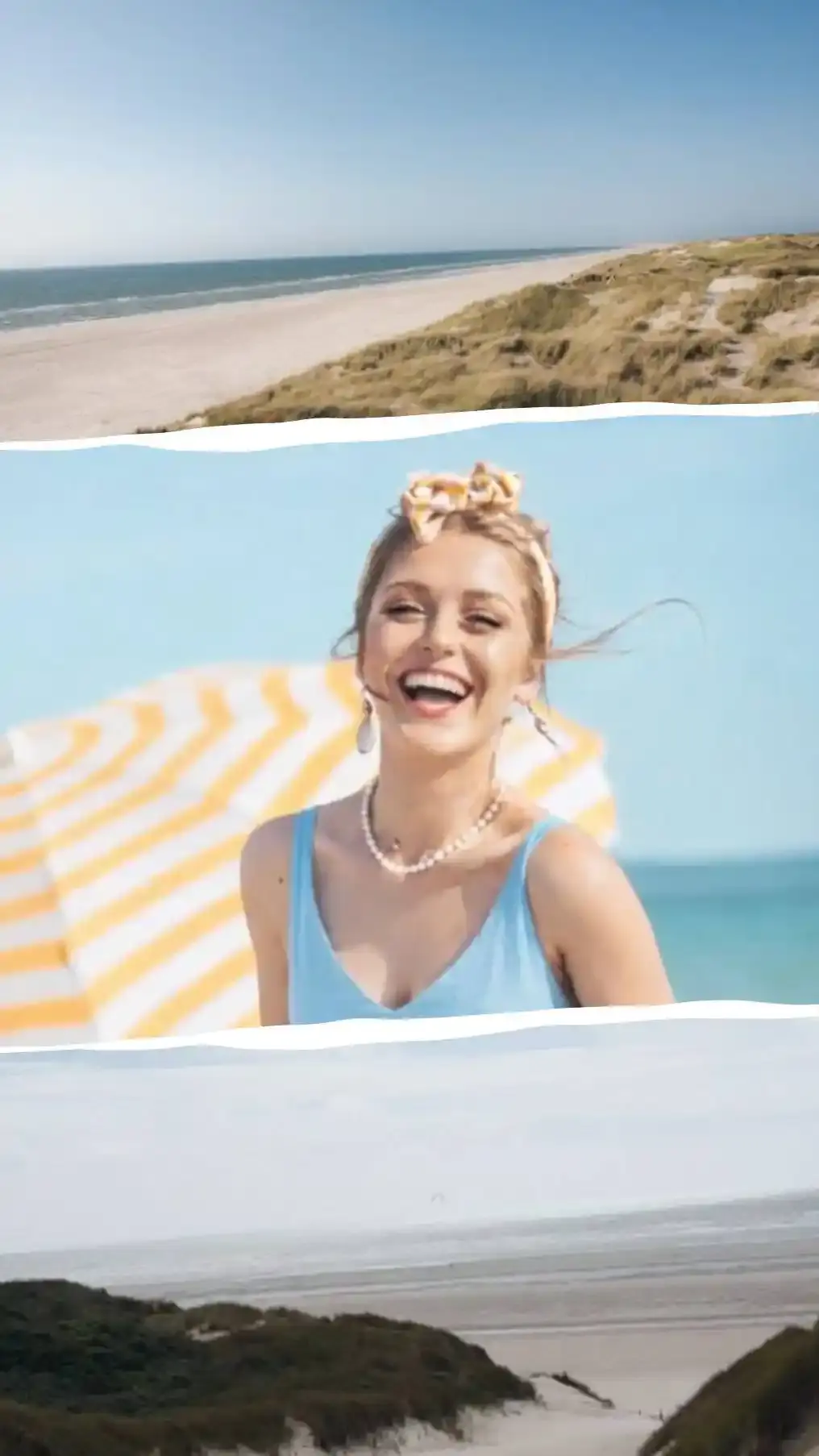
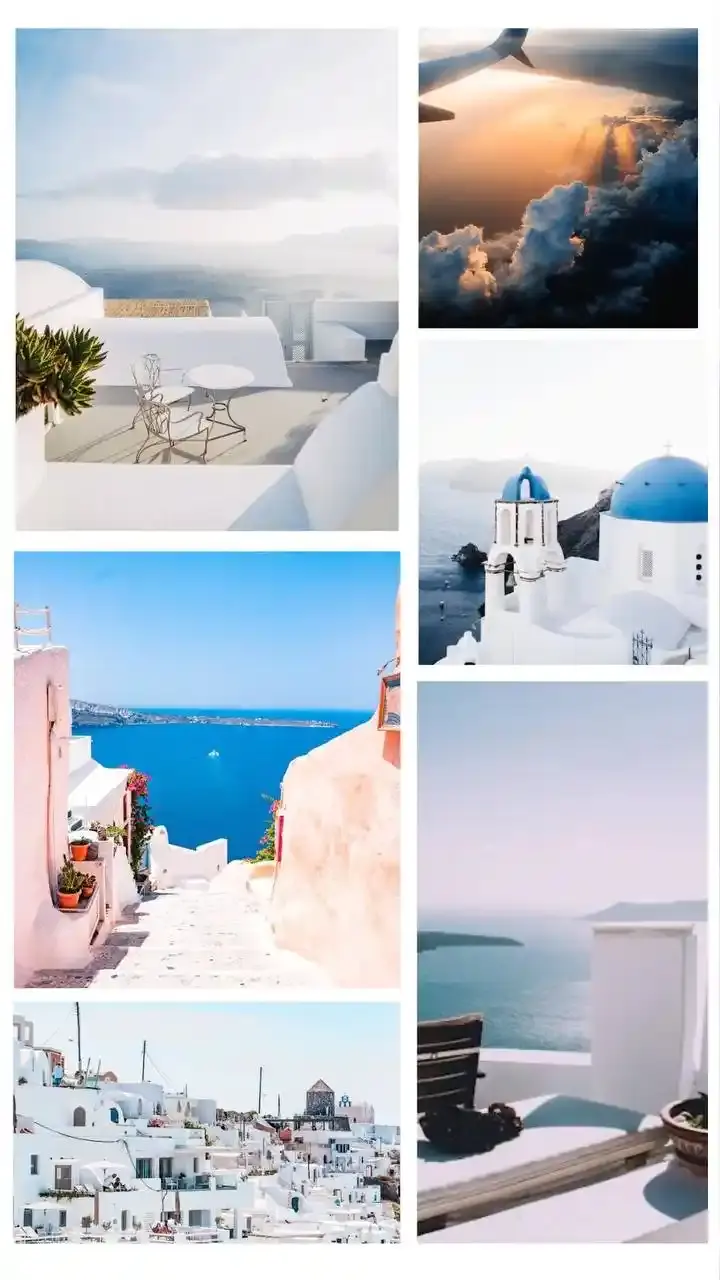
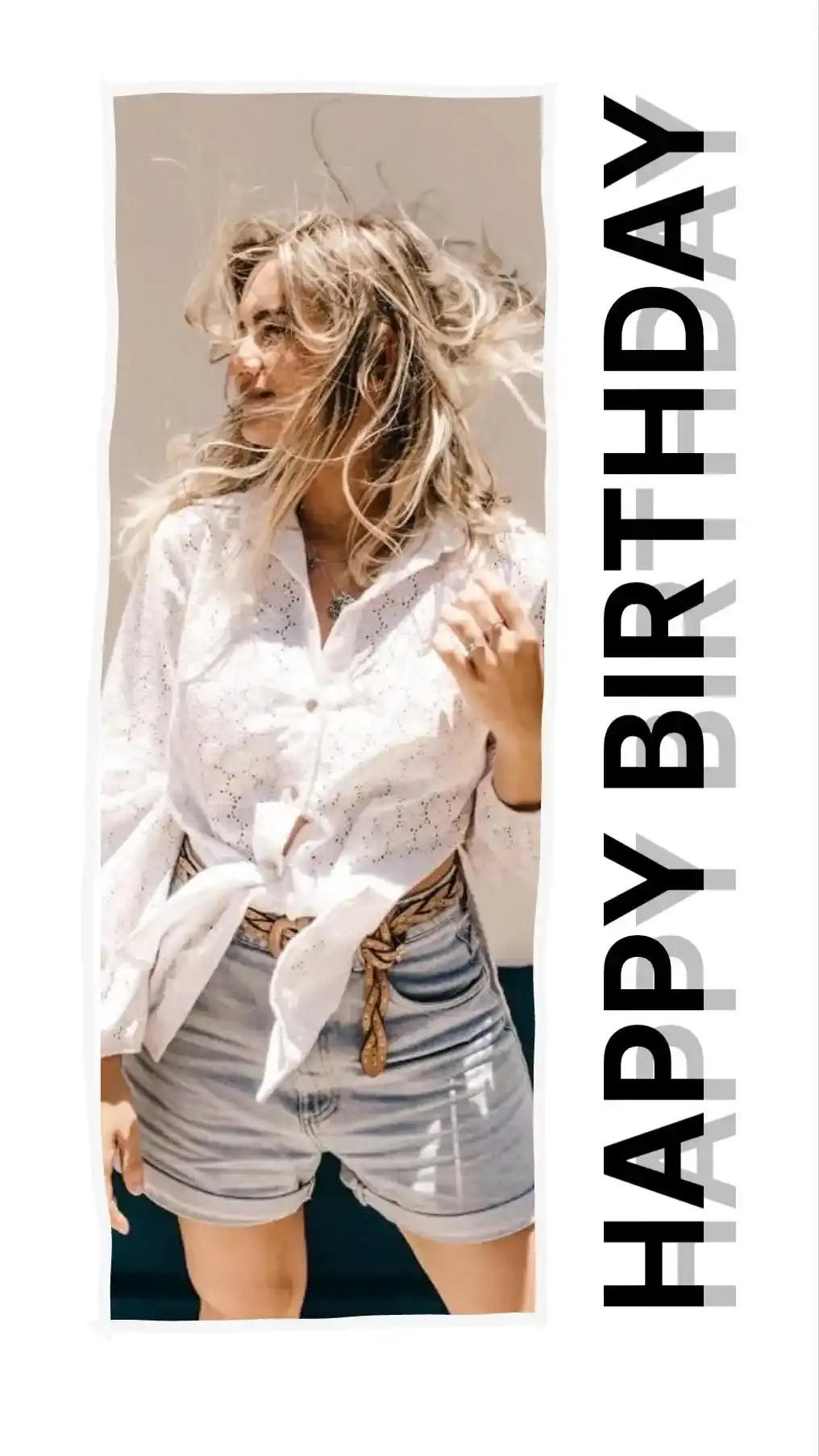
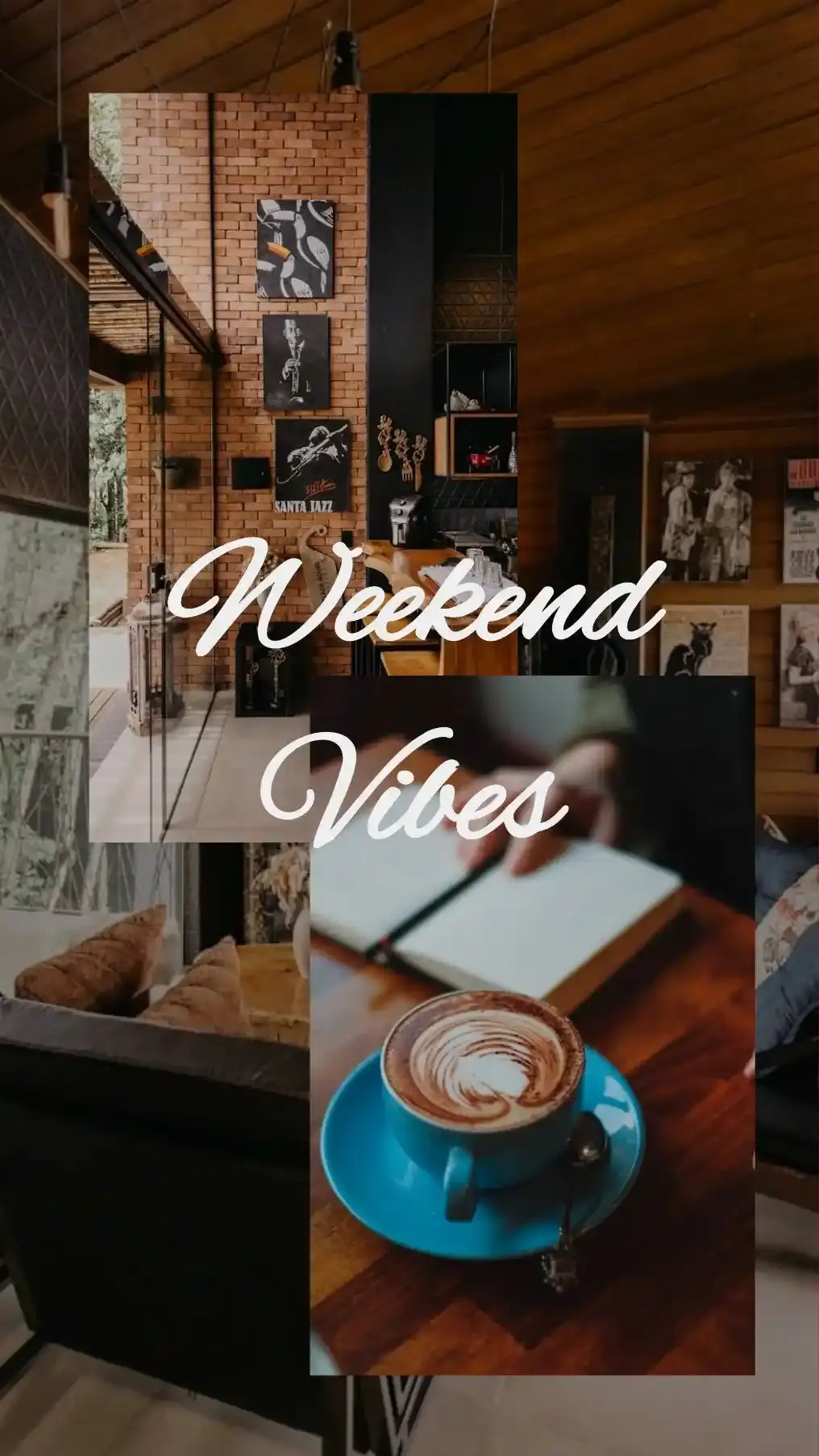
CollagePhotoApp is built around one specific moment: six photos from a weekend, one frame, a result that looks designed rather than dumped. Open the app, pick a template, drop the photos in, amazing story ready. That's the whole flow.
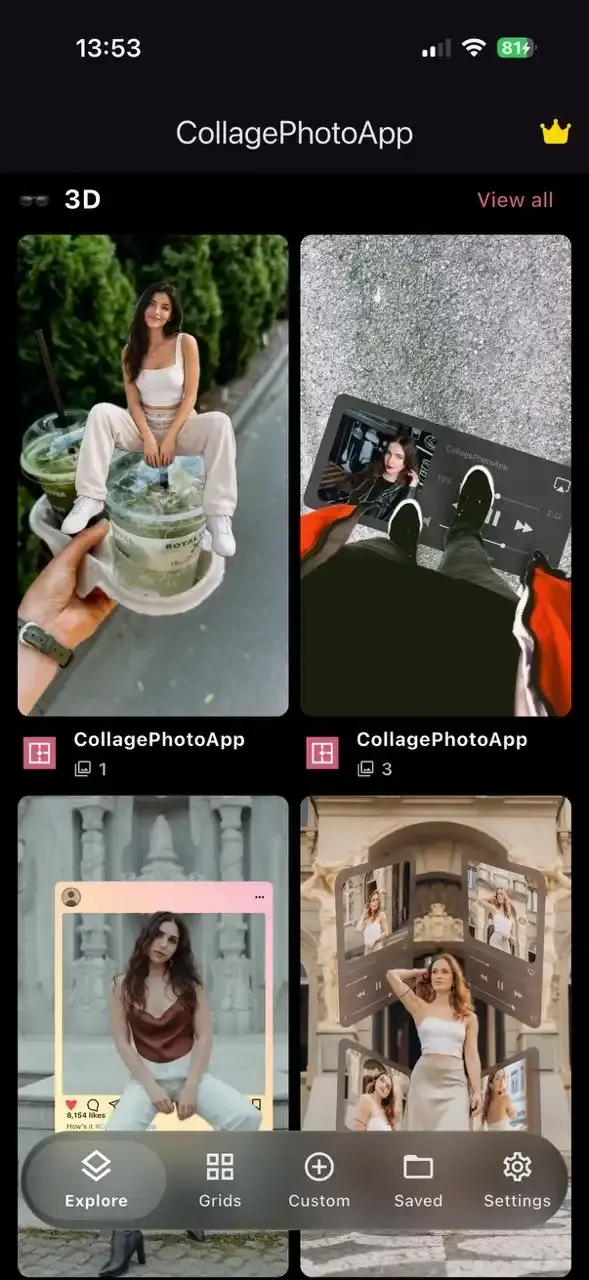
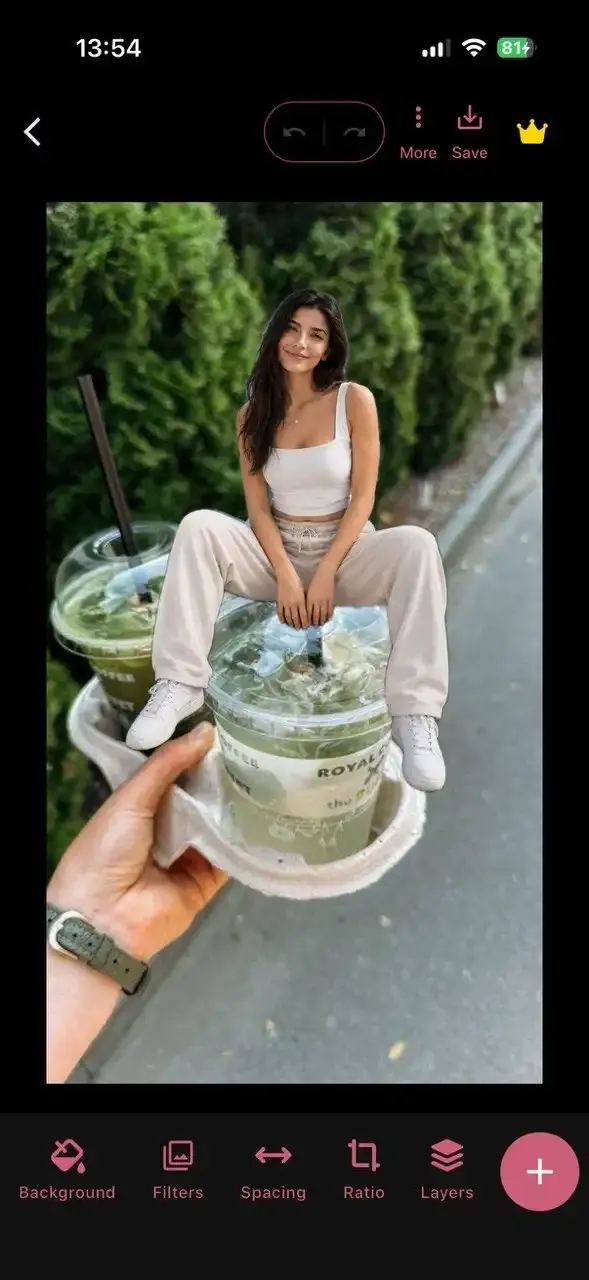
Templates land on a Story-shaped canvas from the first tap, so nothing gets cropped strangely at the end. Everything on that canvas is a layer, which means the spacing between photos, the background, the font and the filter on each individual image are yours to set rather than whatever the grid decides. Alignment help is built in as well: magnetic snapping, centre lines and a rule-of-thirds overlay you can switch on while nudging things into place. One detail worth calling out, layouts are stored as percentages rather than fixed pixels, so switching a design from square to 9:16 reflows it instead of cropping it. That single behaviour solves the most common Story mistake on this page.
Many user specific features are available for free like Humanout which cuts a person out of a photo and drops the background entirely, leaving a sticker-style subject that can sit between two other layers. Photostrip builds a photobooth-style strip from up to ten shots. Continuous Text flows a line of type along any path you draw with a finger. Frames run from Polaroid through camera shells to browser and chat-app mockups. Exports don't have watermarks and can be shared to social platforms straight from the app.
Though the app has plenty of free features and exports without a watermark, there is a paid plan on top of it, unlocking canvas extras like Multi Flow color and 3D Tilt.
Pros:
- Sign up, Login not required
- Templates open directly on a 9:16 Story canvas
- Designs reflow between ratios
- No watermarks on export
Cons:
- Phone-first, there's no desktop version
- No video support
2. Canva, Best for Designing Beyond Instagram
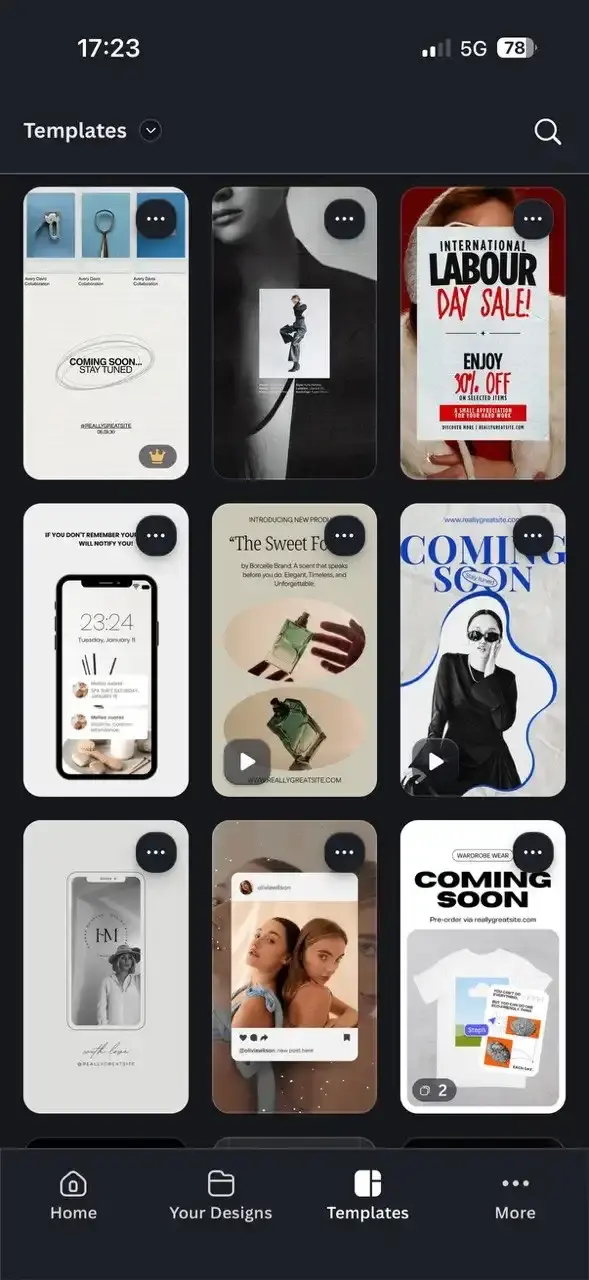
Canva is the app you've already got open for something else. Pitch decks, a logo, a birthday invitation, a CV. Stories are one format among hundreds. That breadth is the appeal, because a design you make for a Story resizes into a post, a banner or a thumbnail without starting over.
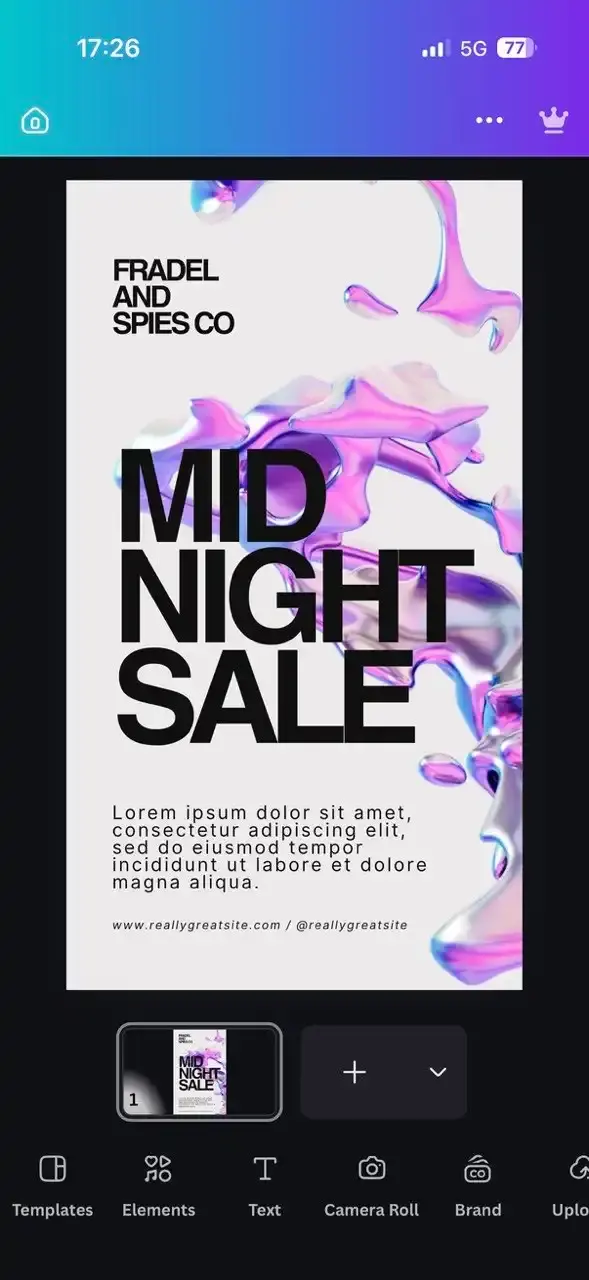
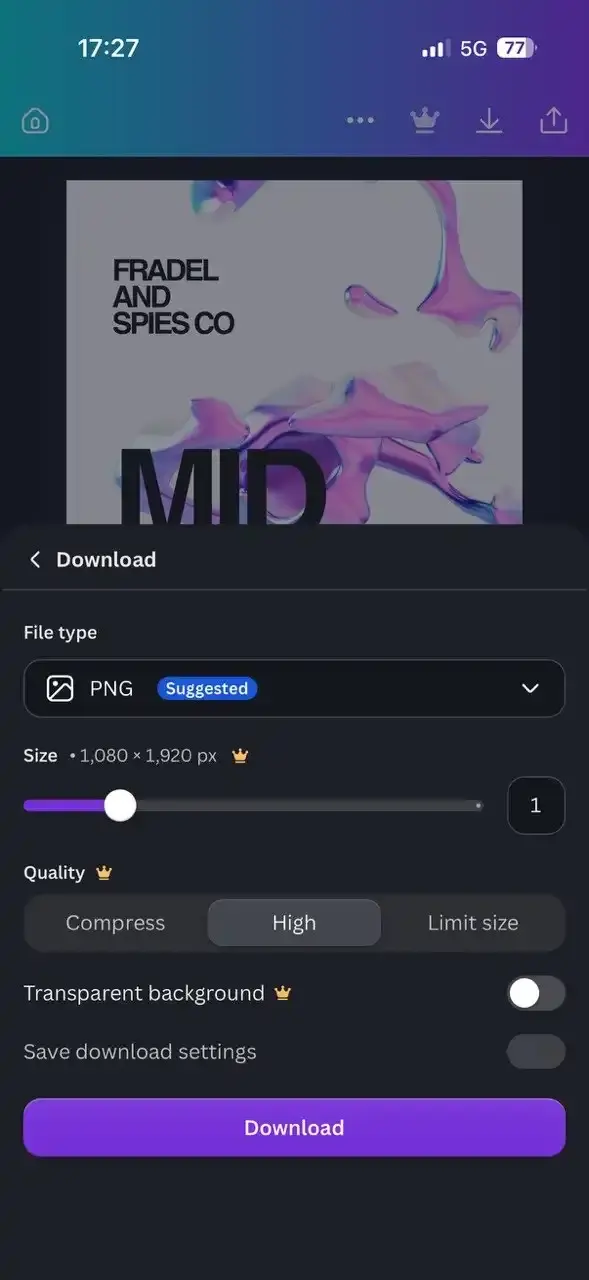
Credit where it's due, the free plan is more generous than most roundups admit. Build a Story from free templates and free assets and it downloads clean without any watermark but if any premium element is used then watermark will appear on that specific premium element. Buy the specific element or upgrade and the mark clears.
The friction is finding the free ones. Premium assets sit in the same search results with no way to filter them out. Canva does mark them, a small crown icon on the thumbnail of anything Pro, which sounds like plenty until you're thumbing through a grid at speed on a phone. Miss the crown once and the watermark only announces itself after you've built the layout around that element. The free plan also can't export a transparent PNG or an SVG, which stings the moment you want a sticker with no background.
Pros:
- Template library spanning far more than Instagram
- Free assets export with no watermark at all
- Resize one design across multiple formats
- Works on phone, tablet and browser
Cons:
- Premium elements watermark until bought or upgraded
- No way to filter paid assets out of search results
- Free plan can't export transparent PNG or SVG
3. Unfold, Best for a Minimal Aesthetic
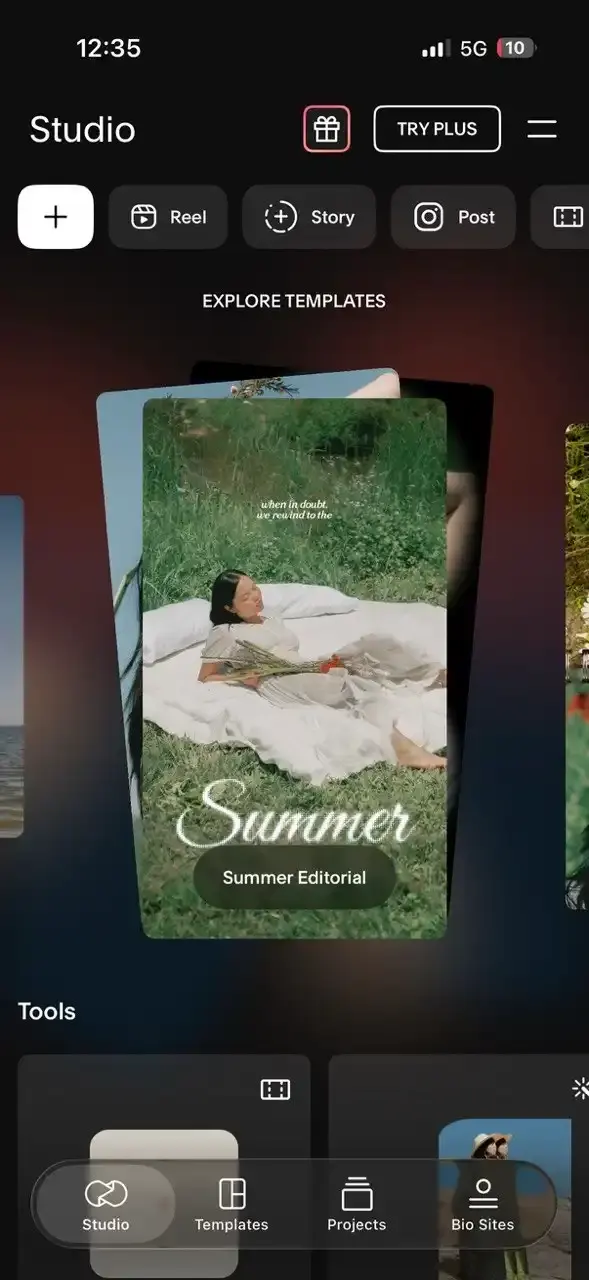
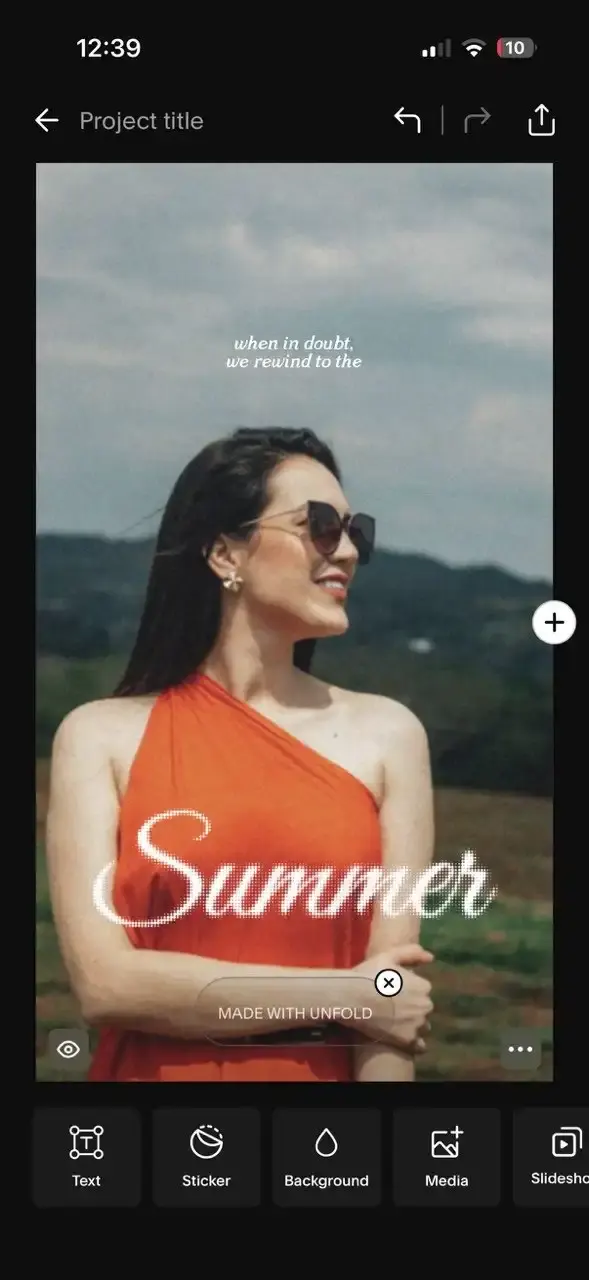
Lots of white space, thin serif type, photos framed like a print magazine spread. Unfold arrived with a very particular look and has kept it while everyone else chased maximalism. If your feed leans editorial, nothing here matches it as cleanly.
The generosity is great but comes with its own catch, you need to Sign up or Login, there is no way to get a direct access inside the app. For free templates export has a Unfold watermark unless you subscribe. That covers the Start from Scratch layouts and the Reel templates alike. No premium-asset caveat, no per-element nuance. Free means branded. Custom colors are reserved for higher tiers and layout proportions can't be resized, so you work within the frame you're given.
Pros:
- Distinctive editorial look that still stands out
- Well-made multi-slide story sets
- Available on both iPhone and Android
Cons:
- Sign up, Login required
- Every free template exports with a watermark
- Layout proportions can't be resized
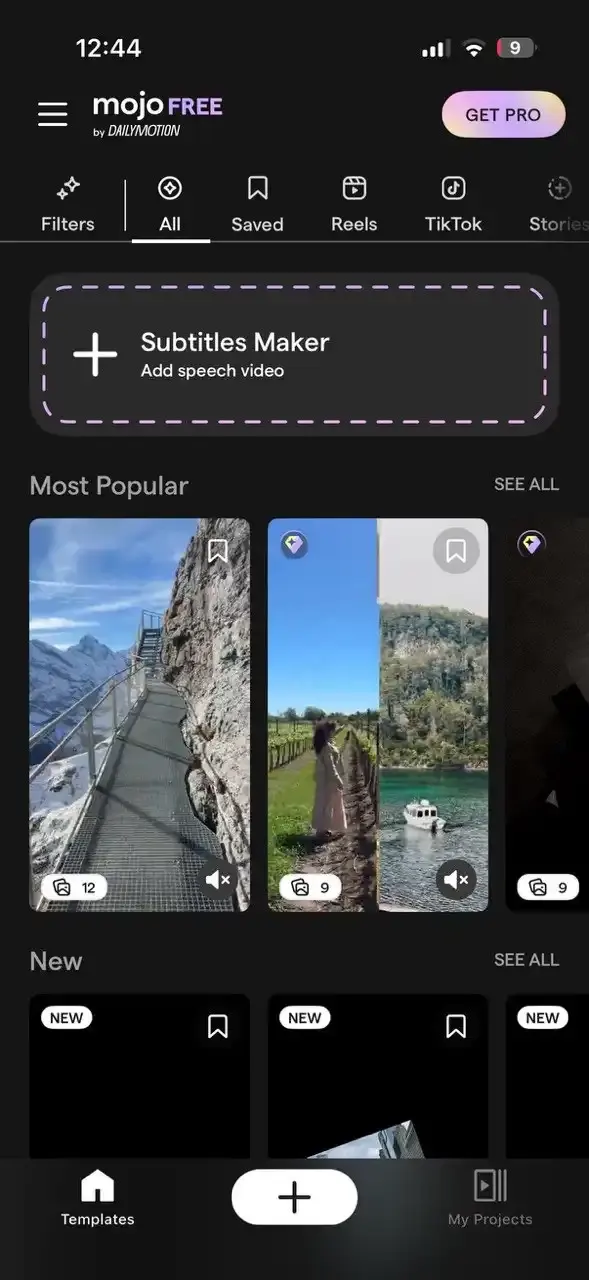
4. Mojo, Best for Animated Text Overlays
Motion catches the thumb. A Story where the headline slides in and settles gets watched a beat longer than a static one. Mojo is built almost entirely around that idea. Its typography presets are well crafted, the kind of thing that'd take an hour in After Effects.
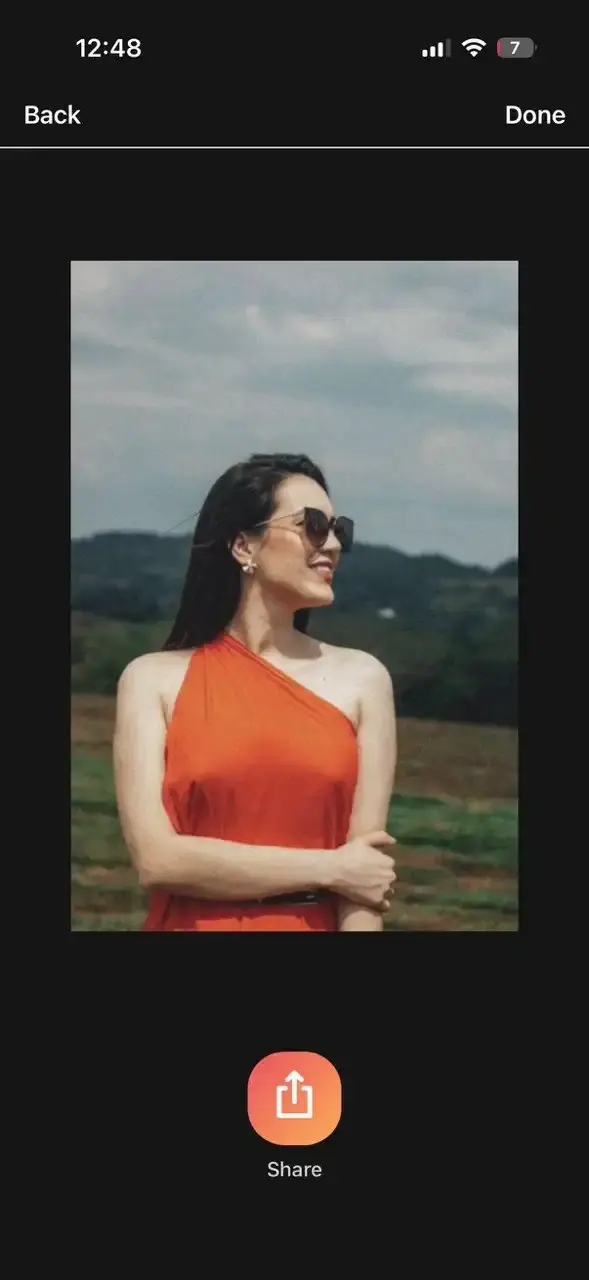
No sign up or login is required just to open the app, it has a nice clean layout overall. Noteworthy problems: stretching the duration bar further is fiddly rather than intuitive. The AI templates need a sign up or login too, because they run on credits. Free exports carry a Mojo watermark, with removal listed as a paid feature on its pricing page.
Pros:
- Sign up, Login not required for normal templates
- Excellent animated typography presets
- Fast route to motion without editing skills
- Auto-captioning and background removal included
Cons:
- Signup, Login required for AI templates
- Templates run only a few seconds and resist being extended
- Watermark on free exports
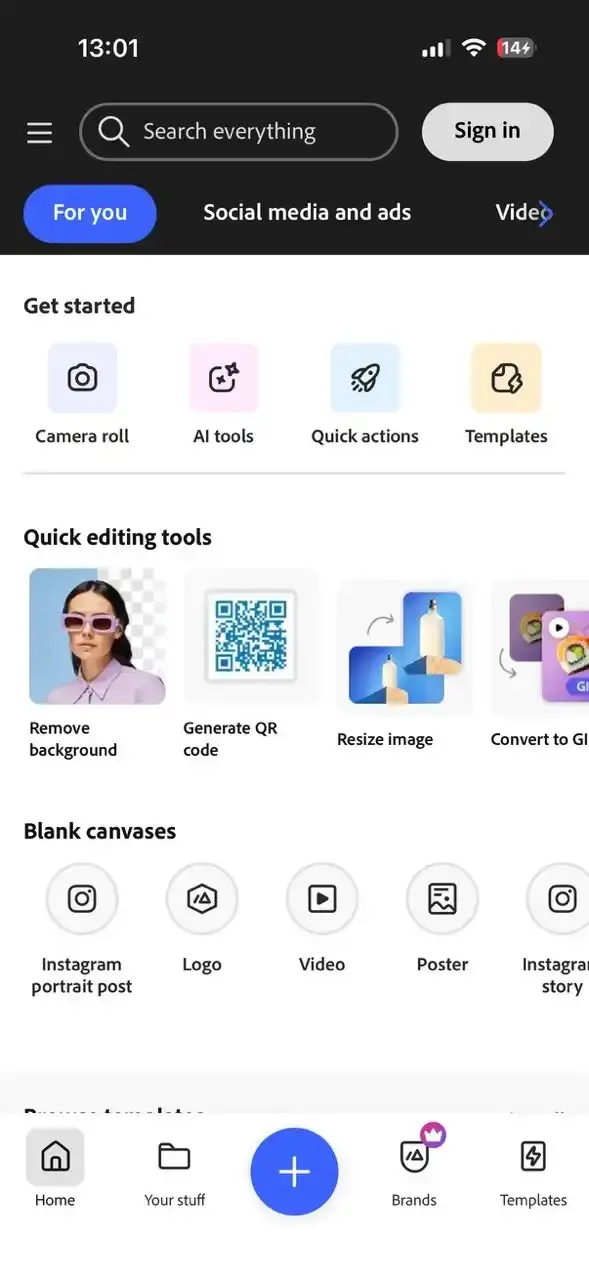
5. Adobe Express, Best for Brand Consistency
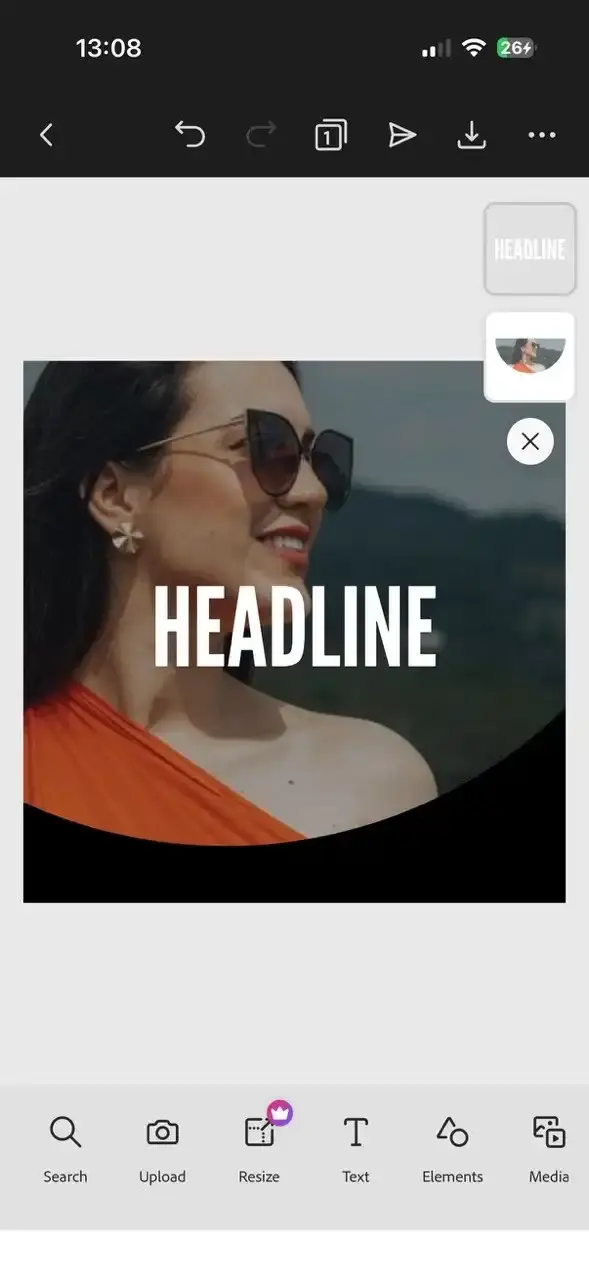
If you post for a business rather than yourself, the thing that saves time isn't the template, it's the brand kit. Adobe Express lets you save your fonts, your colors and your logo once, then applies them across everything you make. Three people posting for the same account stop producing three visually different feeds.
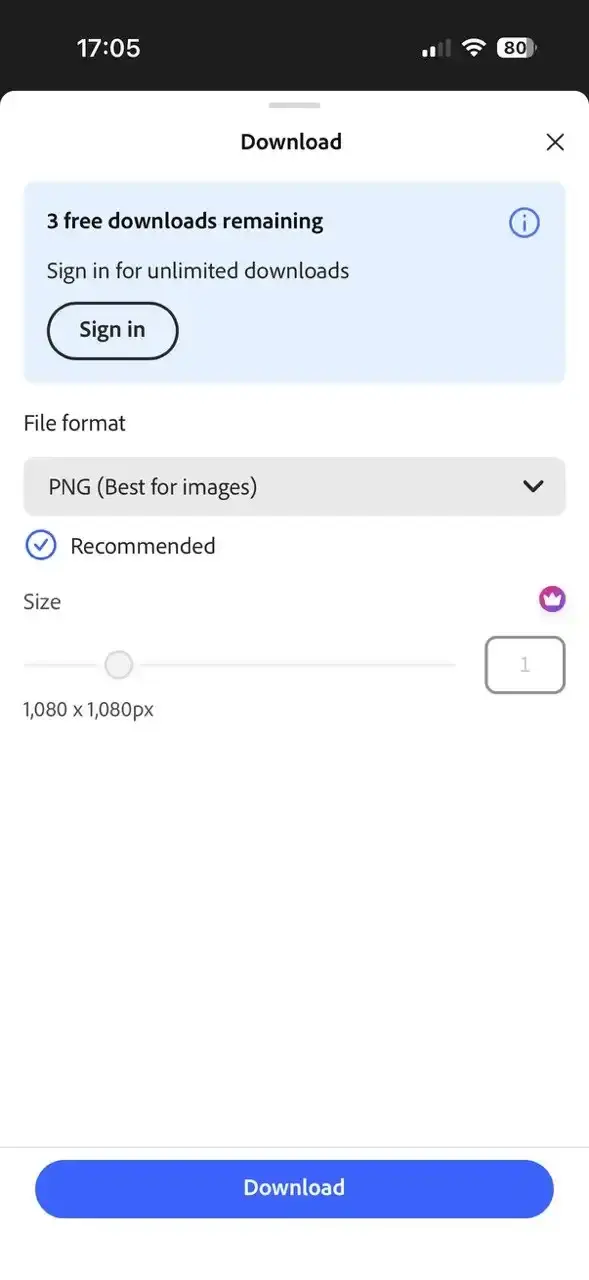
Like Canva, the free plan is broader than its reputation. Adobe has many templates in their library, plethora of stock assets, fonts etc. Your templates and current work are temporarily synced to their cloud servers, which the app tells you up front. What's fenced off is the premium tier of templates and stock, the layout resize and the Eraser. Saving to your device gives you three free downloads at a restricted size, after which you need to sign up or log in.
Pros:
- No Sign up, Login required to use
- Brand kit keeps fonts, colors and logo consistent
- Large template library plus solid stock assets
Cons:
- Resizing of layout is gated behind paywall
- Sign up, Login required to save work on device
- Premium templates and stock locked behind the paywall
6. Instories, Best for AI-Assisted Story Design
Instories sells polish. Its animated template packs look like they came out of an agency, which for a small brand with no designer is a real shortcut. The AI suggestions propose layouts rather than making you choose from a wall of thumbnails.
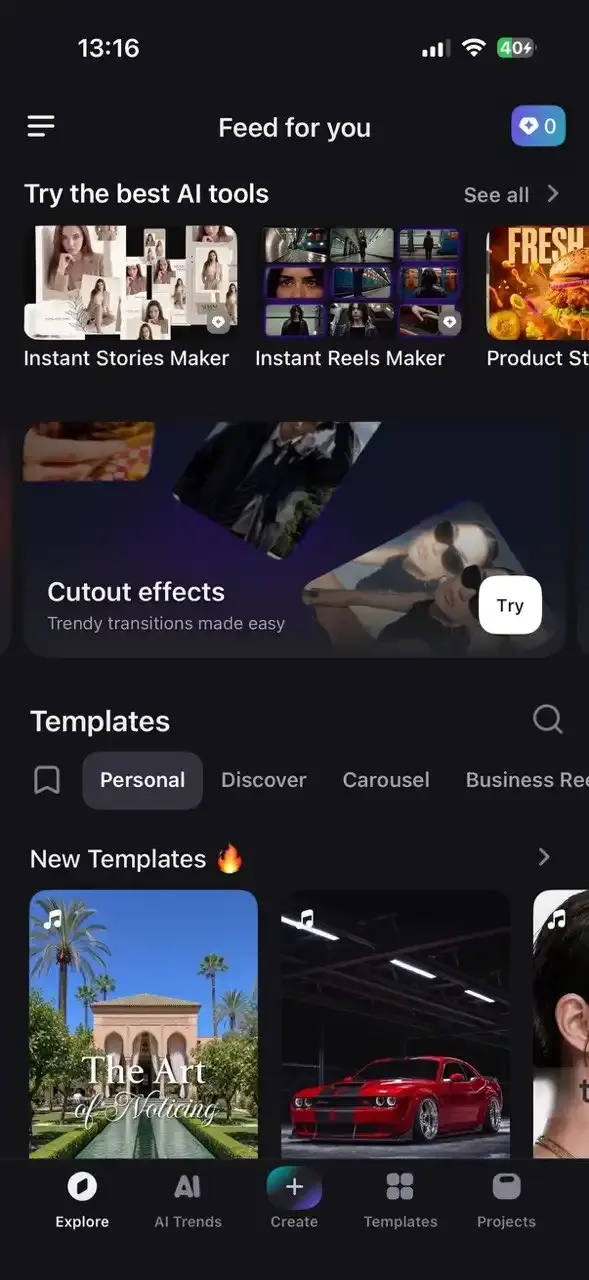
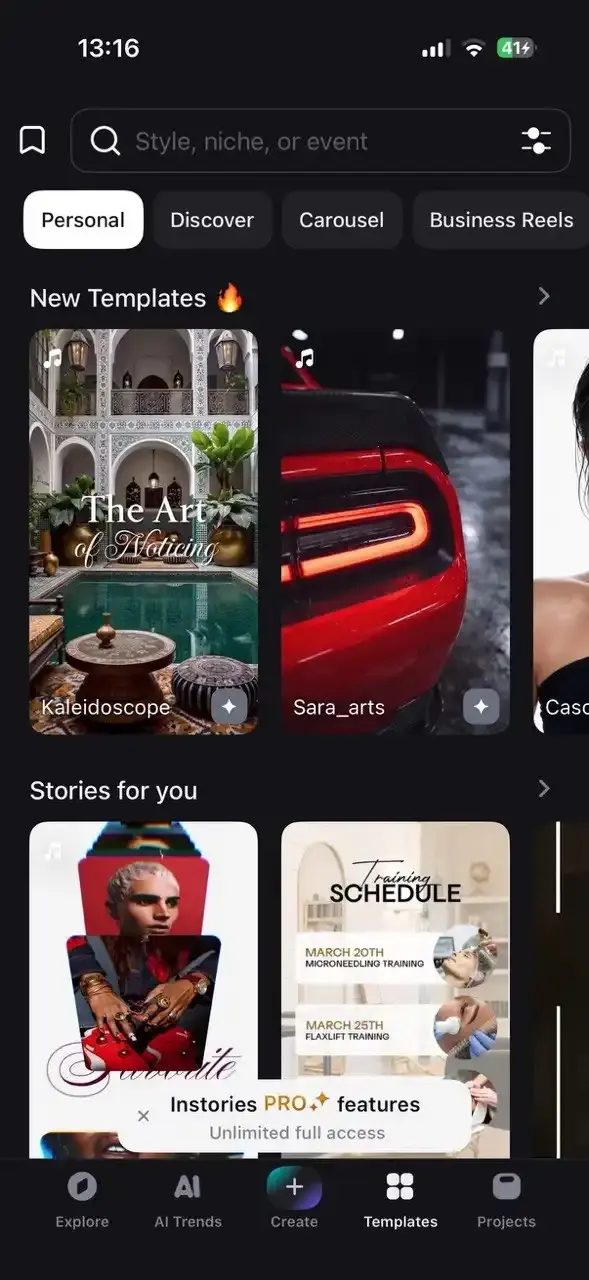
The free tier is narrow. It includes start from scratch, some fonts, stickers, filters, voice-over, stock libraries and a few AI features. The animated packs that make the app worth having are almost all on the paid side, so the free version is more preview than workhorse.
Nothing you make comes out branded, which is unusual for a free tier this tight. The catch waits at the other end. Touch a Pro feature on the canvas and the export stops dead, with the paywall arriving in the editor rather than at save time. That's a harder gate than a watermark. A watermarked file is at least a file.
Pros:
- No Sign up, Login required to use
- Agency-grade animated templates
- No watermark on what you export
- Covers Stories, Reels and posts in one app
Cons:
- Using a Pro feature blocks the export outright
- All templates gated behind paywall
- Many features on canvas gated
7. Picsart, Best for Cutouts and Stickers
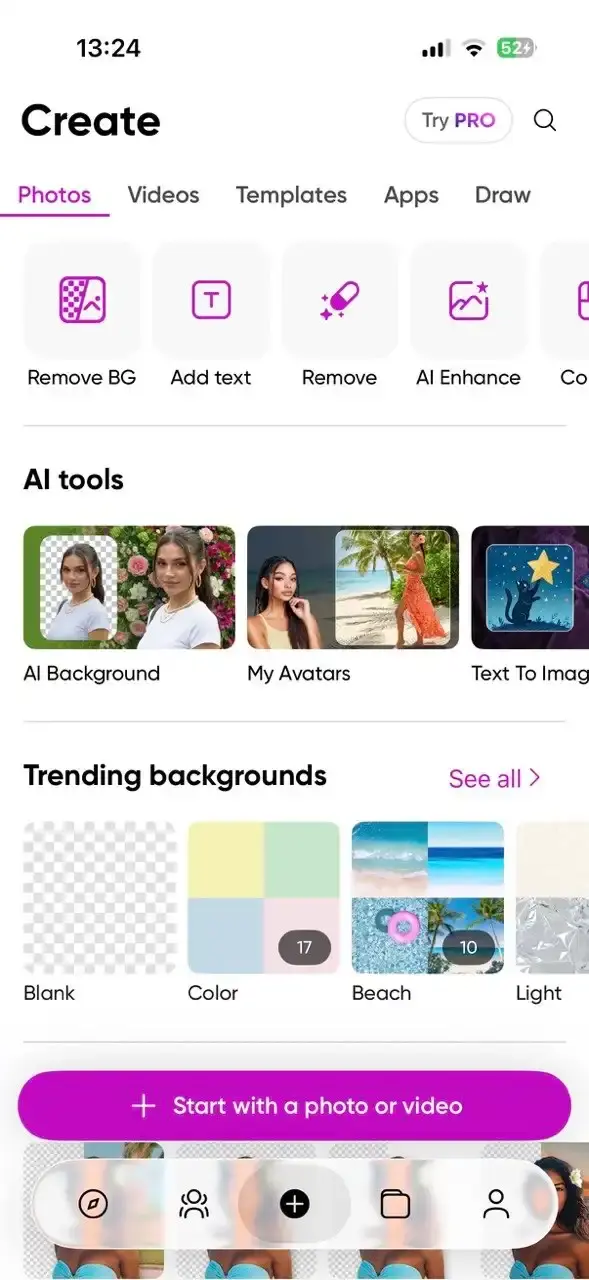
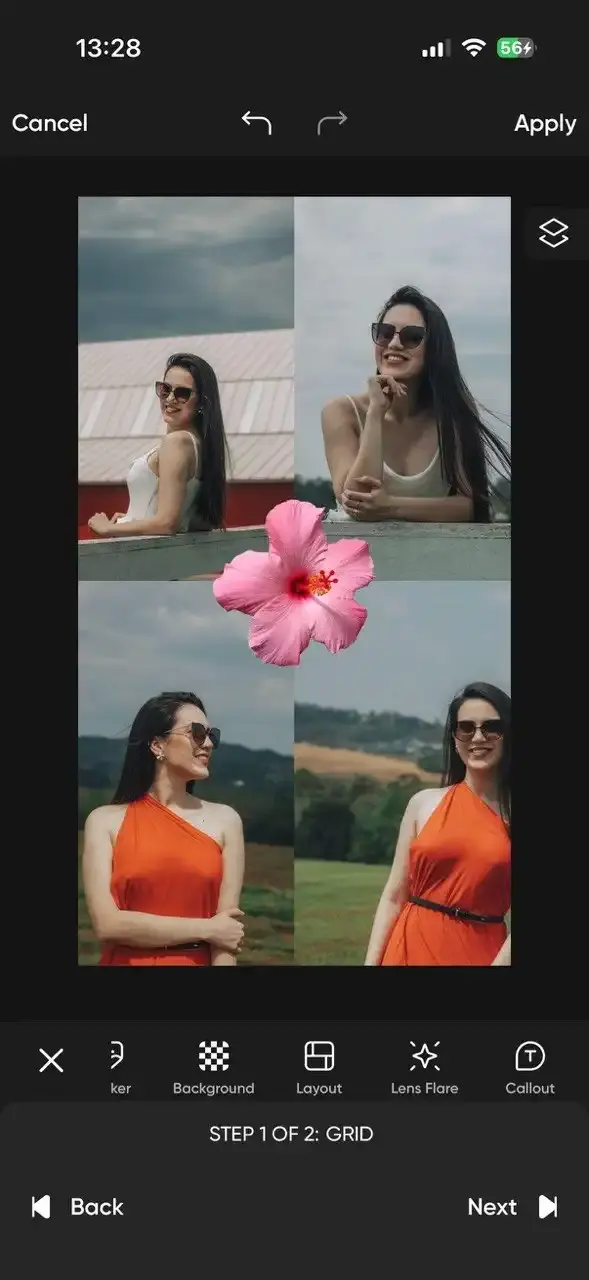
Picsart is where you go when you need your subject lifted off its background and dropped onto something else. The one-tap cutout is fast and clean. The sticker library is enormous, so the scrapbook, sticker-bombed Story aesthetic is well served here.
It is a feature loaded app for sure but has many ads in it, if you want to remove ads then you need a Pro subscription. It shows ads on the canvas while you edit, another when you tap Export and one more after the media saves to your device. The good thing is that there is no watermark on what comes out. Its AI tools and templates run on Gen AI under their own terms of use, with a metered credit allowance. The plans are priced mostly on credit volume and device count.
Pros:
- No Sign up, Login required to use
- Many free features to choose from
- Huge sticker and cutout library
Cons:
- AI templates need sign up
- Free tier shows ads
- AI tools metered by monthly credits
8. Facetune, Best for Portrait Retouching
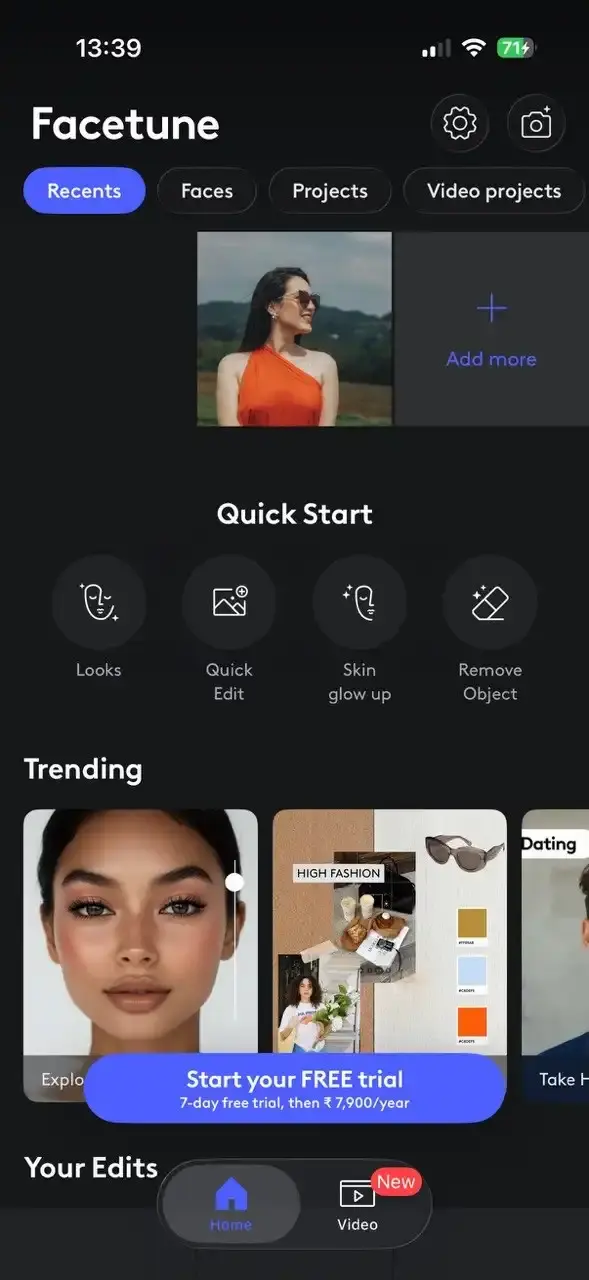
For a Story built around a face, Facetune is the most precise retouching tool of the group. Blemishes, teeth, skin texture, the finer controls that general editors handle bluntly. Used with restraint it does what a good photographer would do in post.
Home doesn't show much variety, though the editor itself carries a real depth of tools. Tap Done and a paywall lands. Exports arrive with a watermark clearly visible, but a switch clears it free of charge on photos. Video keeps the mark. A subscription is what removes the watermark.
Pros:
- Best-in-class precision on facial retouching
- Video retouching as well as stills
- No card details needed to try it
Cons:
- May share images with third-party AI(as mentioned in their disclaimer)
- Video exports keep the watermark unless you subscribe
- Hands back a photo, not a Story
9. InShot, Best for Quick Video Trims
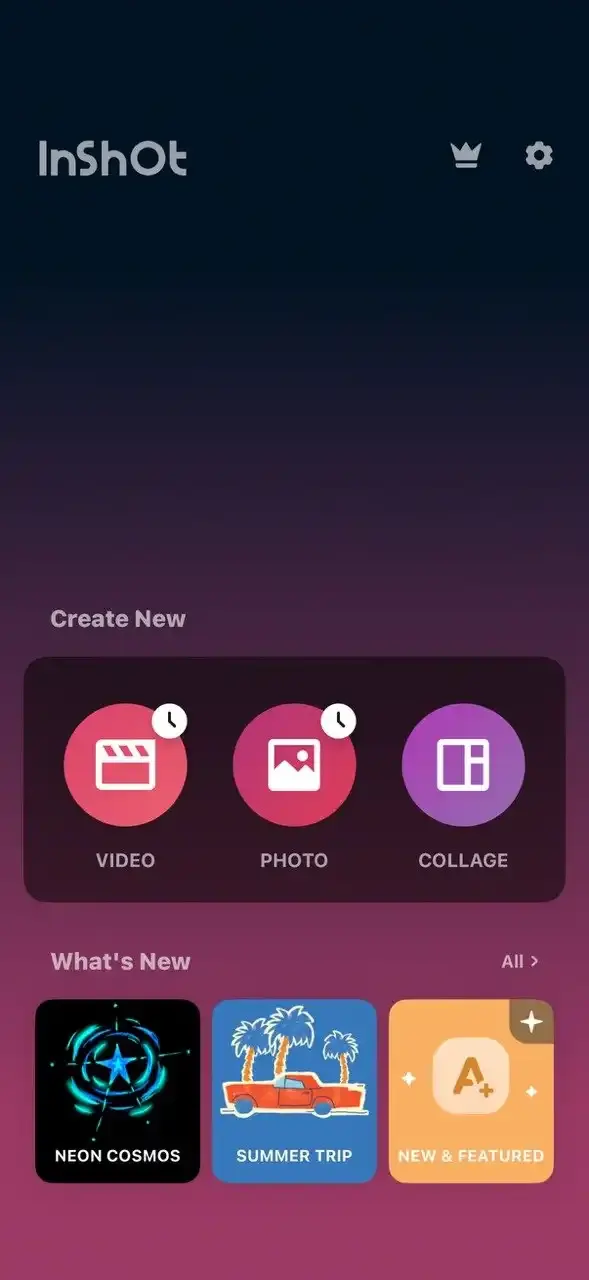
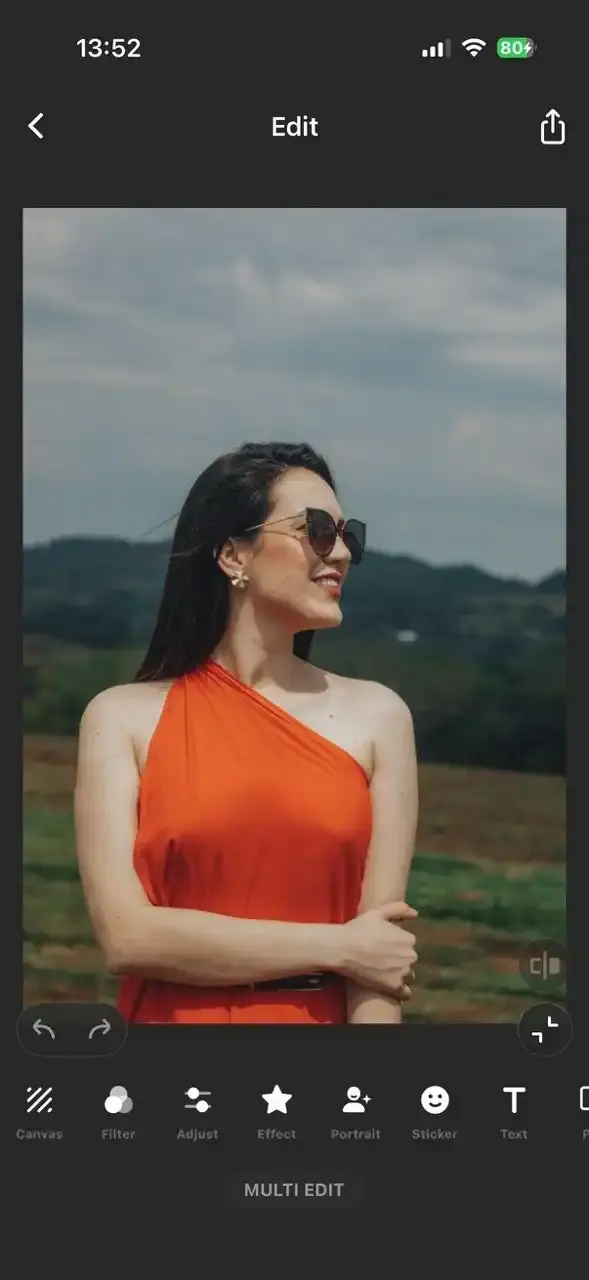
For chopping a two-minute clip down to something Story-sized, InShot is hard to beat on speed. Trim, split, adjust playback rate, add music, export. The interface has barely changed in years, which sounds like criticism but is exactly why muscle memory works here.
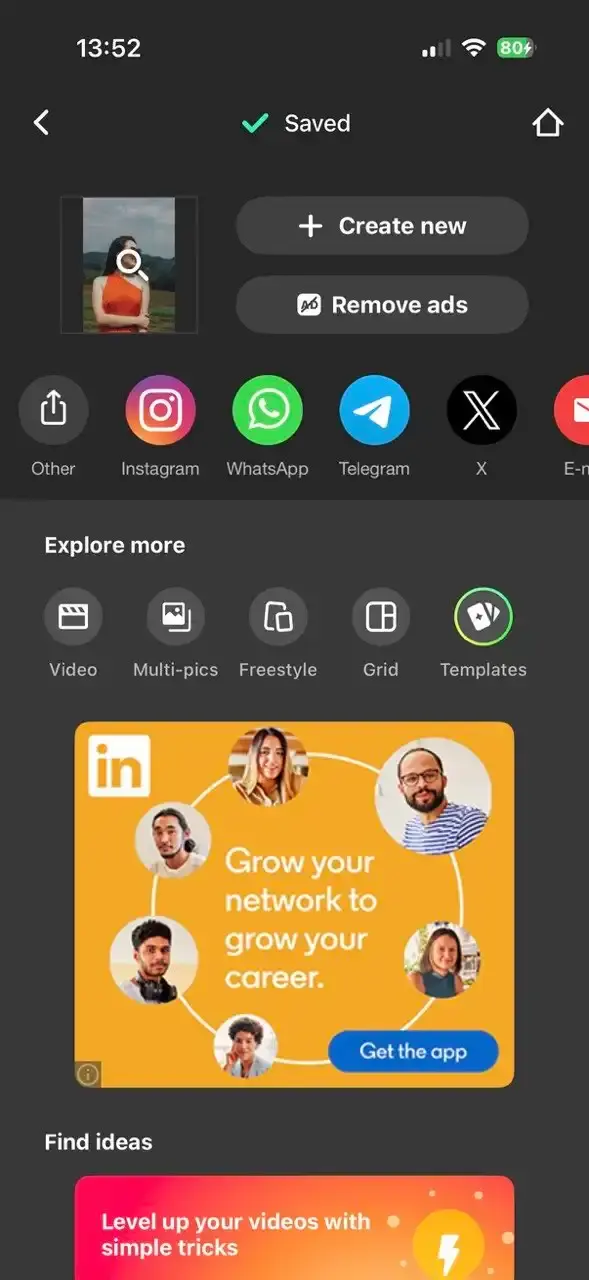
Here too the free users have to face a watermark on their exports and they also see an AD after their export is saved on their device. If you want to remove ADs and want premium features then InShot grants both on a paid subscription. As a video editor first, its collage and layout tools are an afterthought.
Pros:
- Very fast trimming and splitting
- Reliable, familiar interface
- Music, text and stickers all built in
Cons:
- Ad on every single export and watermarks on them
- Premium effects and transitions locked to Pro
- Layout tools are secondary to video
10. CapCut, Best for Auto-Generated Captions
Roughly everyone watches Stories with the sound off, which makes burned-in captions less a nicety than a requirement. CapCut's speech-to-text is the best in this group, quick and accurate enough that fixing it takes seconds.
Which is awkward, because captioning is exactly where CapCut has been tightening. Through late 2024 a long list of previously free tools moved behind Pro. The squeeze has continued since: auto-captions remain available free but are now metered by a monthly allowance that CapCut doesn't document anywhere, so free users find it by hitting it. Pricing was restructured again in early 2026, with the old Pro tier renamed Standard and a new, considerably more expensive Pro introduced above it. Watermarks are worth understanding before you rely on it, because there are three different ones. Edit manually and your export is clean. The CapCut outro that gets appended by default is just a clip on the timeline, so you can scroll to the end and delete it. The awkward one is the logo baked into certain ready-made templates, which isn't a clip you can remove. That one comes off only by watching an ad, by upgrading or by rebuilding the edit yourself. Since templates are what most people come for, budget for that. It's also comfortably the largest download here.
Pros:
- Best automatic captioning in this group
- Deep effects and transition library
- Manual edits export without a watermark
- Runs on desktop as well as phone
Cons:
- Free captioning metered by an undocumented monthly cap
- Effects marked Pro let you preview but not export
- Template exports are watermarked
- Repriced upward in early 2026
- Largest install size on this list
11. VSCO, Best for Film-Style Presets
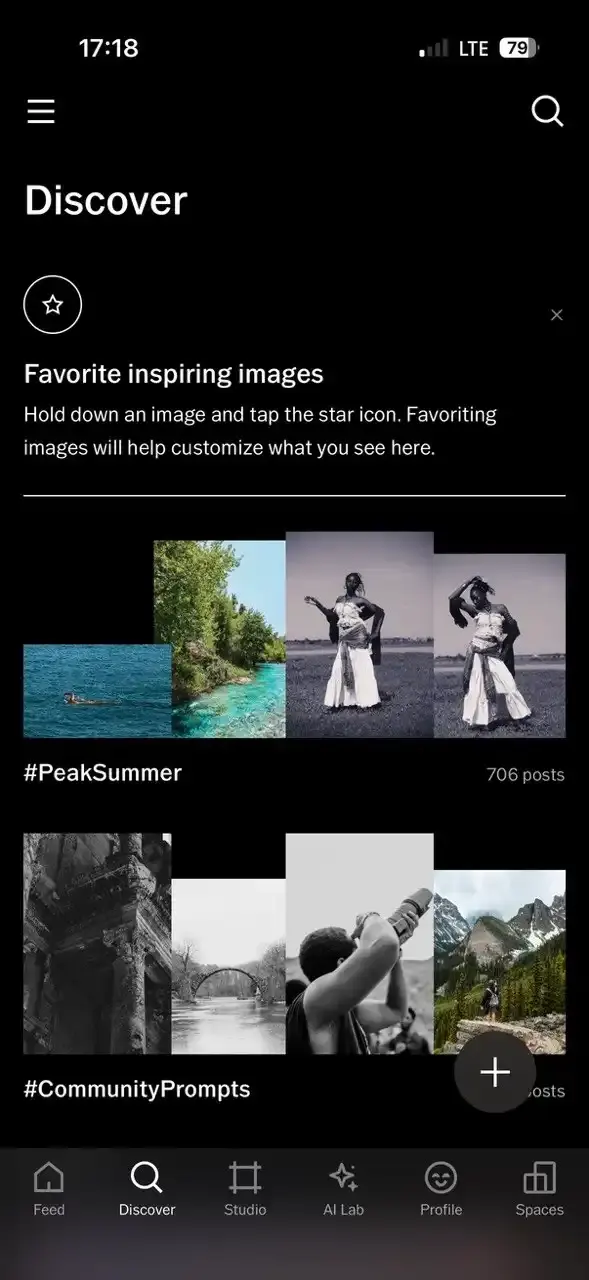
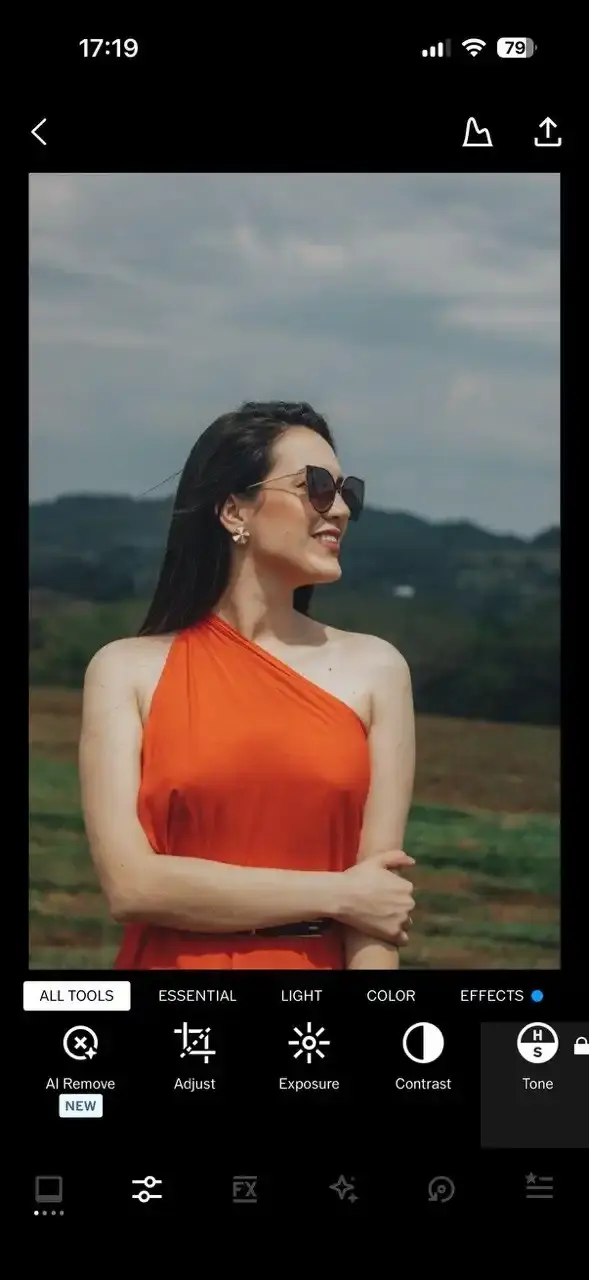
VSCO's presets are the real thing. Not filters that crank saturation, but considered emulations of actual film stocks, with the muted greens and lifted blacks that made the look popular in the first place. Applied across a set of photos they give a Story a visual coherence no amount of layout work substitutes for.
The free tier is real enough, around ten presets and the basic tools, with the full library and the more interesting adjustments behind the membership. Worth understanding the refund position before you subscribe, because it varies by what you buy: VSCO's support documentation describes a one-time 30-day refund window on its top VSCO One tier, while Plus and Pro refunds aren't handled by VSCO at all and have to go through Apple or Google.
Pros:
- Genuinely well-crafted film emulations
- No watermark on free exports
- Consistent look across a whole set of photos
- Clean, distraction-free interface
Cons:
- Sign up, Login required with username
- Only around ten presets available free
- Plus and Pro refunds have to go through the app stores
12. Adobe Lightroom, Best for Manual Exposure Control
When a photo is nearly right but the shadows are crushed or the white balance has gone orange under indoor light, Lightroom's sliders fix it properly. Exposure, contrast, highlights, shadows, tone curve. The free tier covers these, plus cropping and a basic preset selection, which is more than enough to rescue most phone photos.
Be clear about what isn't free to use. Adobe has many features under paid section including RAW editing, masking, selective adjustments, the healing brush and cloud sync, which makes the common "just use Lightroom for RAW" advice misleading for anyone on the free tier. And Lightroom has no templates and doesn't have a Story canvas, so it sits at the bottom of this list not because it's a weak app, but because it's the furthest thing here from a Story maker.
Pros:
- Precise, professional-grade tonal control
- Free tier handles exposure, contrast and white balance well
- No watermark on exports
- Syncs with the desktop version for larger jobs
Cons:
- Sign up, Login required
- RAW editing, masking and healing all require a subscription
- No templates and no Story canvas
- Steeper learning curve than anything else here
Instagram's Built-In Story Tools You Already Have
Before installing anything, check what the Stories camera already does. Don't skip this one it's free and sitting on your phone and officially from Instagram.
The Layout tool arranges several photos into a grid inside a single Story frame. Tap the Layout icon on the left panel of the Stories camera, cycle the grid patterns, fill each slot. The output is clean and symmetrical. Takes under a minute. Instagram retired the standalone Layout app in May 2024, so the feature now lives only inside the Instagram Stories camera. There's a full walkthrough with screenshots in our Instagram story collage guide.
Photo stickers turn each image into a moveable, resizable layer you can scatter or overlap freely. Less tidy than the Layout grid, more expressive.
Multi-select posts up to ten photos as separate sequential slides in one action, which is the right call for a trip recap where each photo deserves its own moment. Our guide on adding multiple photos to an Instagram Story covers all of these in detail.
What the built-in tools can't do: control spacing, change the background behind a grid, apply a different filter per photo or use a designed template. That's the ceiling. It's precisely where a dedicated maker earns its place.
Browser Tools That Skip the Download
Sometimes you're on a laptop. Sometimes your storage is full. Sometimes you need one image split and don't want a new app for it. We keep a few free browser tools for exactly that. Everything runs locally in the browser, there's no sign-up and no upload.
- Add Text to Photo puts captions, quotes and watermarks on a photo, with a contrast meter that tells you when the words disappear into the background
- Merge Images Online combines photos side by side, vertically or in a grid
- Instagram Grid Maker splits one photo into a tiled grid with the correct posting order
- Side by Side Photo Maker puts two photos together with labels and a divider, useful for before-and-after Stories
- Instagram Carousel Splitter cuts a wide or panoramic image into carousel slides
None of these watermark your output.
Instagram Story Specs Every App Must Match
An app is only as good as what it exports. These are the numbers to hold it to.
Dimensions: 1080 x 1920 pixels, a 9:16 aspect ratio. This is the full-screen vertical format.
Minimum usable size: 720 x 1280 pixels. Below that, Instagram stretches the image and it goes soft.
Safe zone: the top 250 pixels carry the profile row and progress bar, the bottom 250 pixels carry the reply bar. That leaves a safe band of 1080 x 1420, roughly three quarters of the canvas, running between the 250 and 1670 pixel marks. Anything that has to be read, headlines, faces, prices, belongs inside it. Many designers also inset about 65 pixels from each side for stickers and captions, giving a tighter 950 x 1420 box.
File size: up to 30 MB for images, up to 4 GB for video.
Formats: JPG and PNG for photos, MP4 and MOV for video. HEIC from an iPhone is accepted but gets converted on upload, so exporting as JPG first gives a cleaner result.
Video length: up to 60 seconds on a single slide. Since September 2022 Instagram no longer chops sub-60-second clips into 15-second segments. Go over 60 seconds and it does still split your video, into 60-second parts, at cut points you don't choose.
Photo duration: each static photo displays for 7 seconds before advancing.
Which App Fits Your Kind of Story
Skip the ranking and answer this instead.
You have several photos and want them in one frame. A template-led maker. CollagePhotoApp if you want per-photo control over spacing, filters and borders. Also the pick if you expect to repurpose the same design as a square post later. Unfold if the minimal editorial look is what you're after.
You post for a business with brand colors to respect. Adobe Express, for the brand kit. It pays for itself the moment more than one person posts to the account.
You want the headline to move. Mojo, accepting you're working with a few seconds rather than a full slide.
You're starting from video. InShot for a fast trim. CapCut when you need captions, keeping an eye on the free monthly allowance.
Your photo needs fixing before it needs framing. VSCO for a film look across a set, Lightroom when the exposure is genuinely wrong, Facetune for portraits if three saves a week covers you. Then take the result into a maker to build the Story.
You want to spend nothing at all. CollagePhotoApp, Instagram's own Layout tool or our browser tools.
Mistakes That Ruin a Story Before Anyone Sees It
Uploading a screenshot. Screenshots capture at screen resolution, not camera resolution. Looks fine in your gallery, mushy full-screen. Use the original file.
Designing in a square. Build at 1:1, upload to Stories, then watch Instagram either pillarbox it with grey bars or crop your subject's head off. Set the canvas to 9:16 before you place anything. Most apps make you start over if you get this wrong, since their layouts are pinned to fixed pixel positions. CollagePhotoApp stores layouts as percentages, so switching the ratio reflows the design rather than cropping it.
Losing text behind the interface. Your caption reads perfectly in the editor, then sits half-hidden behind the reply bar. Keep anything that has to be read inside the 1080 x 1420 safe band, which is most of the frame. You don't need to crowd everything into the middle, you just need to stay clear of the top and bottom 250 pixels.
Discovering the watermark last. The most avoidable one on this list. Export something disposable on day one and look at what comes out, rather than finding the branding on the Story you actually cared about.
Filtering each photo differently in a collage. Six photos, six different looks, one incoherent frame. Pick one treatment and apply it across the set. It's the fastest way to make a collage look designed rather than assembled. More on this in our guide to making collages on your phone.
FAQ
What is the best free Instagram Story maker app? Among the apps that actually build a Story rather than just improve a photo, CollagePhotoApp is the one whose free tier doesn't brand your export or ration your saves. Canva and Adobe Express also export clean, but only for as long as you stay on their free assets. Instagram's own Layout tool costs nothing either, though it offers no control over spacing, backgrounds or fonts.
Do I need an app to make an Instagram Story collage? No. Instagram's built-in Layout tool arranges several photos into one Story frame and photo stickers let you layer images freely. A dedicated app becomes worth it when you want designed templates, spacing control, per-photo filters or a background you choose.
Which Story apps put a watermark on free exports? More than you'd hope, so the detail matters. Unfold and Mojo brand every free export until you subscribe, both confirmed in their own documentation. InShot marks free saves and serves an ad once the file lands. Facetune marks exports too, though a toggle clears it on photos while video keeps the branding until you subscribe. CapCut splits the difference, manual edits export clean while some ready-made templates carry a logo you can't simply delete. Canva and Adobe Express only brand a design once you've used a premium asset. CollagePhotoApp, Instories, Picsart, VSCO and Lightroom don't watermark at all, though two of those swap the branding for a different toll. Picsart runs ads around the export, while Instories blocks the export completely if you've touched a Pro feature.
What size should an Instagram Story be? 1080 x 1920 pixels, a 9:16 aspect ratio. Keep anything that has to be read inside the central 1080 x 1420 safe band, clear of the top and bottom 250 pixels where Instagram's own interface sits.
Can I make Instagram Stories without downloading an app? Yes. Instagram's Stories camera handles grids and layered photos natively. Browser-based tools like our Merge Images Online and Instagram Grid Maker run entirely in your browser with no sign-up.
How long can an Instagram Story video be? Up to 60 seconds on a single slide. Instagram stopped splitting shorter clips into 15-second segments back in September 2022, so old advice about needing a splitter for a 40-second video is out of date. Longer footage does still get split into 60-second parts, with cut points you don't choose. That's the one case where a splitter still earns its keep.
Is Canva or CollagePhotoApp better for Instagram Stories? Canva is the stronger general design suite, covering presentations, logos and print alongside social. CollagePhotoApp is narrower and built specifically around Story-ratio photo collages, so it's faster for that one job.
Do these apps work on both iPhone and Android? Every app in this list runs on both, which was one of the selection criteria. Some older guides still recommend iPhone-only apps such as Kirakira+ or 8mm without flagging it.
Will a photo editor like VSCO or Lightroom make my Story for me? No. This trips up a lot of people. Those apps improve a single photo. You still need a maker to place it on a 9:16 canvas with text and layout. Most creators end up using one of each.
Start Making Better Stories Today
Twelve apps, but the decision is smaller than it looks. Work out whether you need something to build the Story or something to fix the photo, then pick from that half of the list. Most people need one of each and accidentally download two of the same kind.
If your Stories are mostly several photos in one frame, start with CollagePhotoApp. Templates that open on a Story-shaped canvas, control over every photo individually and an export with nothing stamped on it.
Make stunning posts from normal photos
Download CollagePhotoApp for free